Guide Swiss construction payslip
This guide shows, step by step, how to prepare a construction worker's payslip: enter the employer, the employee and the monthly items, read the result, then export the PDF. The orange numbers on the images refer to the text.
1. Getting started
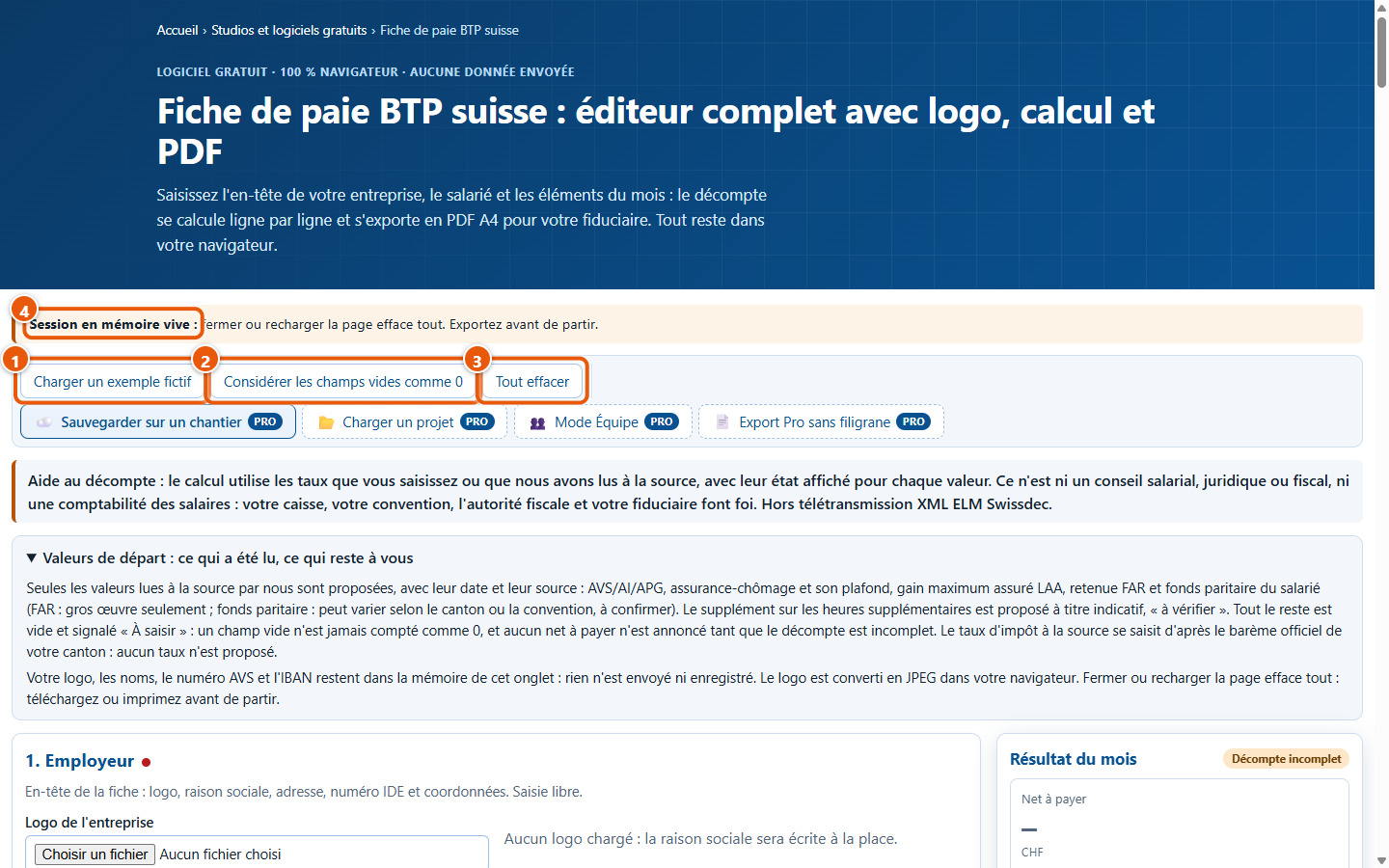
1Opening the software
The software is used in your browser, without an account or installation. The buttons at the top load a fictitious example (1), set empty fields to 0 (2) or clear everything (3). The banner (4) reminds you that the payslip remains in RAM: closing or reloading the page clears everything.
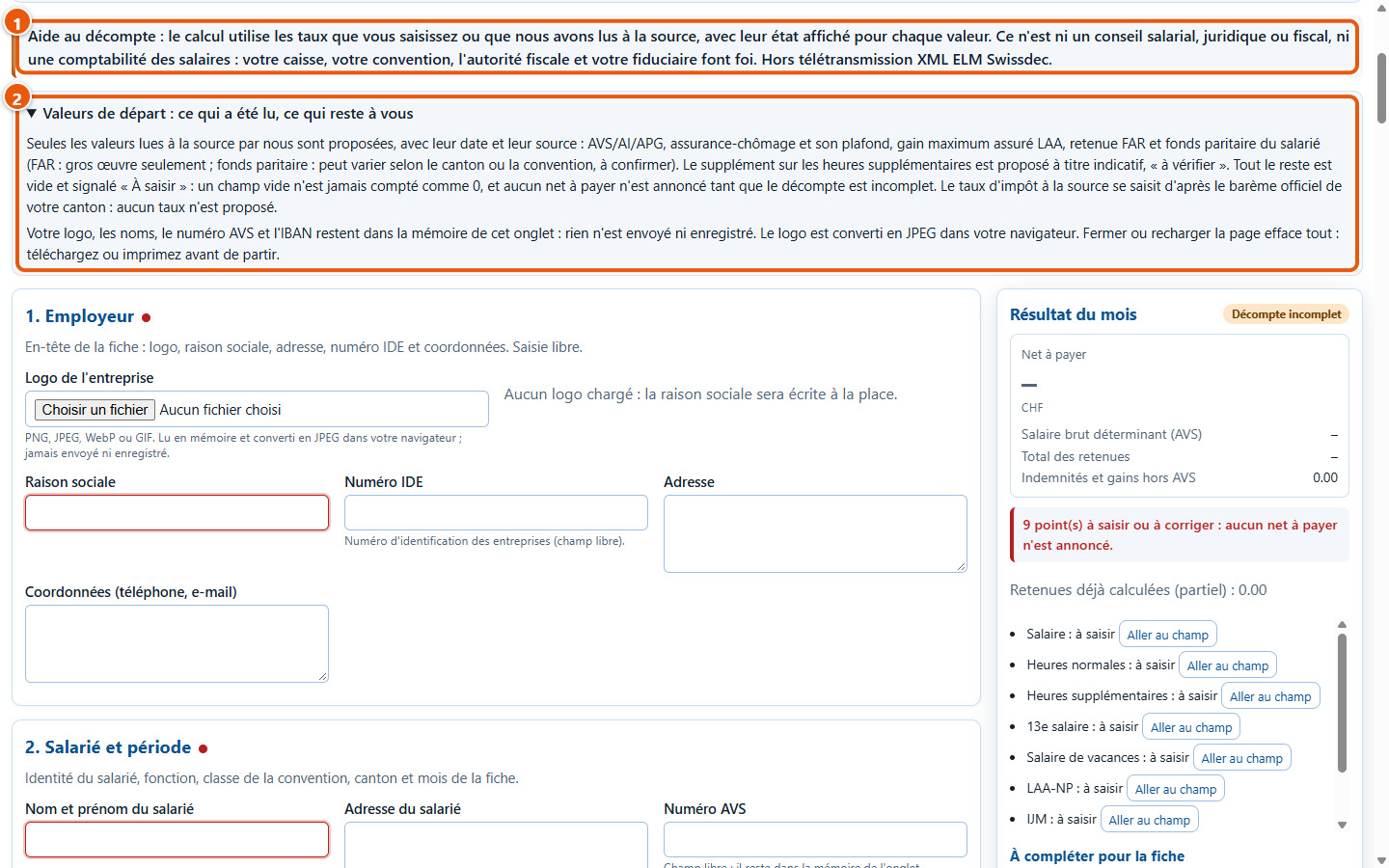
2Reading the disclaimer
The statement is an aid: it is neither salary advice, nor legal or tax advice (1). The box Valeurs de départ : ce qui a été lu, ce qui reste à vous (2) states which values were read from a source, with their date, and that everything else must be entered by you.
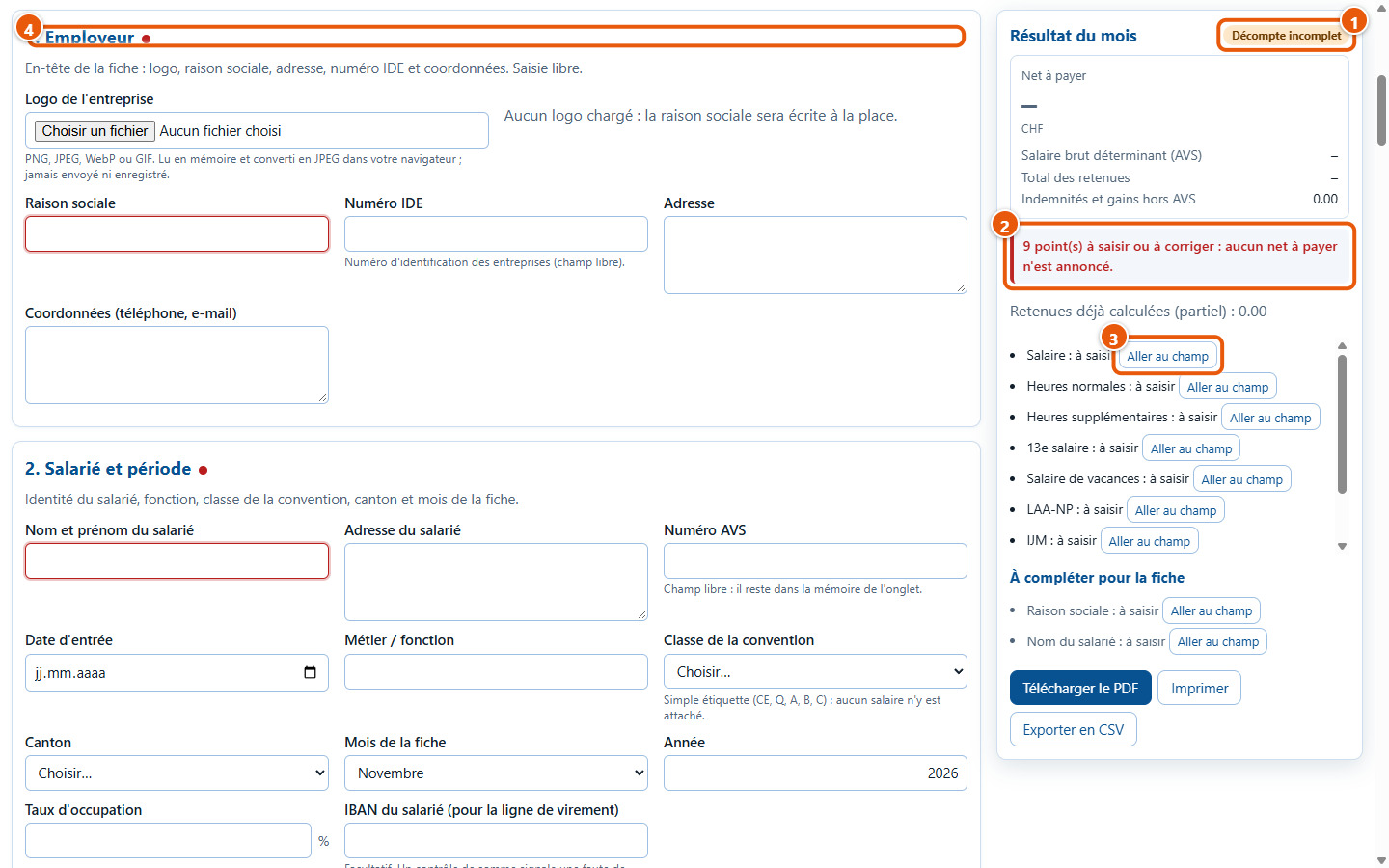
3Understanding « Décompte incomplet »
At the start, salary, hours and several rates are empty. The result displays « Décompte incomplet » (1), shows how many items remain to be entered (2) and does not state any net pay: an empty field is never counted as 0. Each item has an Aller au champ button (3) and the relevant sections display a red dot (4).
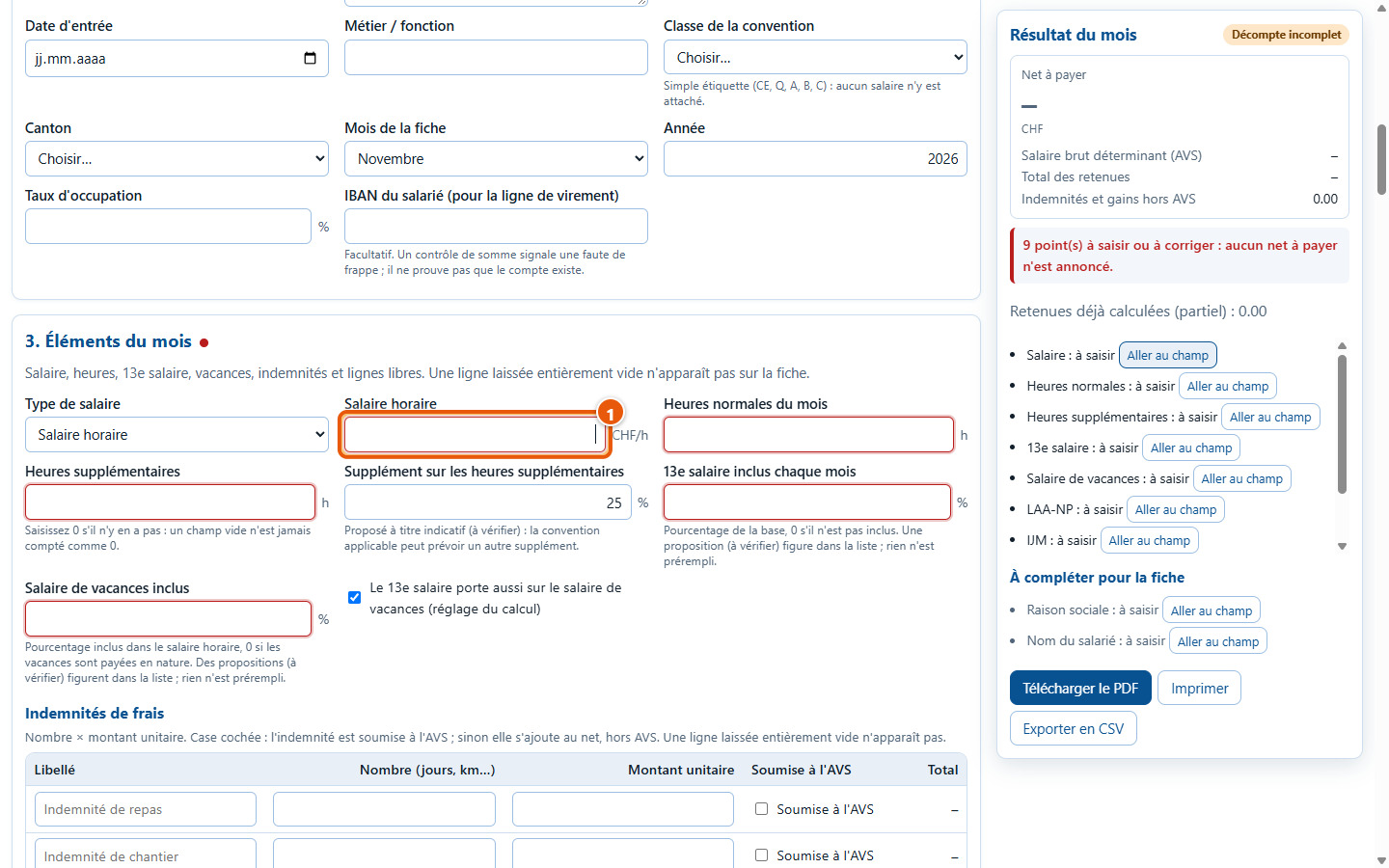
4Going to the field to complete
Click on Aller au champ: the page scrolls to the field to complete and places the cursor there (1).
5Loading a fictitious example
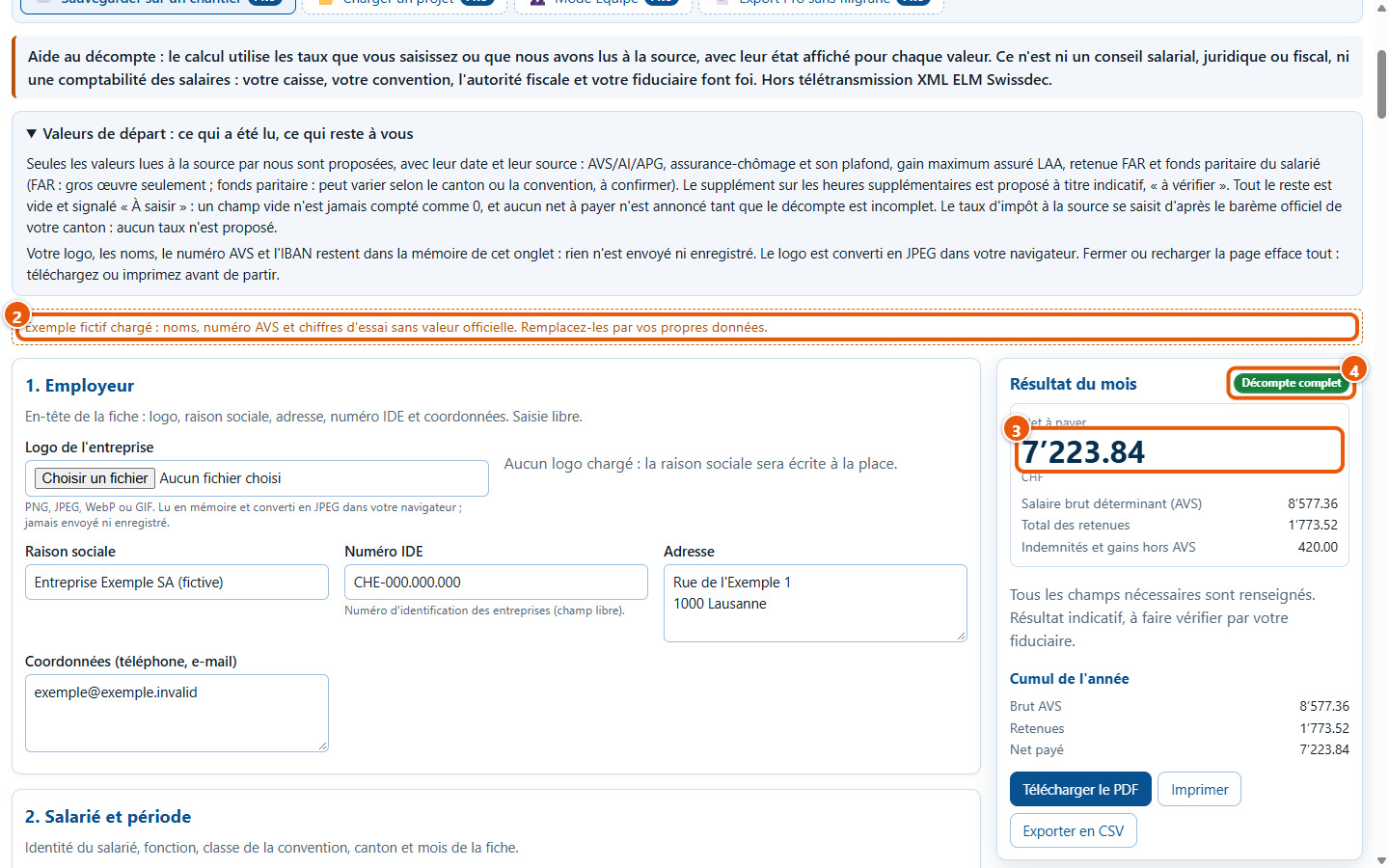
To try it without entering anything, click on Charger un exemple fictif (1). A banner reminds you that names and figures are fictitious, with no official value (2). The net pay is displayed (3) and the statement is complete (4).
2. Completing the payslip
6The employer and their logo
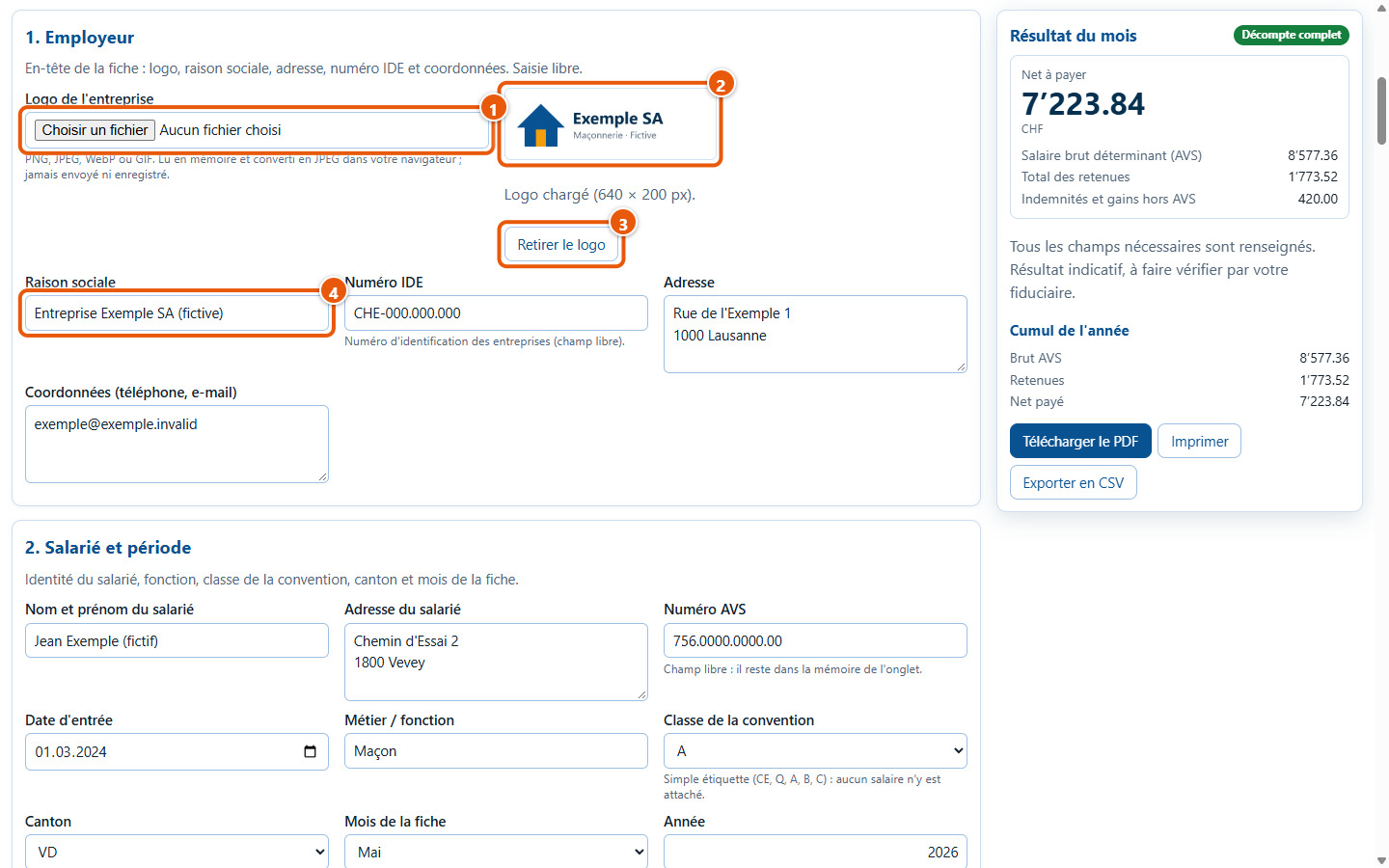
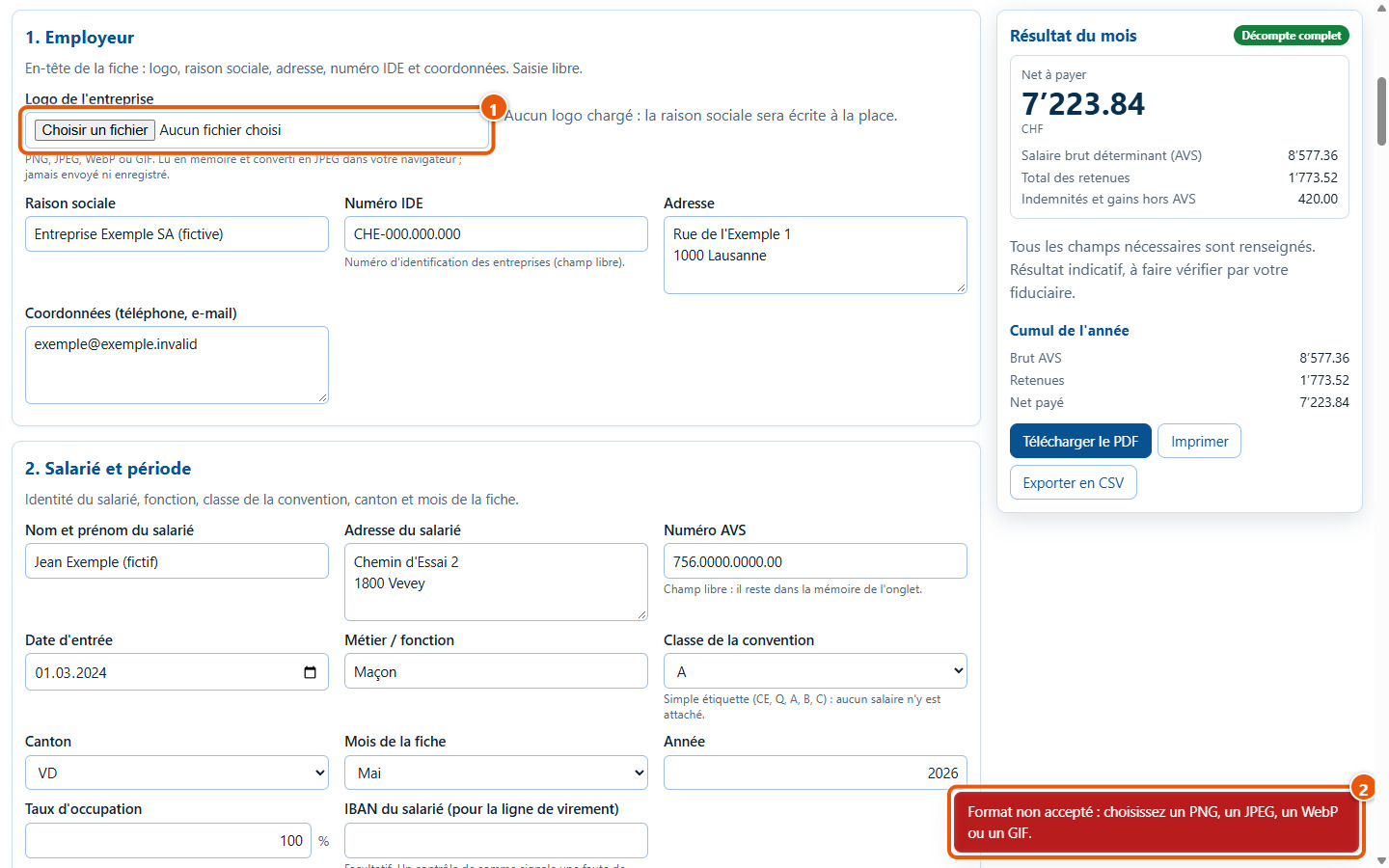
In section 1, choose a logo file (PNG, JPEG, WebP or GIF) (1). It is read in your browser, converted to JPEG and shown in preview (2); Retirer le logo (3) removes it. Without a logo, the company name (4) is written on the payslip. The file is never sent or saved.
7The employee and the period
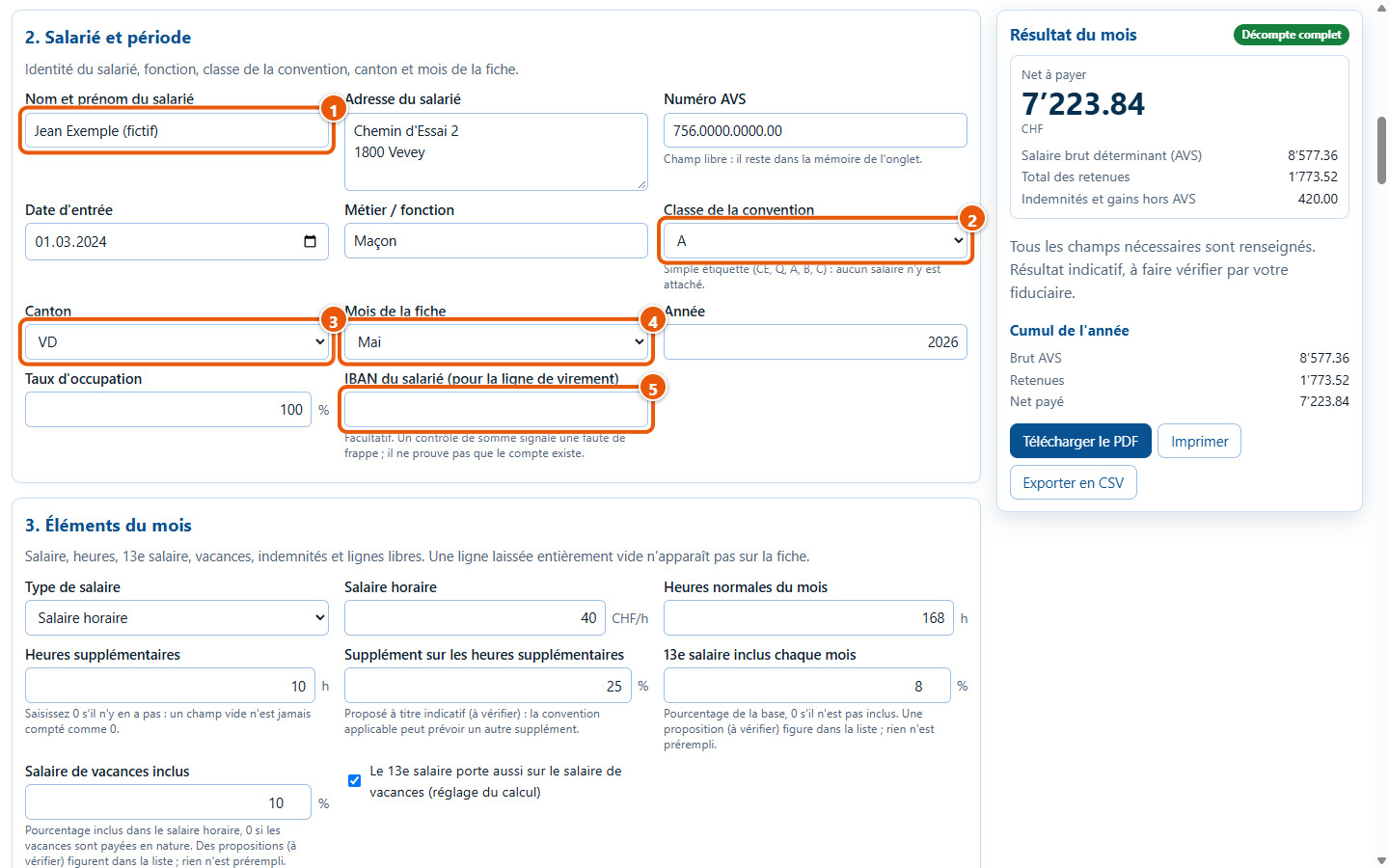
Section 2 takes the employee's name (1), their AVS number, trade, CCT wage class (2), canton (3) as well as the month and year of the payslip (4). The class is simply a label: no salary is tied to it. The IBAN (5) is optional: a check flags typing errors, but it does not prove the account exists.
8Monthly items
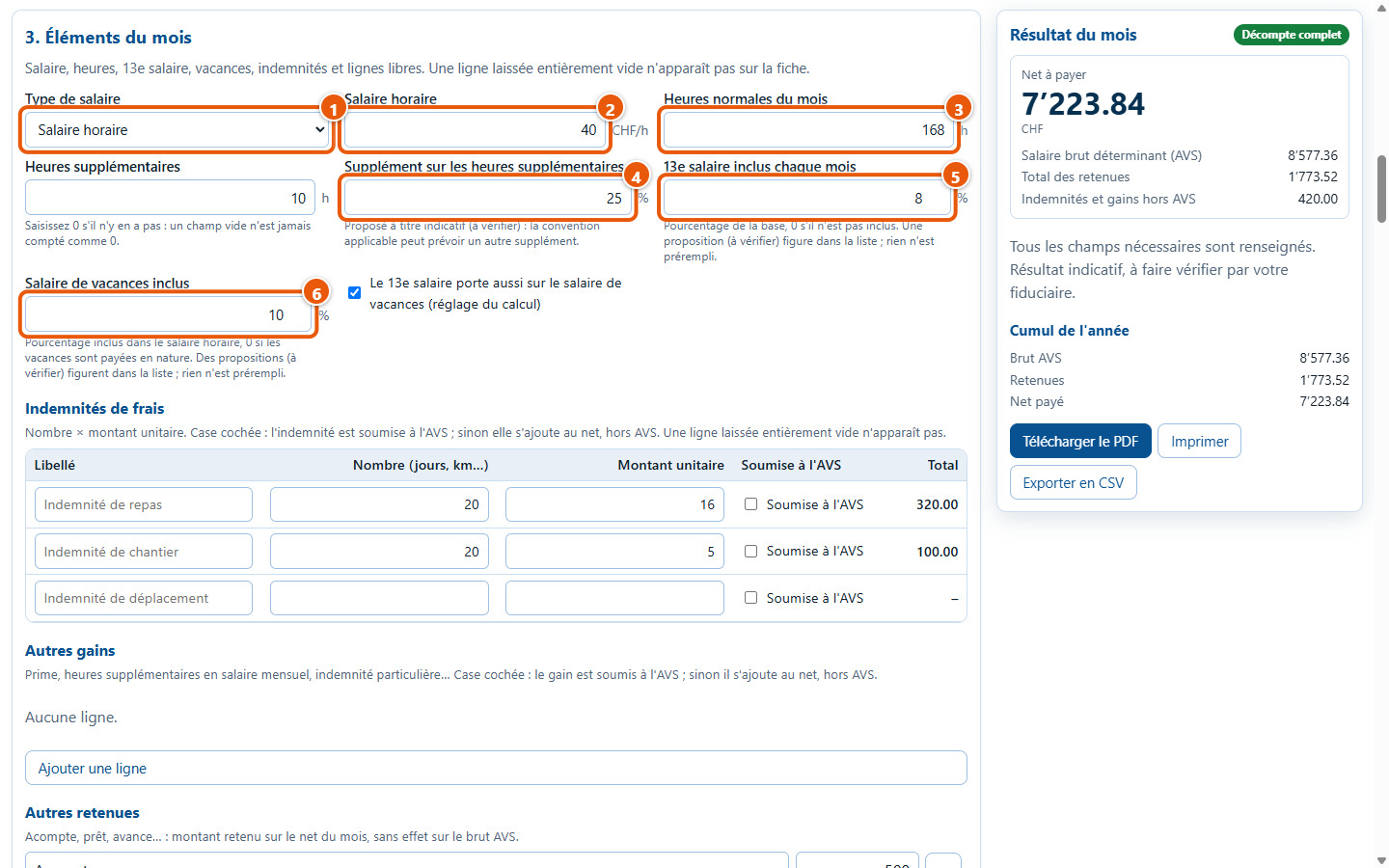
In section 3, choose the salary type (1), then enter the salary (2) and standard hours (3). A supplement for overtime is suggested for information only, « à vérifier » (4): you can change it. The 13th month salary (5) and holiday pay (6) are percentages included each month; nothing is pre-filled, enter 0 if they do not apply.
9Allowances, earnings and custom deductions
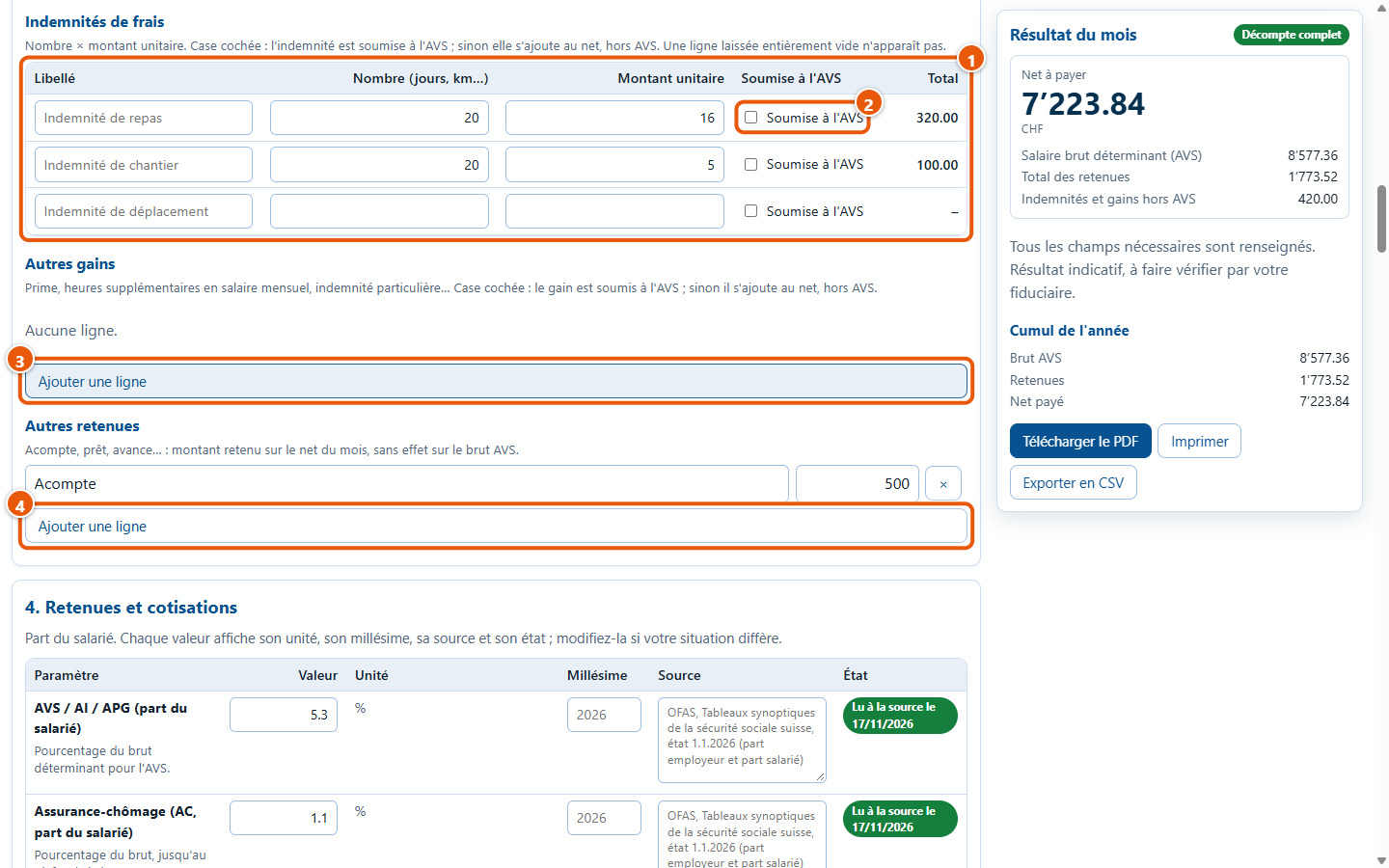
For each allowance (meals, construction site, travel), enter a quantity and a unit amount (1). The « Soumise à l'AVS » box (2) determines whether the amount is included in gross AVS pay or added to net pay. Ajouter une ligne under « Autres gains » (3) adds a bonus or custom earnings; under « Autres retenues » (4), an advance payment, a loan or an advance.
10Monthly salary
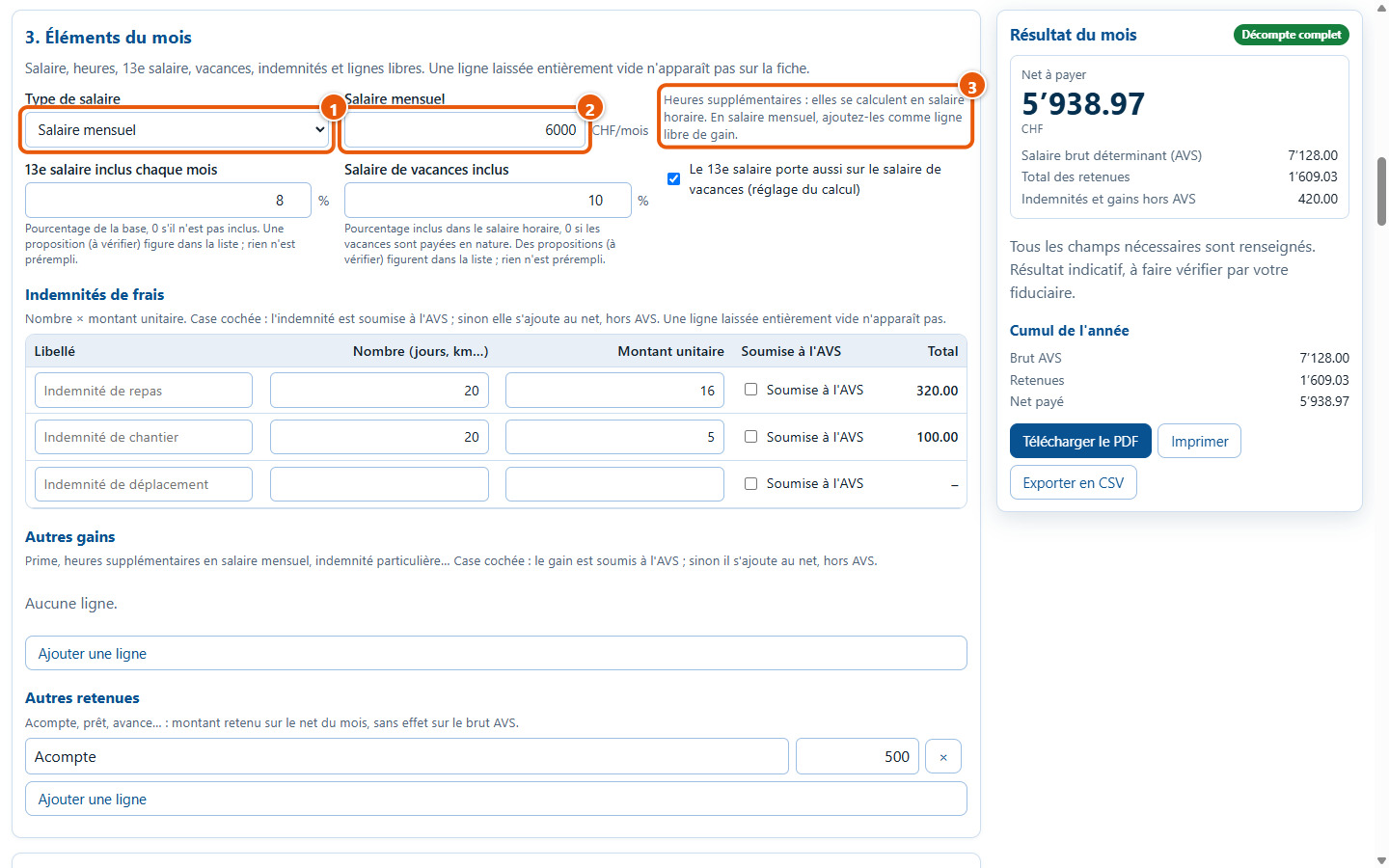
Select « Salaire mensuel » (1): the salary field becomes « Salaire mensuel » (2) and the hours for the month disappear. Overtime is not calculated on a monthly salary basis: add it as a custom earnings line (3).
3. Deductions, settings and cumulative totals
11Deductions and their status
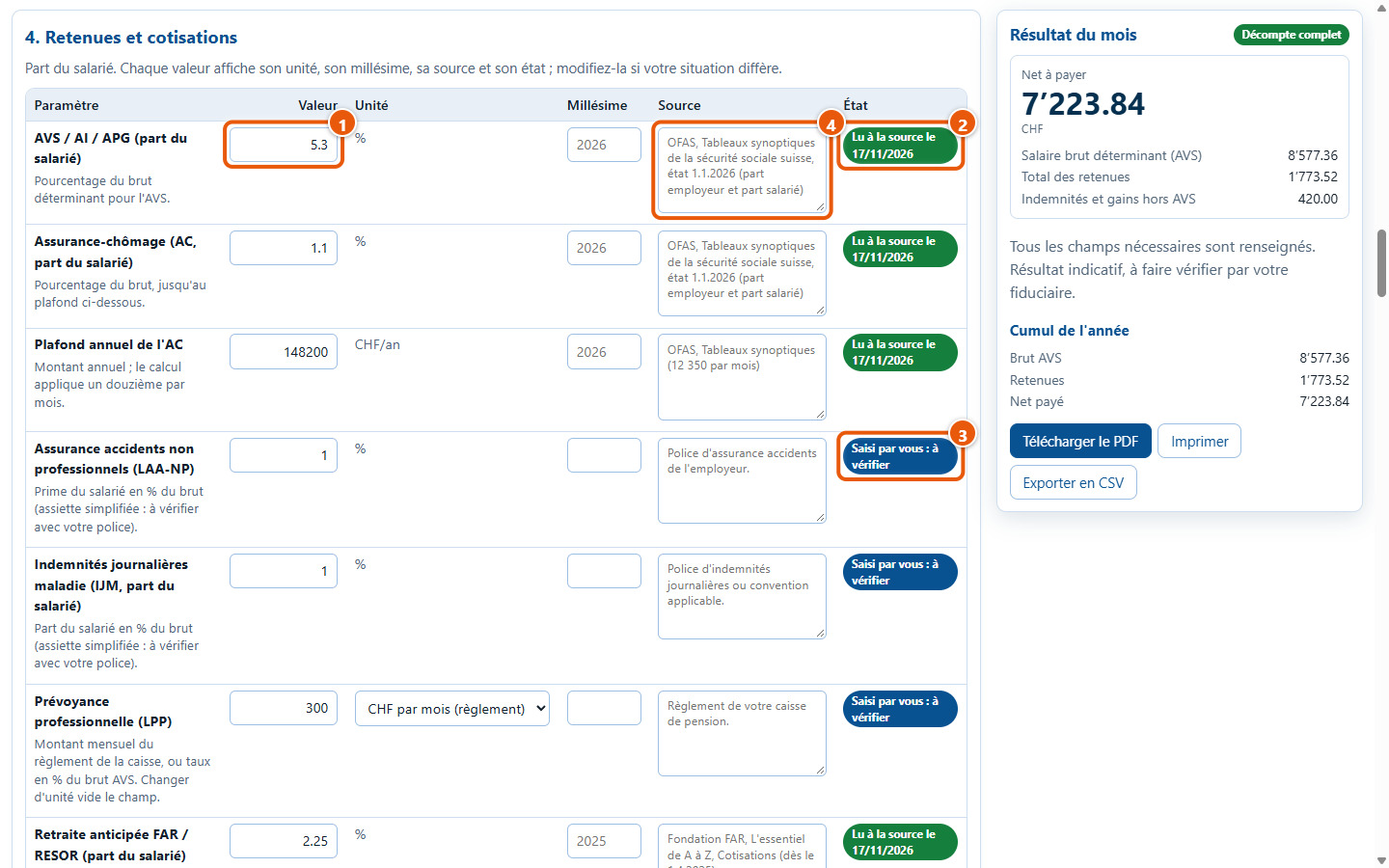
Section 4 lists each employee deduction with its value (1), unit, vintage, source and status. « Lu à la source » (2) indicates a value read from a source on the date shown; « Saisi par vous : à vérifier » (3) indicates a value you entered. The source (4) can be changed.
12Modifying a value read from a source
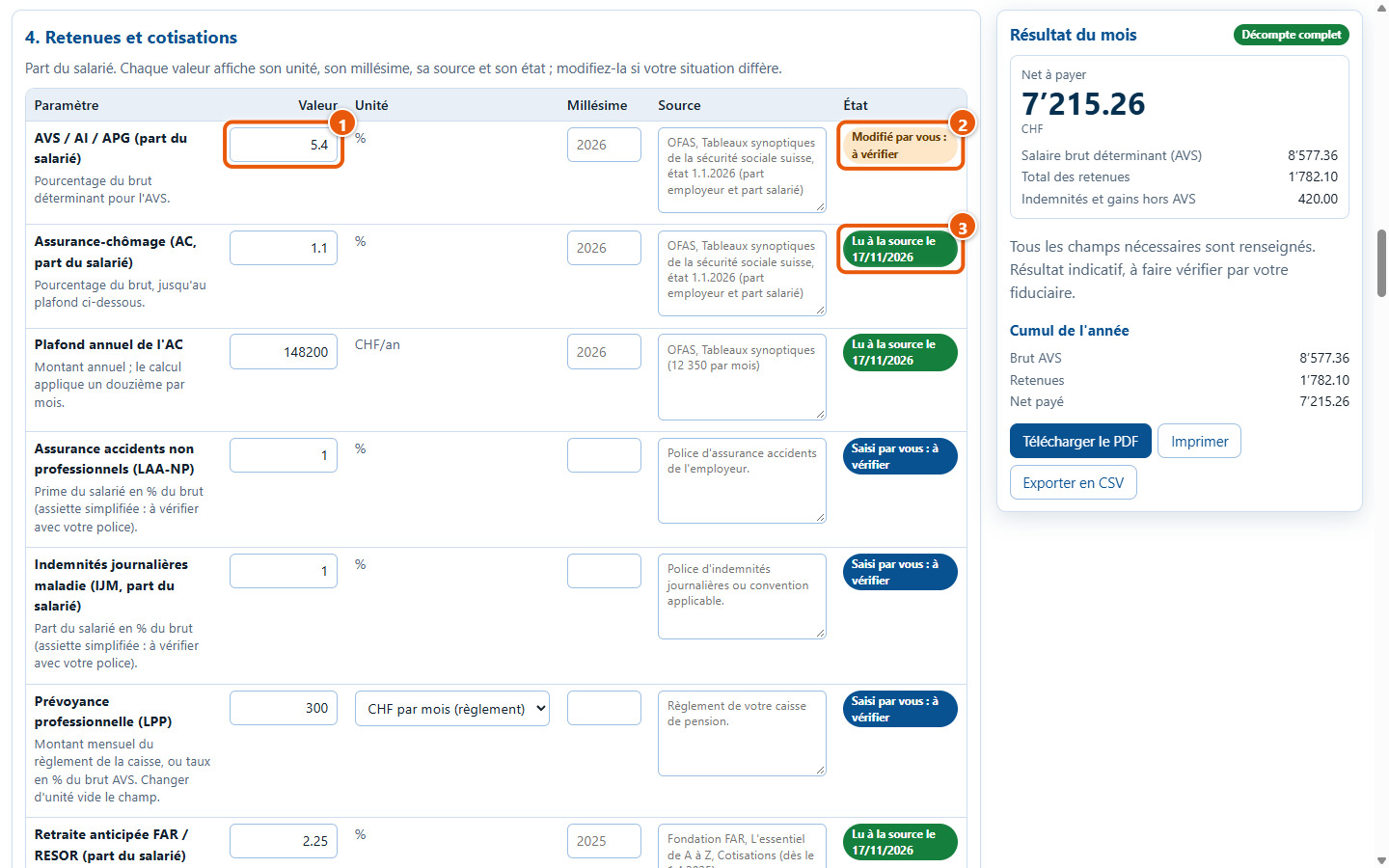
If you change a value read from a source (1), its status becomes « Modifié par vous : à vérifier » (2). The other lines keep their status (3). The result updates immediately.
13Occupational pension
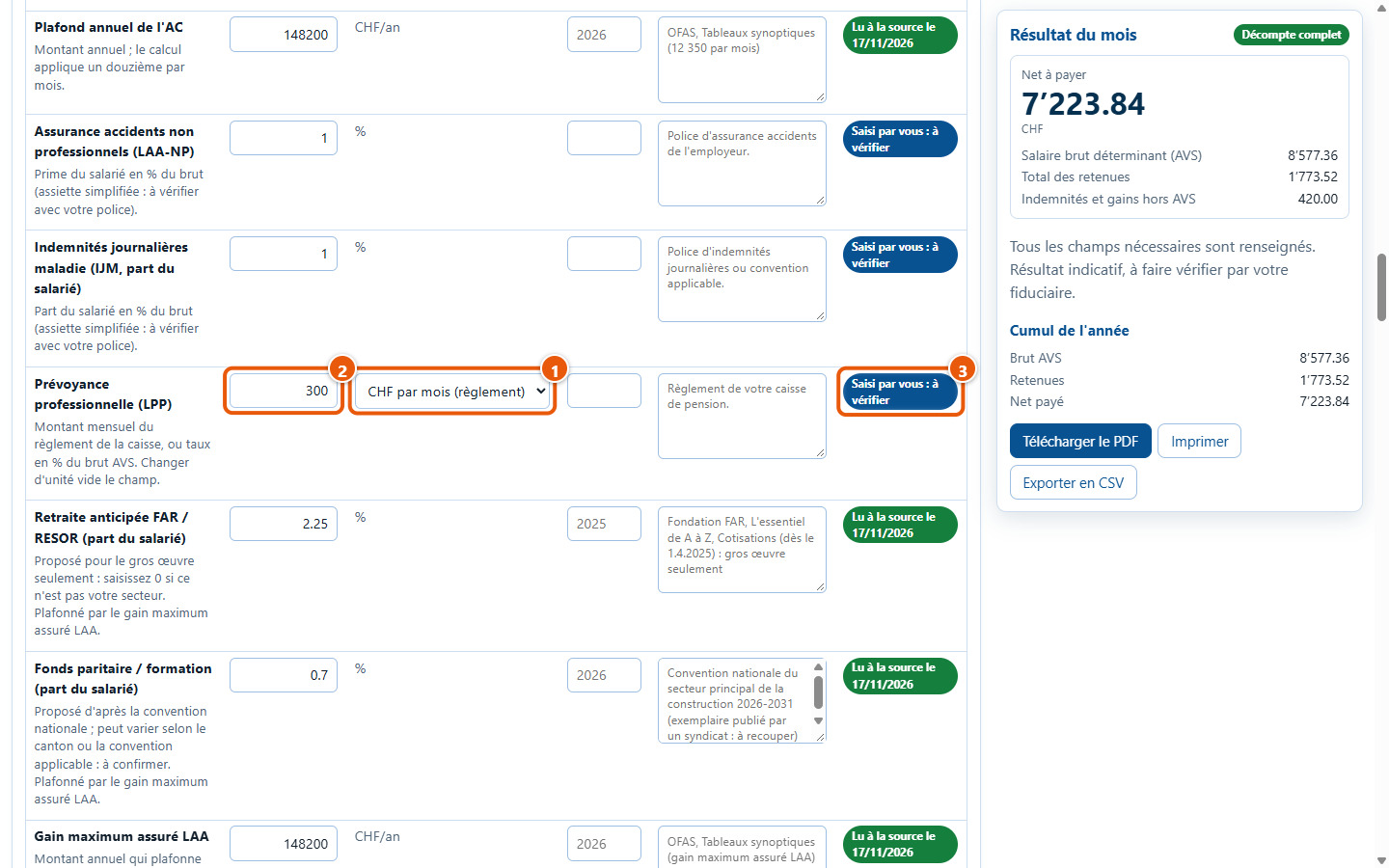
Occupational pension (LPP) is entered either as a monthly amount, as specified in your pension fund regulations, or as a percentage of gross AVS earnings: select the unit (1), then enter the value (2). Changing the unit clears the field, as the same figure has a different meaning. The status (3) indicates that the value was entered by you.
14Rounding of deductions
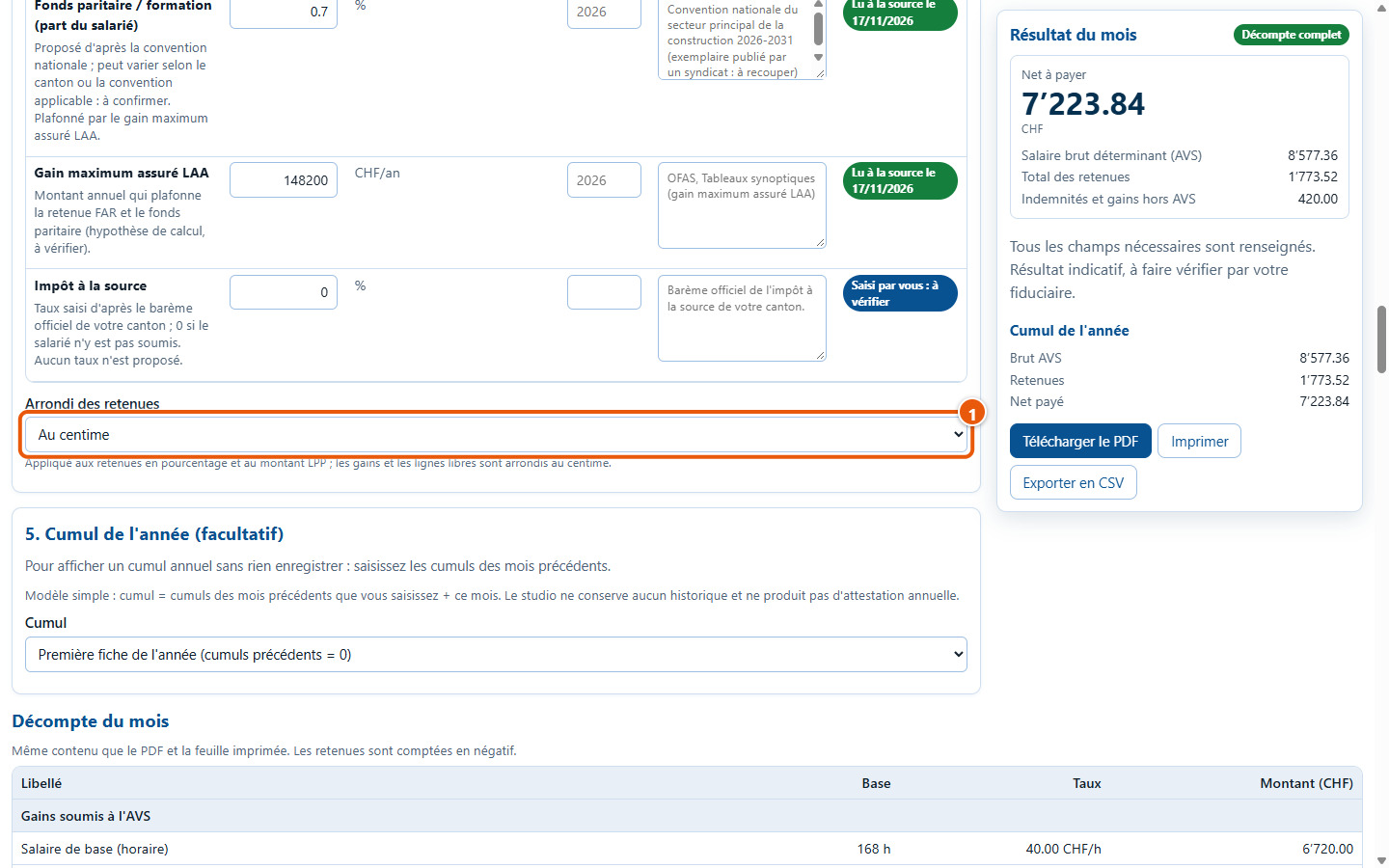
Choose whether to round deductions to the nearest centime or to 5 centimes (1), according to your fund's practice. Rounding applies to percentage deductions and to the occupational pension amount; earnings and custom lines are rounded to the nearest centime.
15Treating empty fields as 0
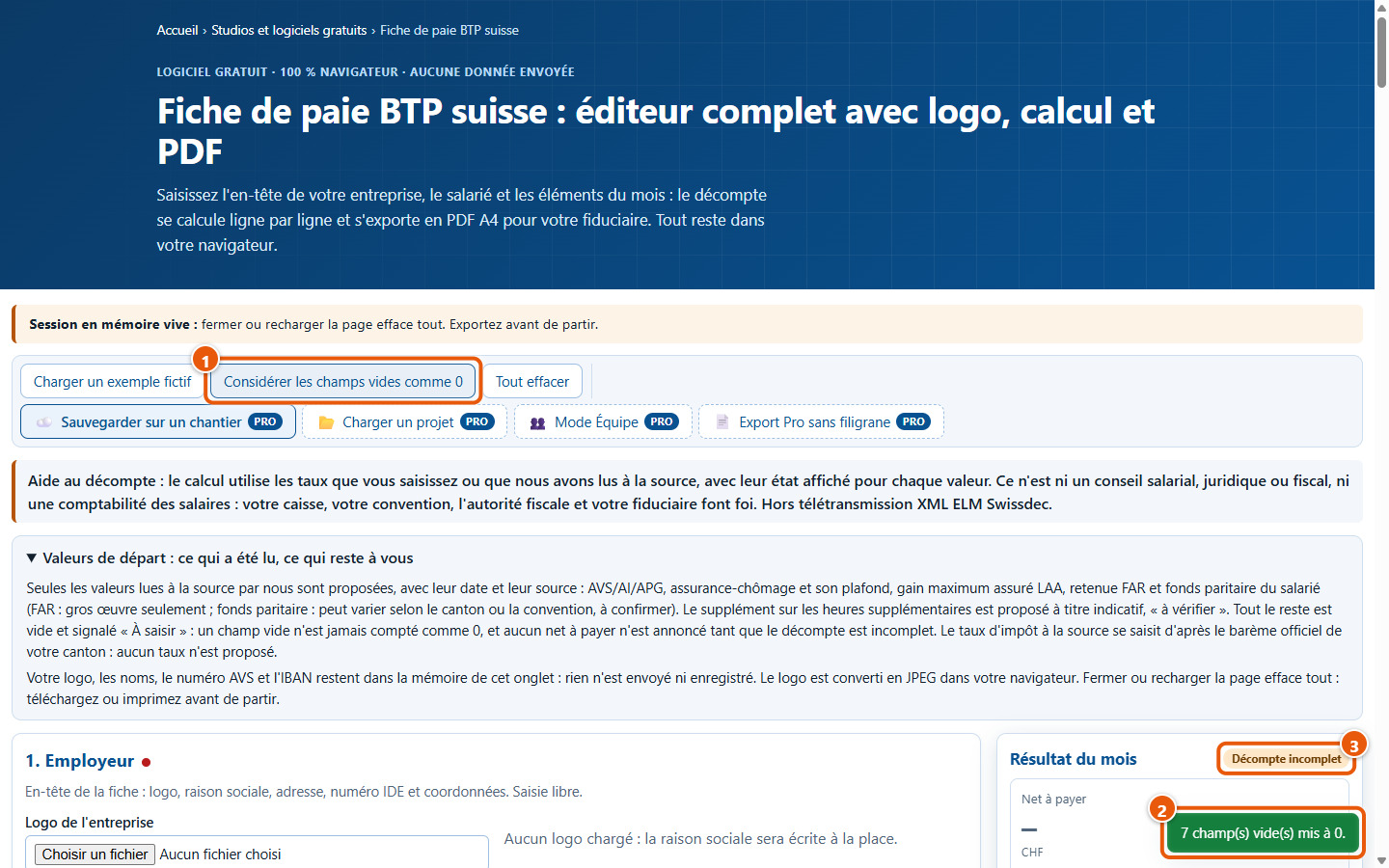
The Considérer les champs vides comme 0 button (1) sets empty fields to 0 where 0 is meaningful (overtime, 13th-month pay, holidays, insurance, occupational pension, withholding tax) and confirms this in a message (2). It never alters salary, standard hours, AVS, unemployment insurance or caps: the statement remains incomplete (3) as long as these are missing.
16Yearly cumulative total
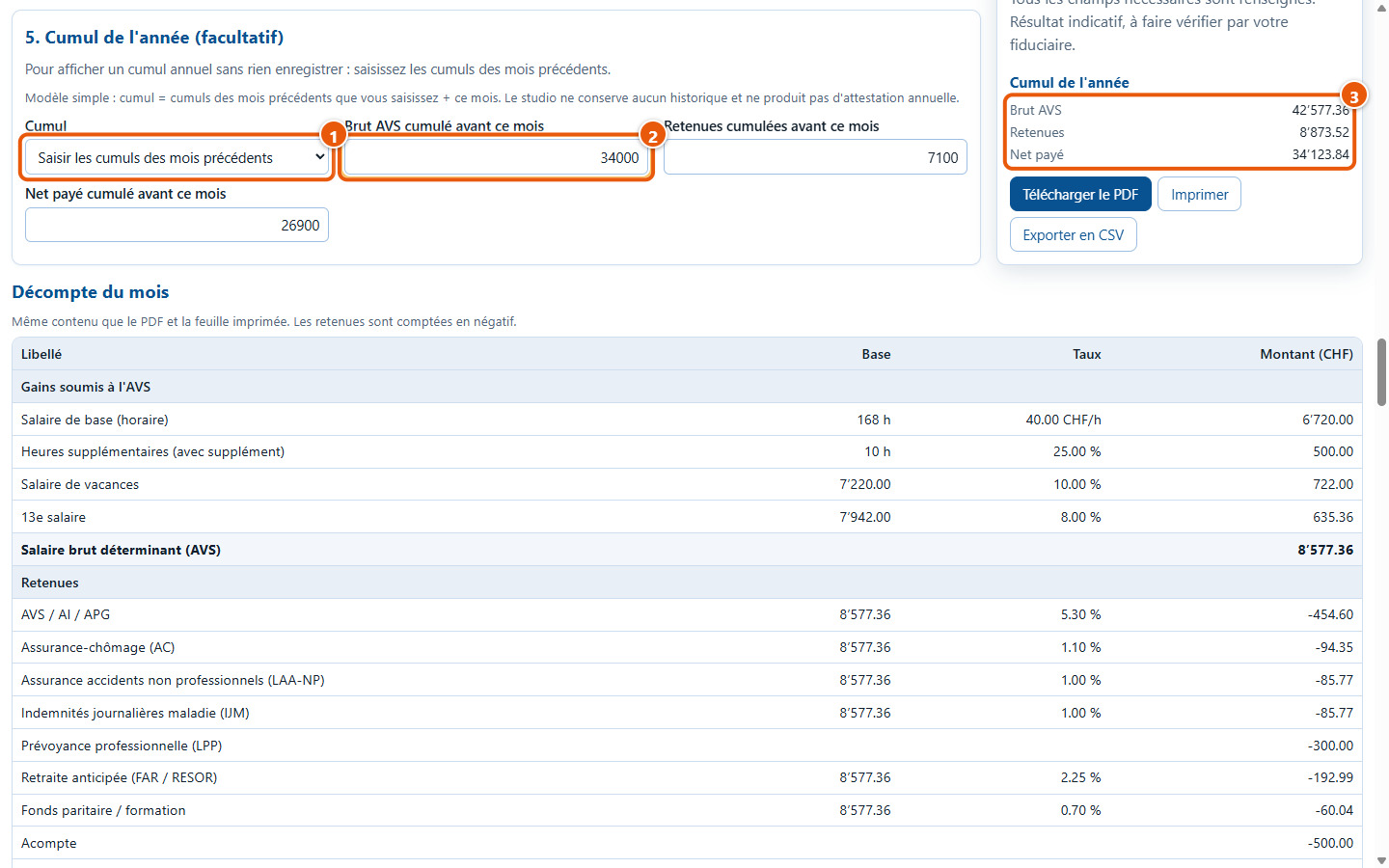
In section 5, select « Saisir les cumuls des mois précédents » (1), then enter the amounts already paid (2). The result shows the cumulative total including this month (3). This is a simple template: the software keeps no history and does not generate an annual salary certificate. With « Première fiche de l'année », previous cumulative totals are set to 0: this is your choice.
4. Reading the result
17Monthly result
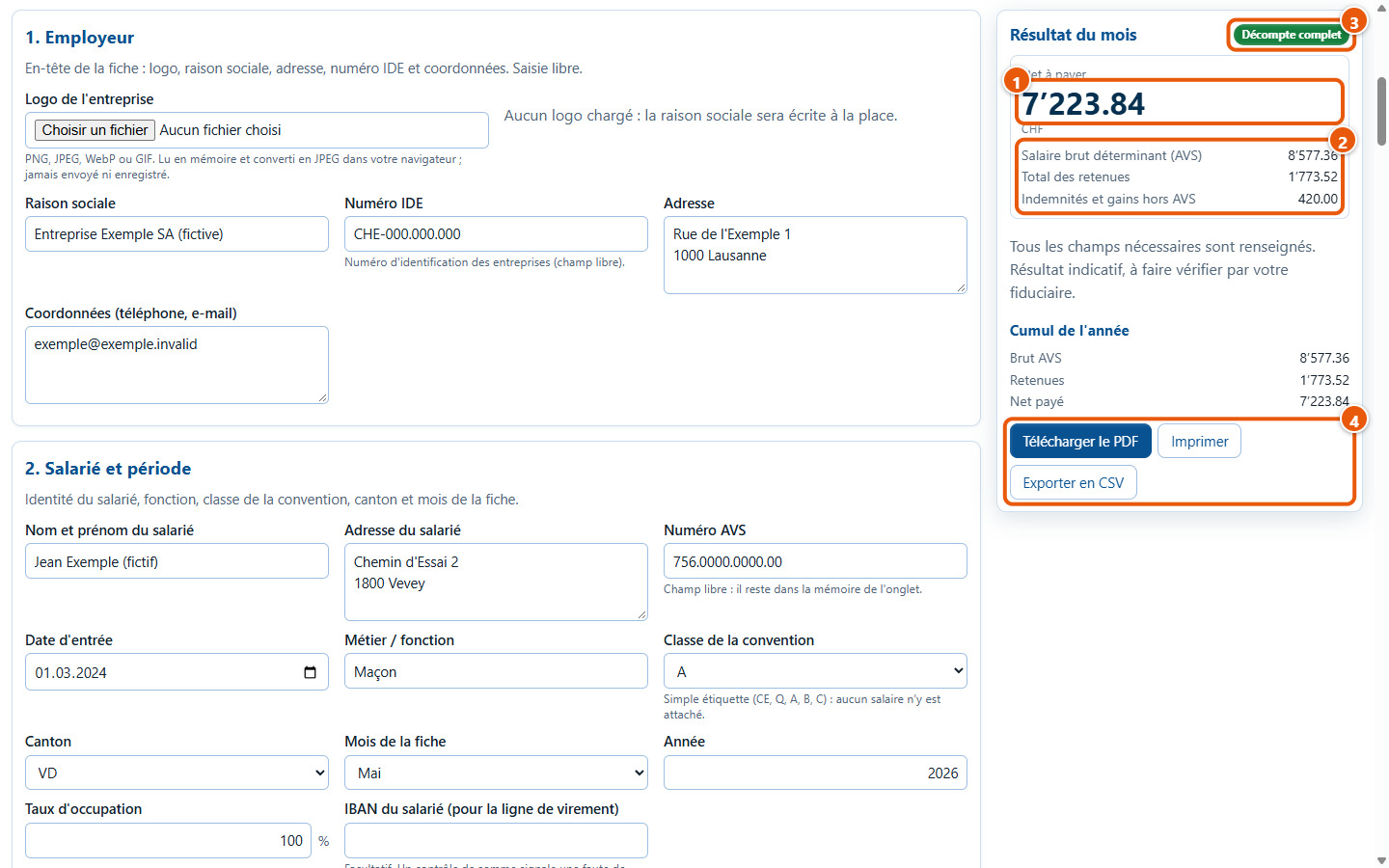
On the right, the panel updates with every entry: net pay (1), then the relevant gross earnings for AVS, total deductions and non-AVS allowances (2). The « Décompte complet » badge (3) appears once all fields are completed. The export buttons (4) are below. The result is indicative: have it checked by your fiduciary.
18Line-by-line statement
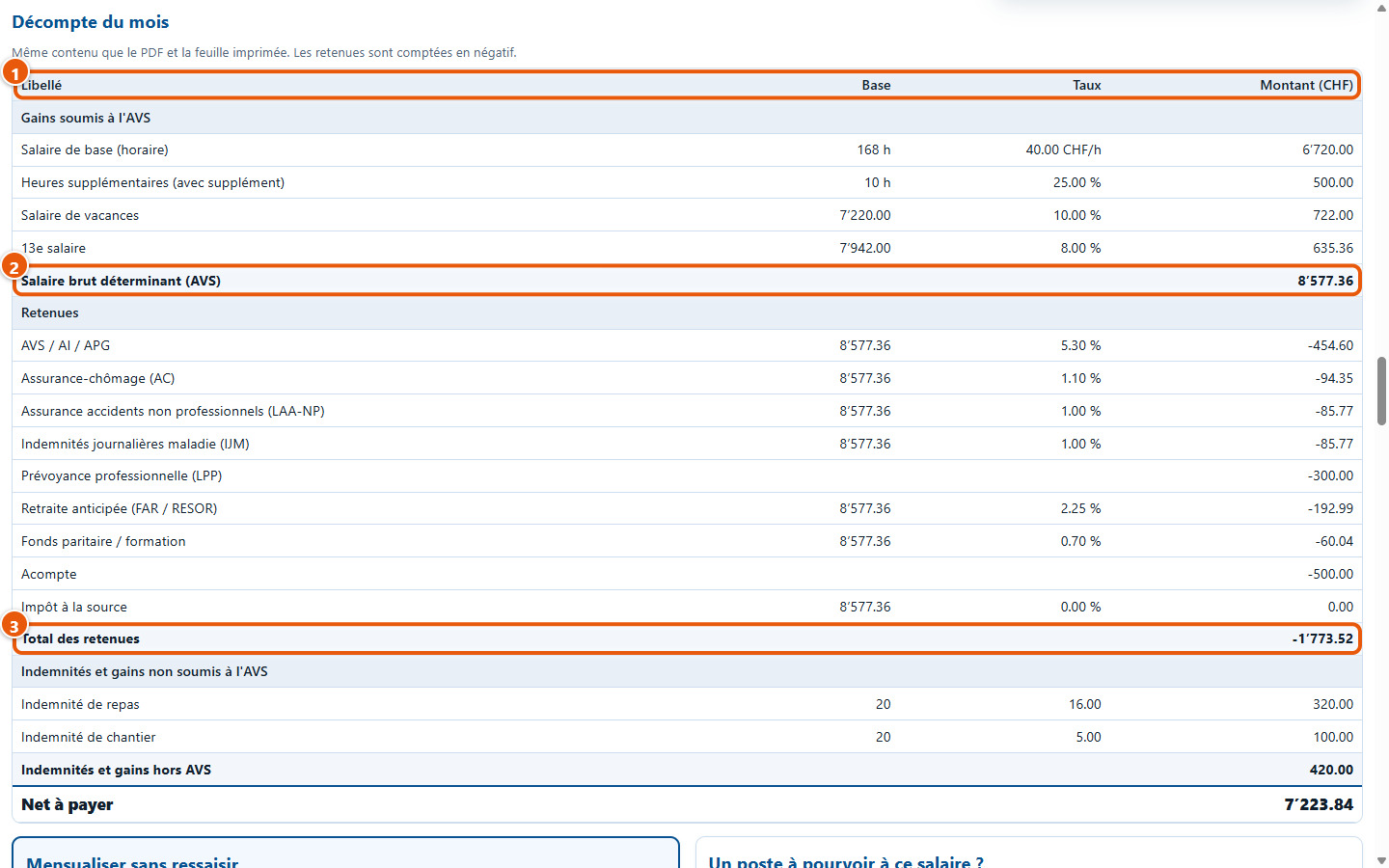
The « Décompte du mois » table (1) shows the lines on the PDF: earnings subject to AVS, then the relevant gross amount (2), followed by deductions, shown as negative figures, with their base and rate. The total deductions (3) concludes this section.
19From gross to net pay
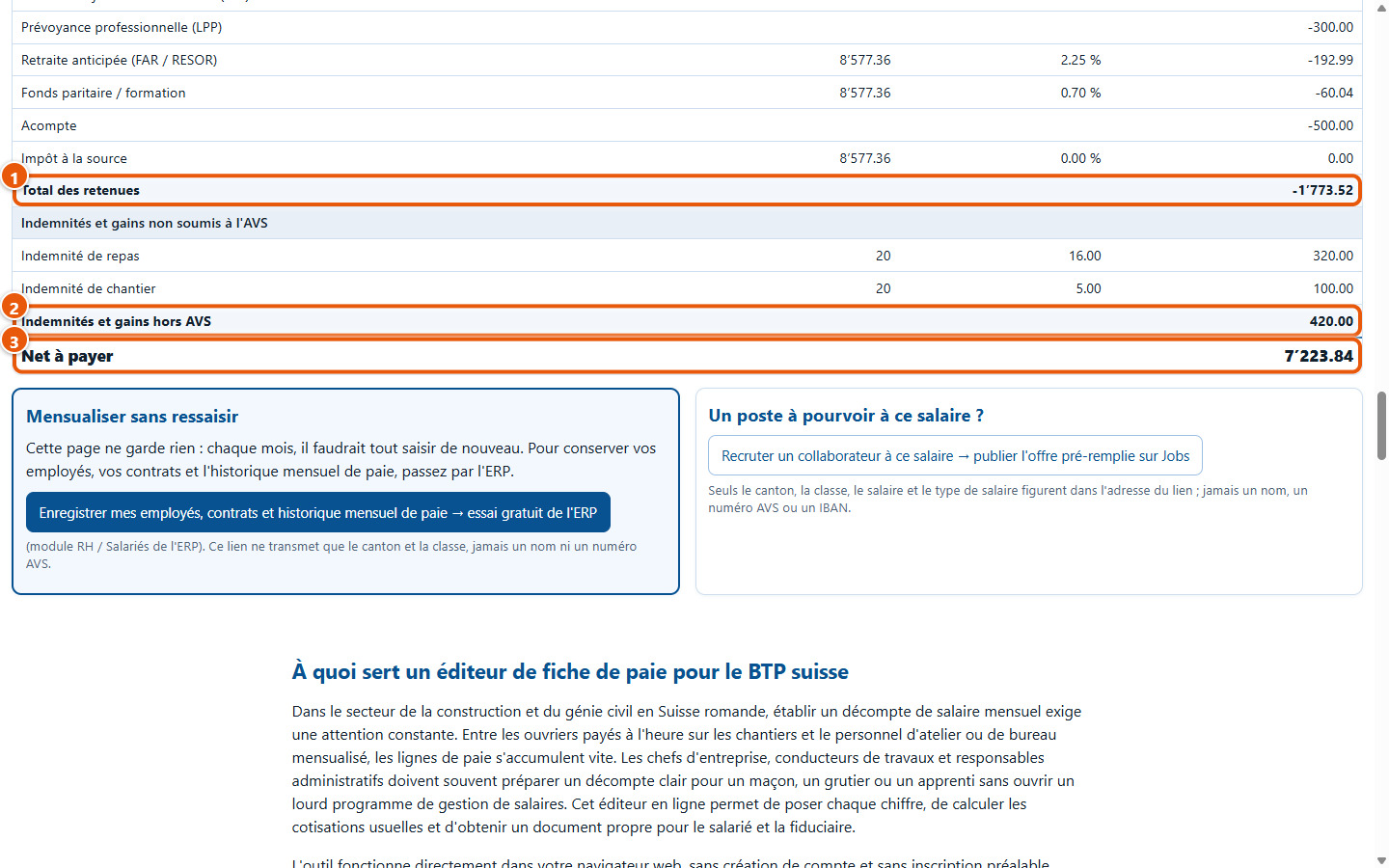
Below total deductions (1) come allowances and earnings not subject to AVS (2), followed by net pay (3): gross AVS earnings, minus deductions, plus non-AVS allowances.
5. Exporting and printing
20Selecting the standard version
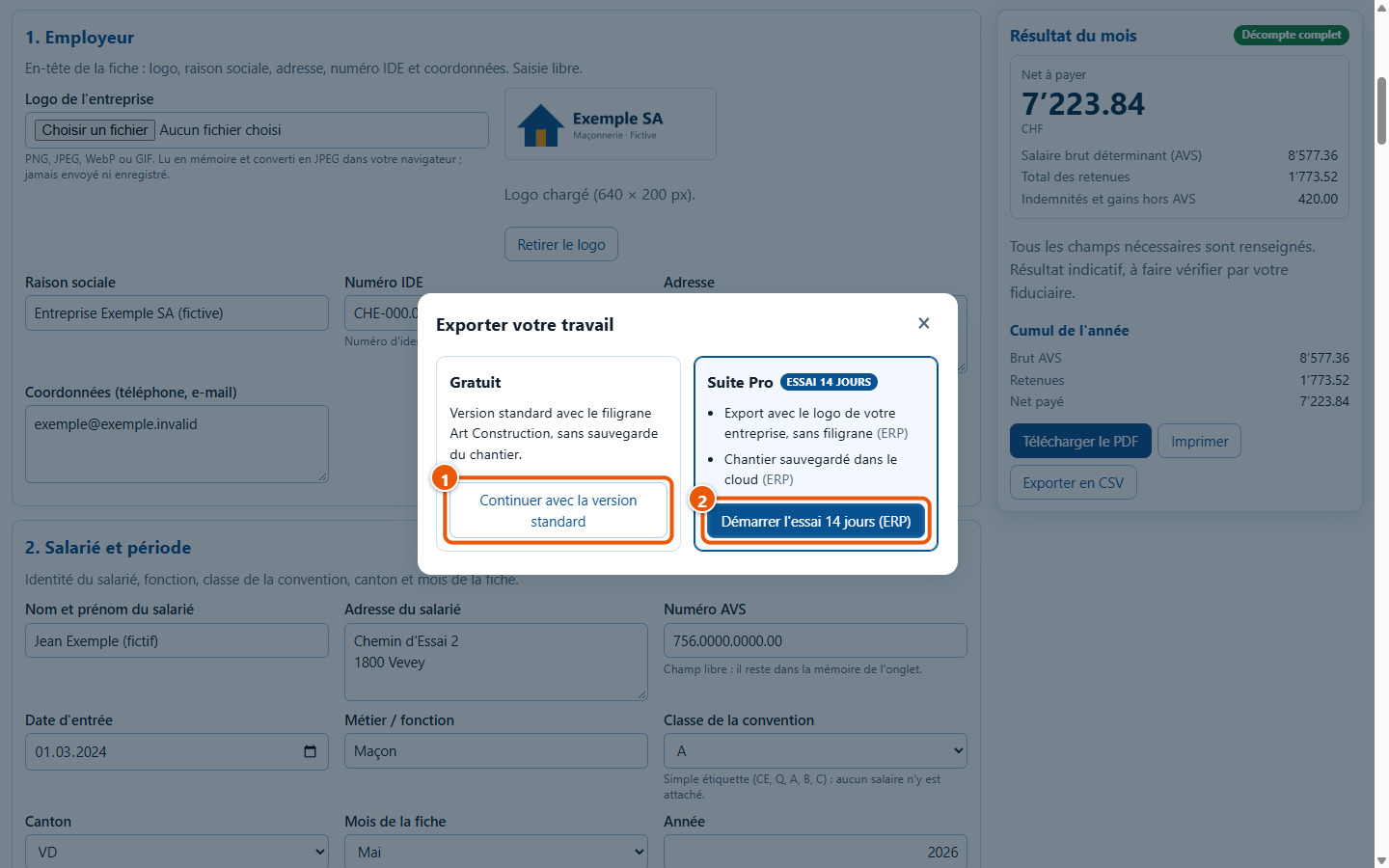
On the first export of your visit, a window presents two options: continue with the standard version, featuring the Art Construction watermark (1), or start the 14-day ERP trial (2), which opens in a new tab: your entries remain on the page. Once the standard version is chosen, the window does not reappear until the page is reloaded.
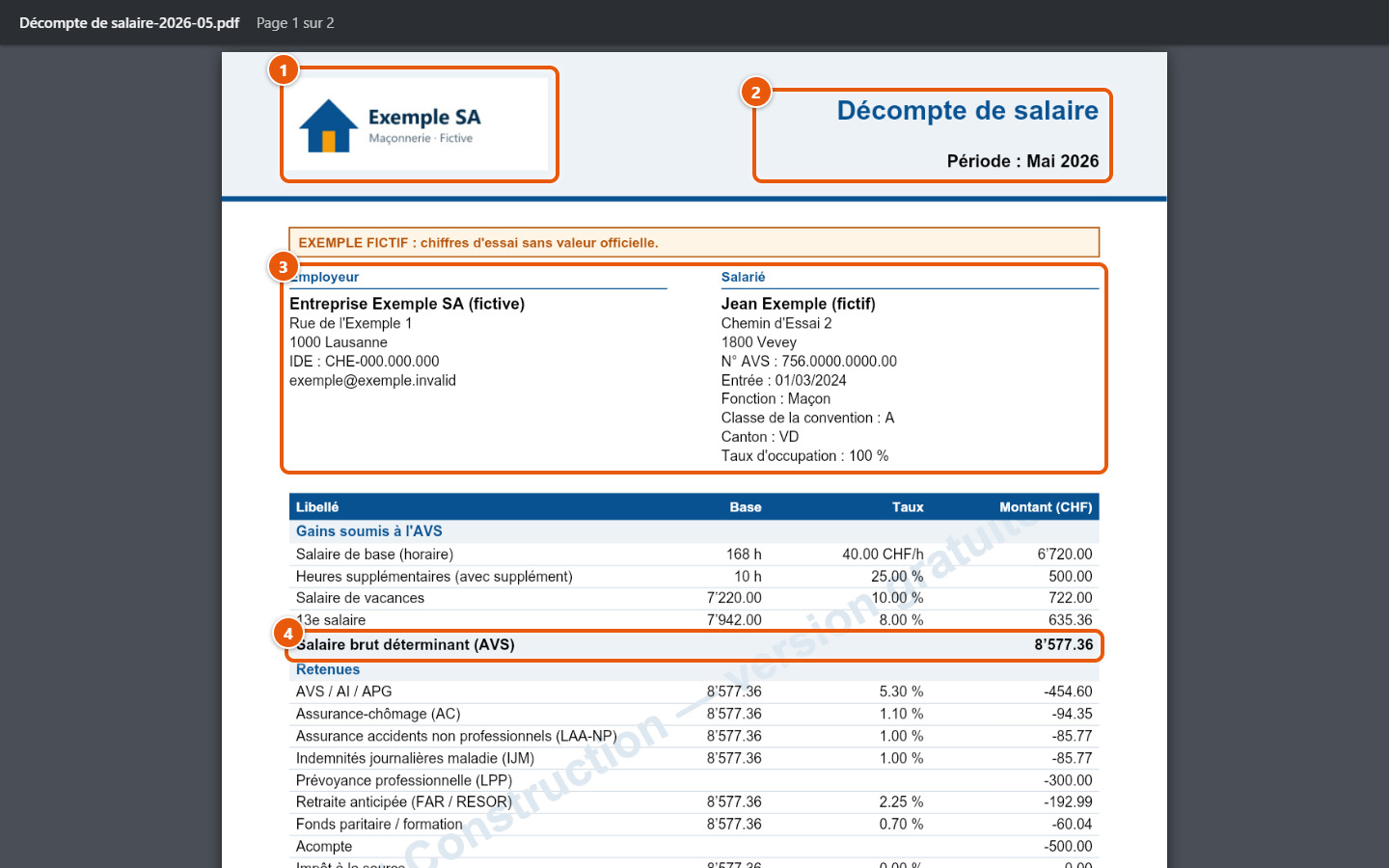
21The PDF: header and statement lines
Télécharger le PDF saves an A4 file. The header includes the logo (1), or company name, followed by the title and the period (2). Next come the employer and employee sections (3), then the earnings and deductions table, with the relevant gross amount (4). The watermark « Art Construction — version gratuite » runs diagonally across each page.
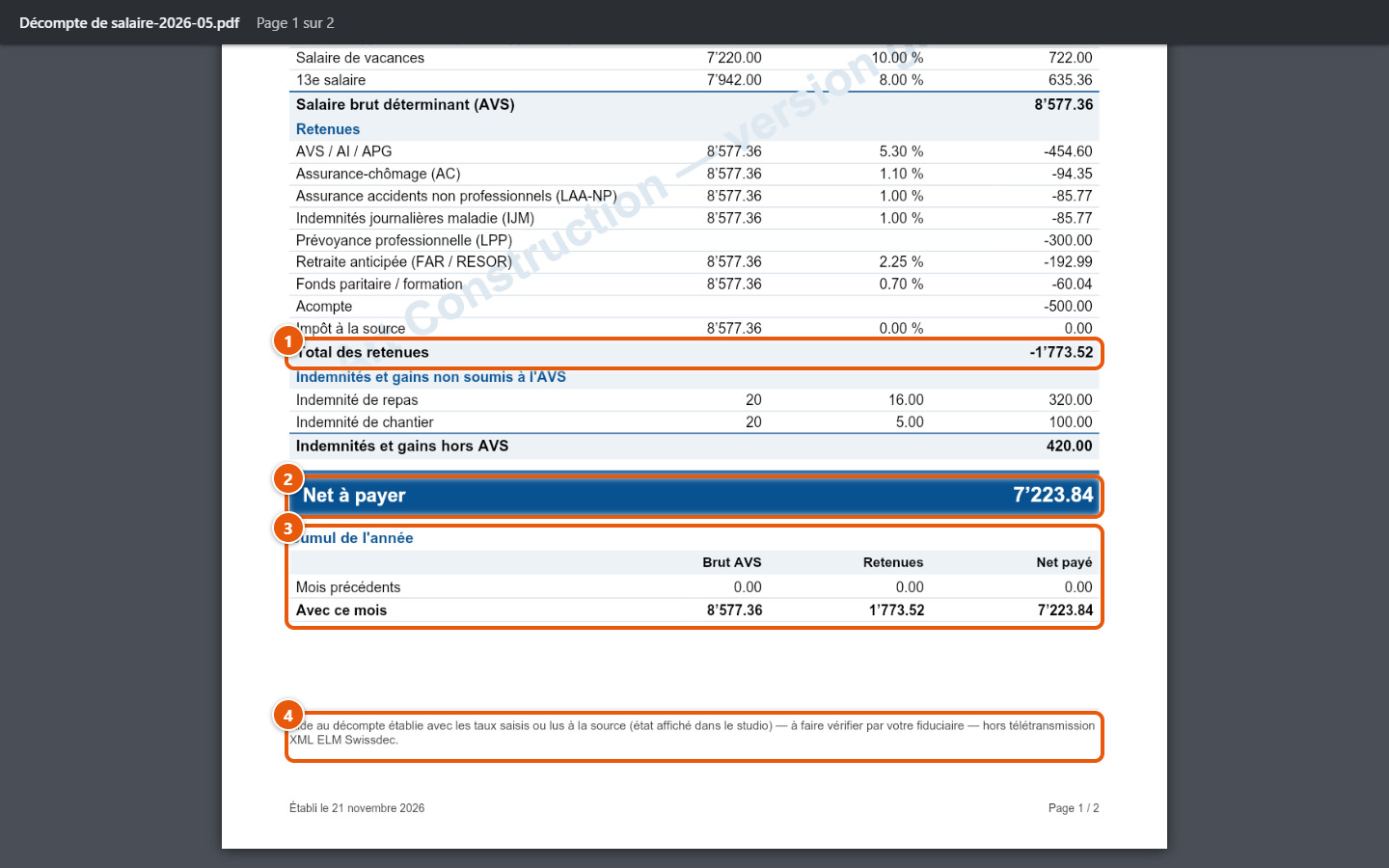
22The PDF: net payable, year-to-date and footer
The table ends with total deductions (1) and net payable (2), followed by the year-to-date total (3). At the foot of each page, the note « aide au décompte » reminds you to have the document checked by your fiduciary (4), along with the issue date and page number. If you entered an IBAN and the statement is complete, a transfer line is added.
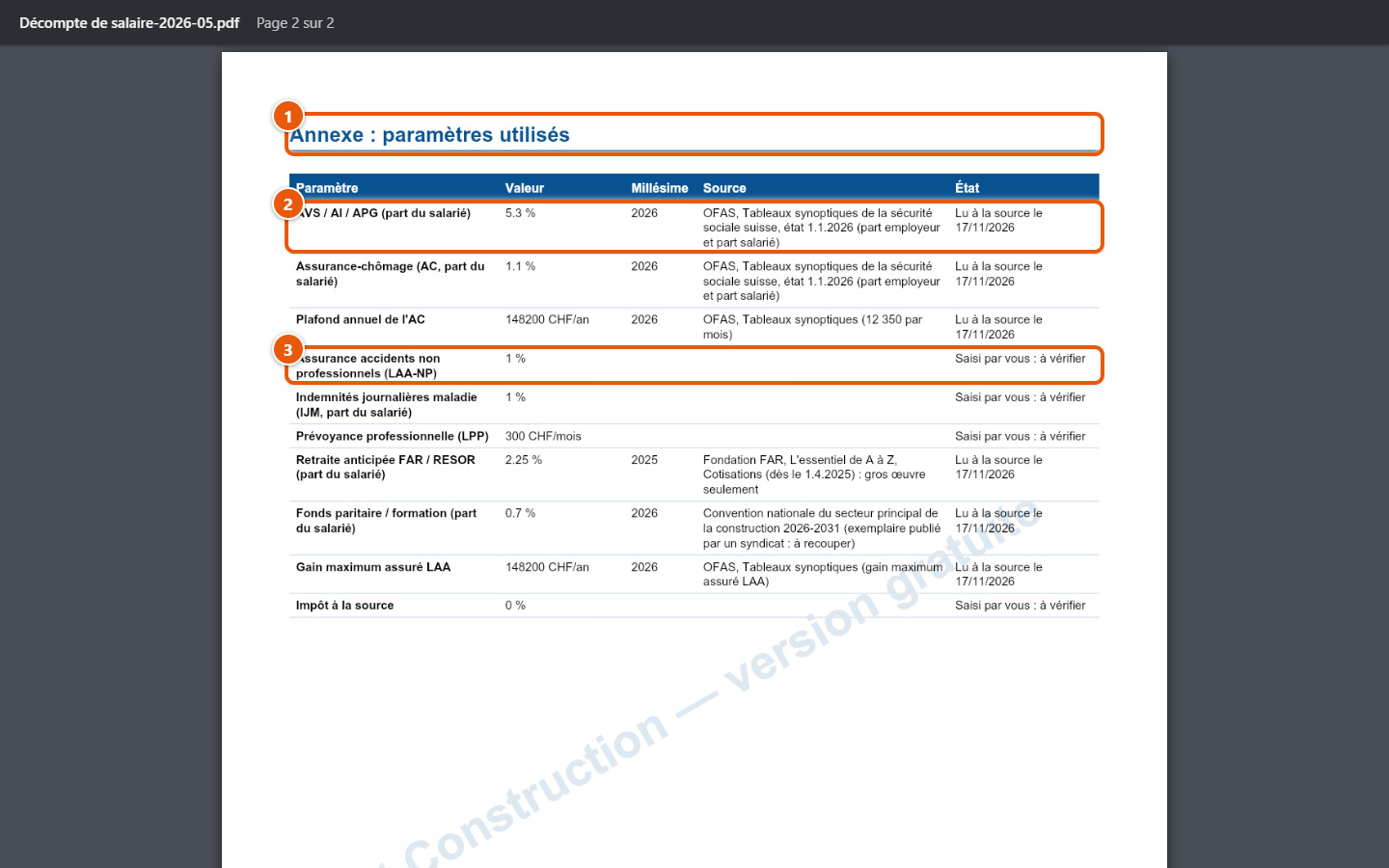
23The appendix: parameters used
The last page is the appendix (1): it details each deduction with its value, year, source and status. A value read from the source (2) and a value entered by you (3) are distinguished by the status, written out in full.
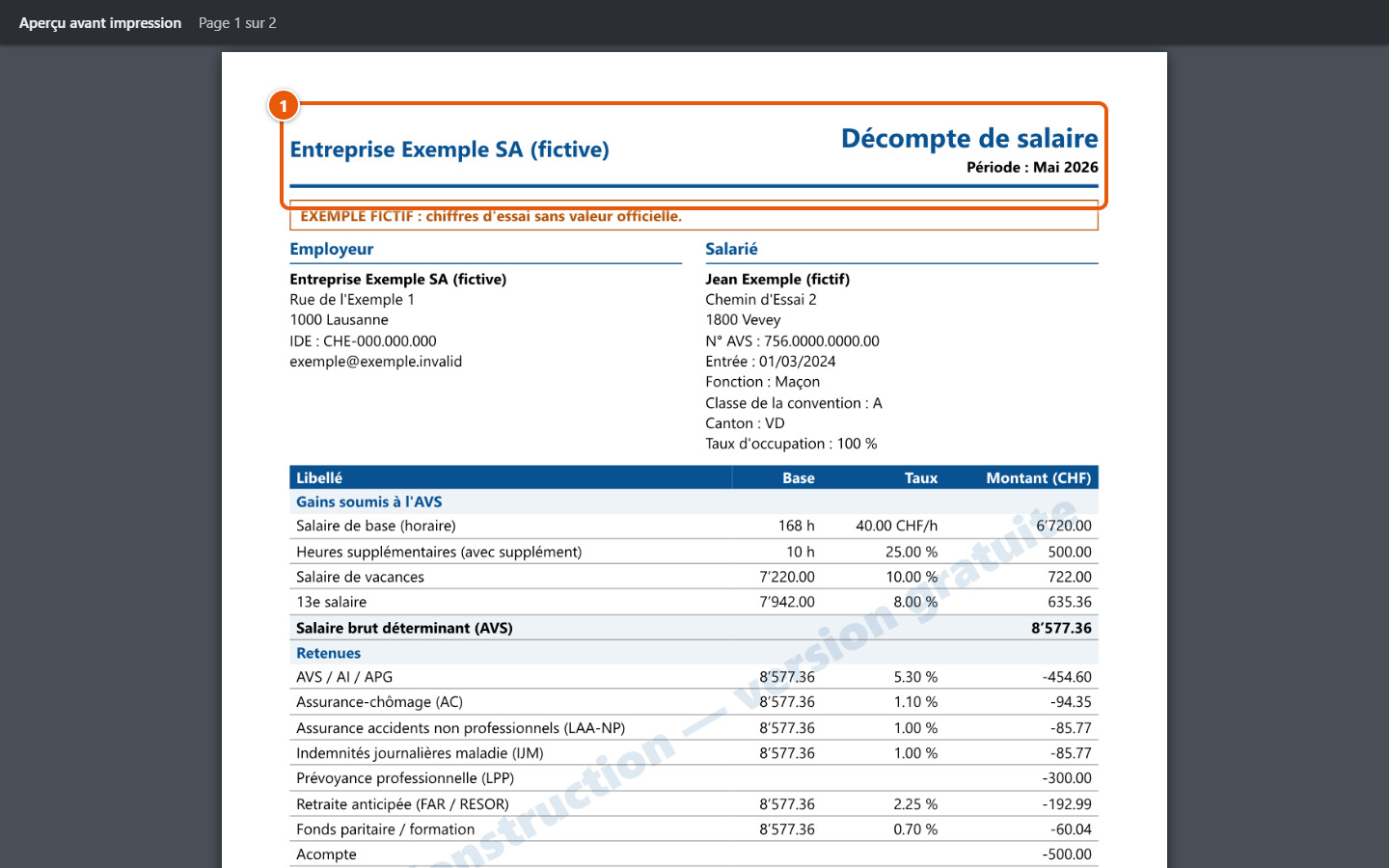
24Printing the sheet
Imprimer prepares a sheet with the same content as the PDF (1), including the diagonal watermark, then your browser opens its print dialogue; as with the PDF, the « Exporter votre travail » window opens first on your first export of the visit. The image shows the layout for A4 paper, without opening the print dialogue.
25An incomplete statement
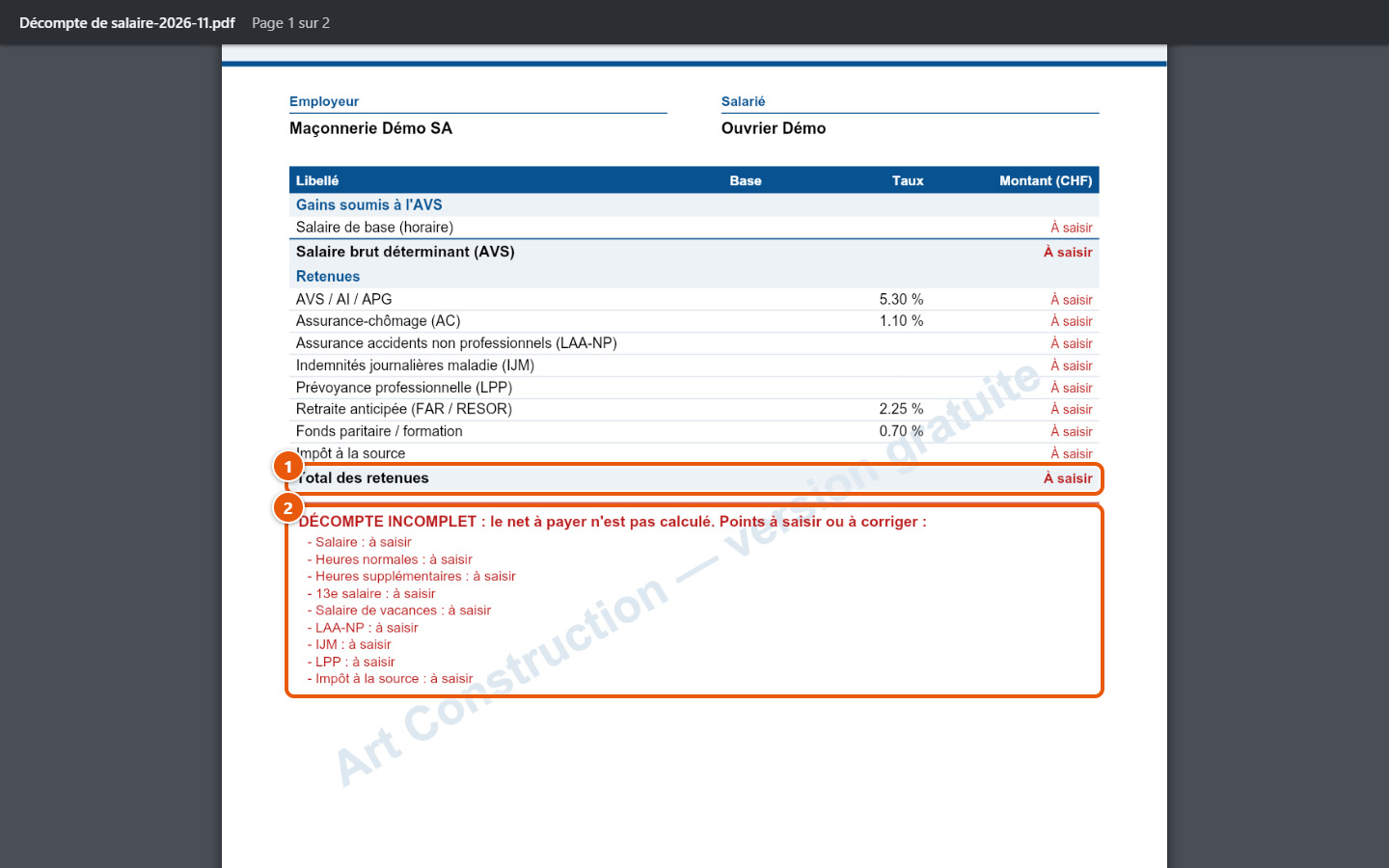
If items remain to be entered, the PDF and the sheet show no net payable: the total deductions field displays « À saisir » (1) and a red box lists what remains to be entered (2).
26Exporting to CSV
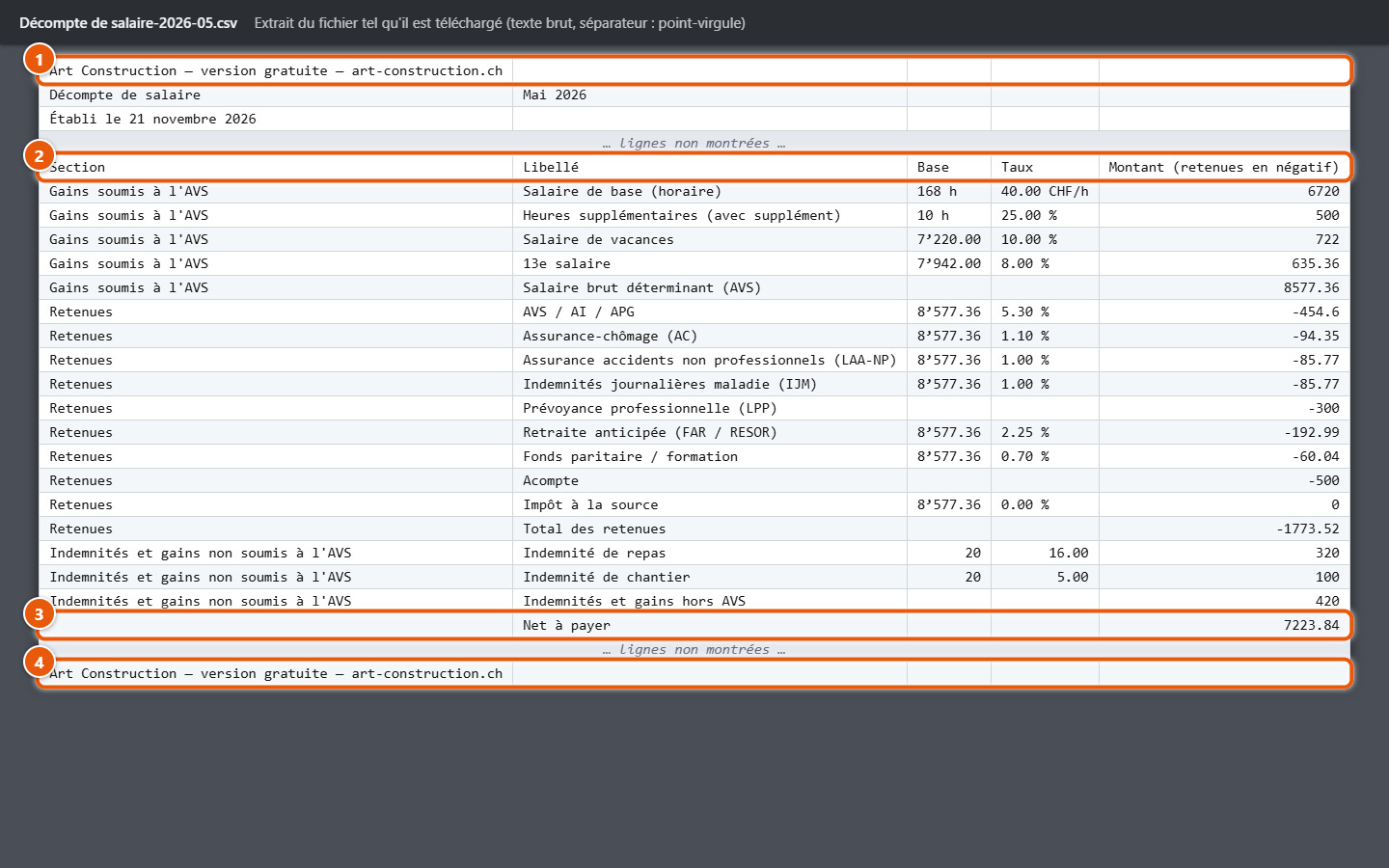
Exporter en CSV downloads a semicolon-separated text file that can be opened in a spreadsheet. It features the free version note at the beginning (1) and end (4) and contains the statement table (2) with the net payable (3), followed by the year-to-date totals and the parameter appendix. Deductions are shown as negative figures.
6. Going further
27Links to the ERP and to Jobs
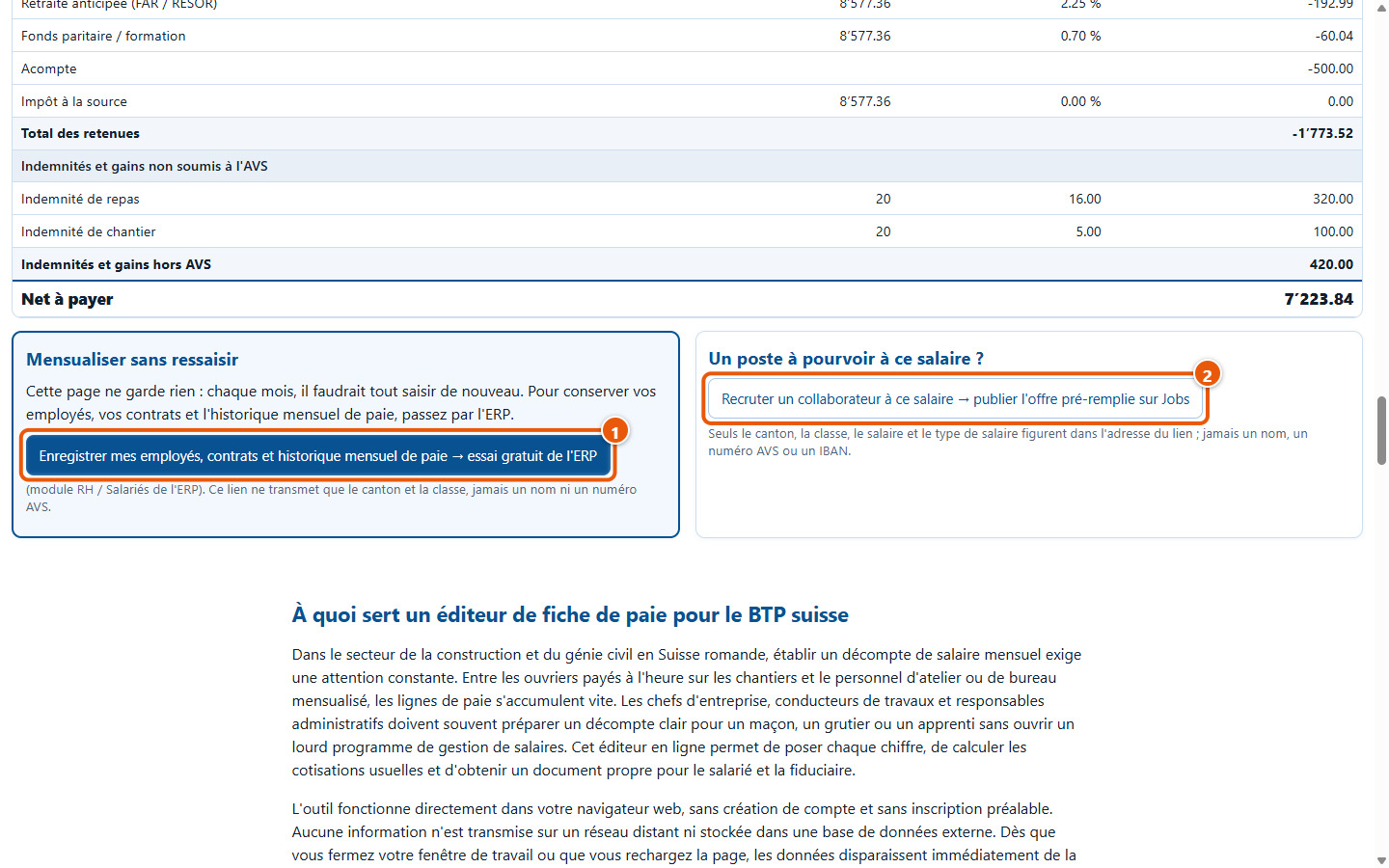
Two links at the bottom of the page open in a new tab. The first (1) leads to the ERP, to keep track of employees, contracts and monthly payroll history; the second (2) leads to Jobs, to post a job offer pre-filled with this salary (it appears once a readable salary is entered). These are simple links: only the canton, grade, salary and salary type appear in the address, after the # symbol. Never a name, AVS number or IBAN.
28When a logo is rejected
Only PNG, JPEG, WebP and GIF files, up to 8 MB, are accepted. A file of another type, such as an SVG, is rejected with a message (2); an oversized or unreadable file is also rejected. The longest side of the logo is resized to 800 pixels at most.
29Clearing everything
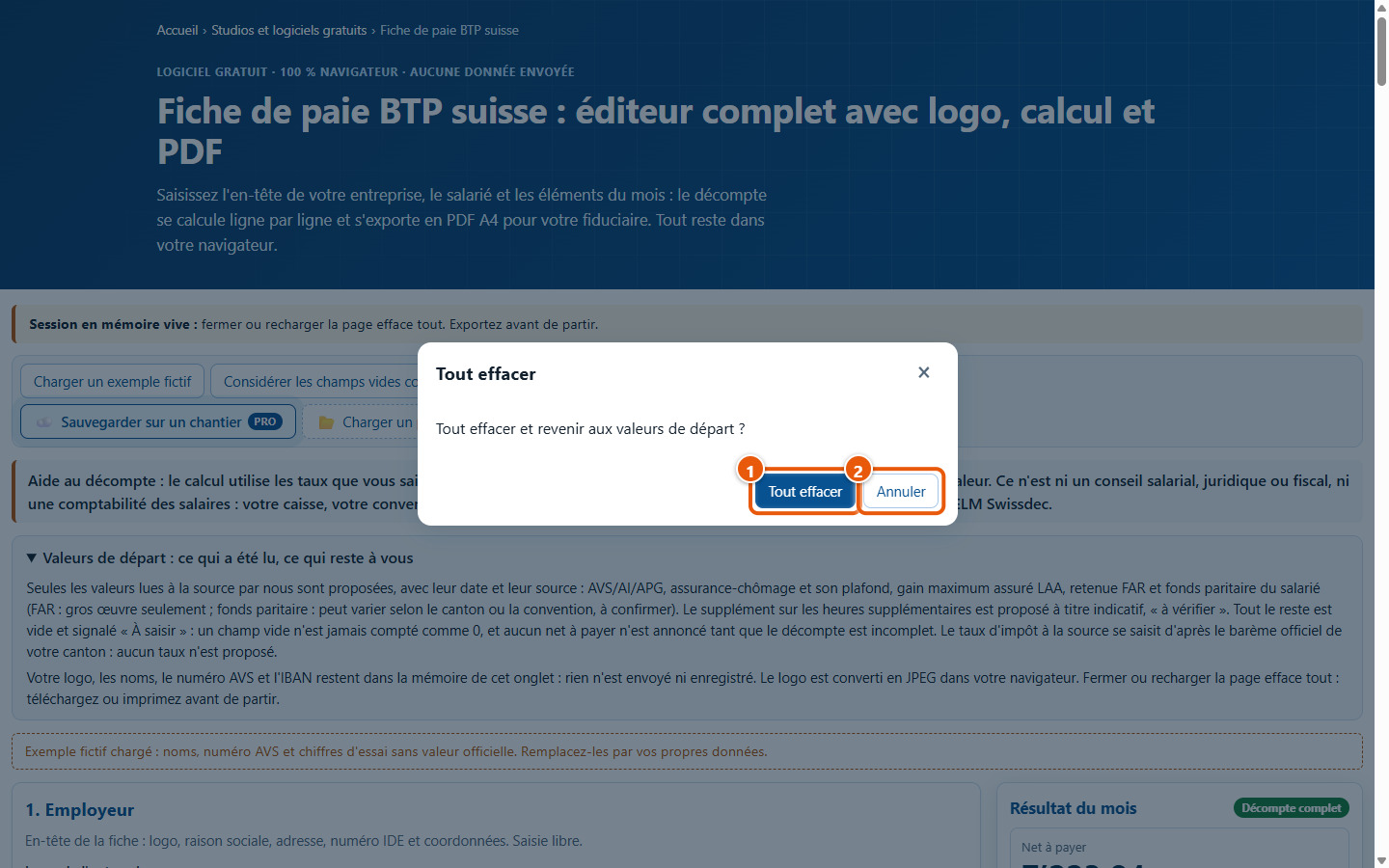
Tout effacer (1) first prompts for confirmation. Annuler (2), or the Esc key, closes the window without changing anything.
7. What this software does not do
- This is not payroll software: it sends nothing to compensation funds or tax authorities and does not offer Swissdec ELM XML electronic transmission.
- It does not provide any salary, legal or tax advice: your compensation fund, your collective agreement, the tax authority and your fiduciary prevail.
- It only pre-fills a few values read from a source, as of the date indicated. Everything else (salary, hours, 13th month salary, holidays, insurance, occupational pension, withholding tax) must be entered by you. It does not contain withholding tax scales: you enter your canton's rate.
- It handles only one payslip at a time and stores nothing: export or print before closing the page. There is neither history nor annual summary; the year-to-date total is simply carried over from figures you enter. To keep employees, contracts and history, the software links to the ERP.
- Several calculation rules are simplified (for example, the calculation of non-occupational accident insurance and daily sickness benefits on gross AVS earnings). The statement must be reviewed by a specialist (fiduciary, compensation fund) before being issued.
- The PDF uses standard fonts: letters outside this set (for example in Turkish, Albanian or Croatian) are replaced by a similar character, and the software notifies you.
Any questions? Send a request to support.