Guide: Gross-to-net salary calculator for construction
This guide shows, step by step, how to calculate a construction salary: from gross to net, or from net to gross, with the formula for each deduction. The orange numbers on the images refer to the text.
1. Getting started
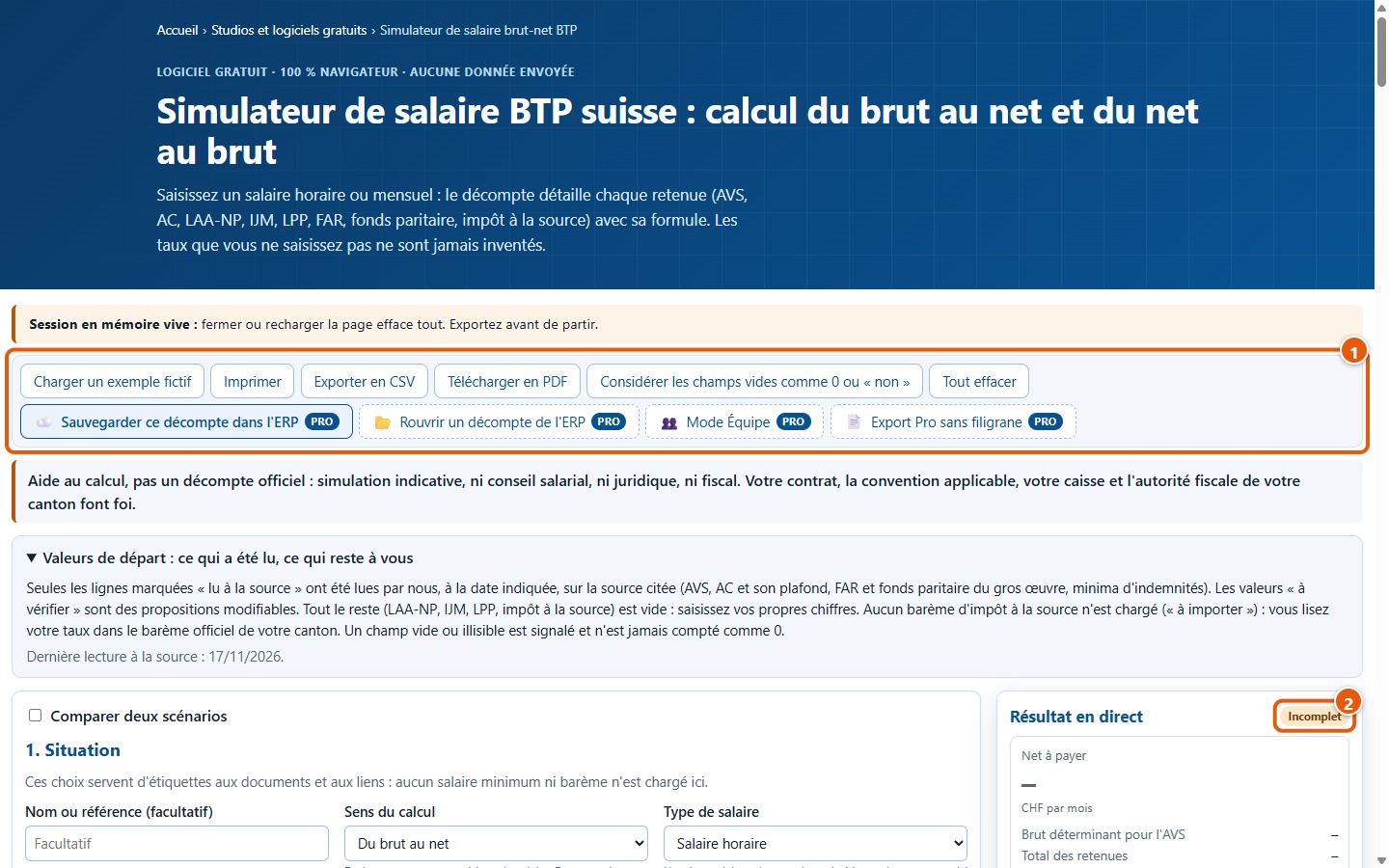
1Open the simulator
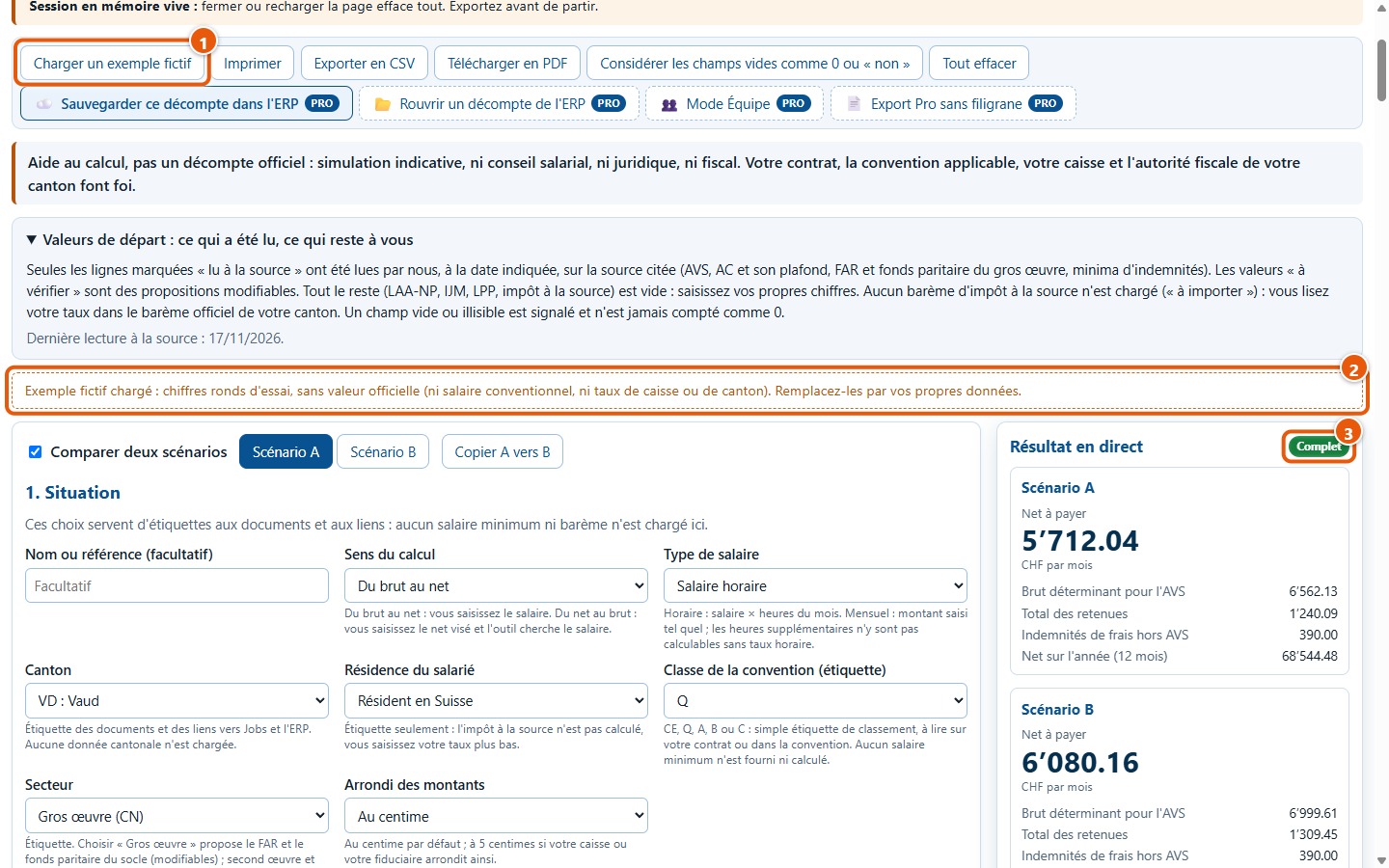
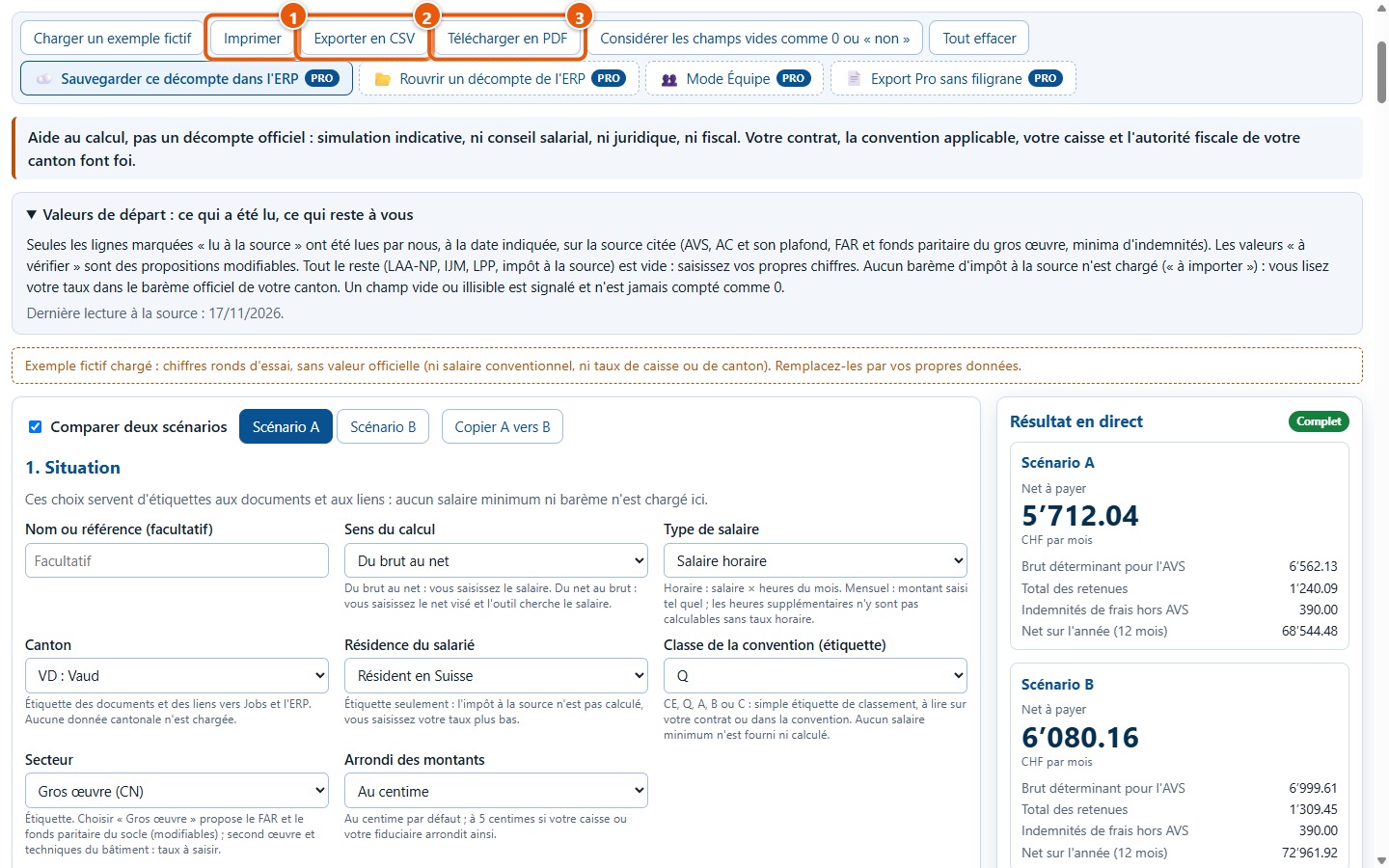
Open the simulator page: there is nothing to install. The button bar (1) is used to load an example, print, export, or clear everything. The Résultat en direct panel (2) displays Incomplet as long as information is missing.
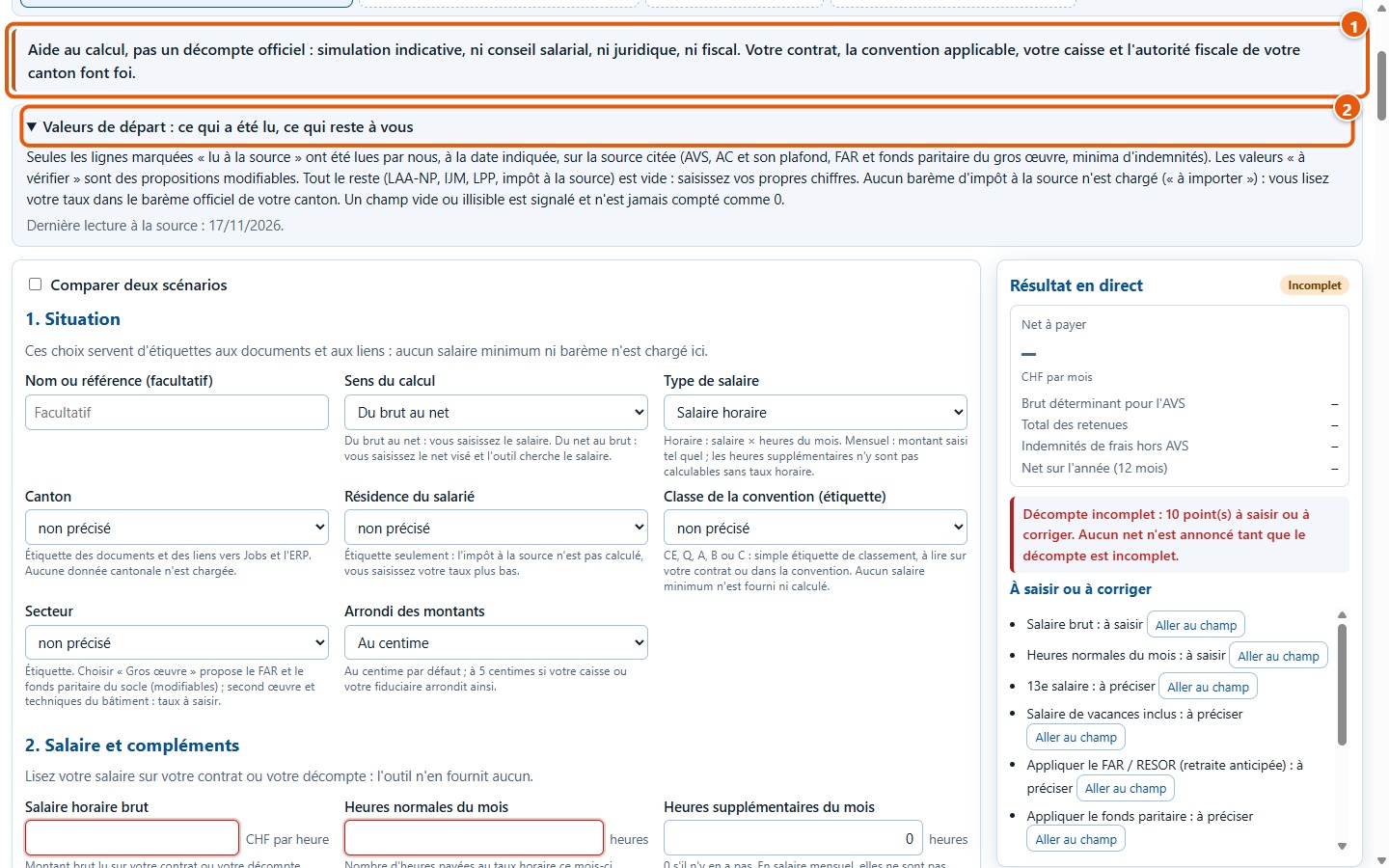
2Read the disclaimer
The result is a calculation aid (1): neither salary advice, legal advice, nor tax advice. Your contract, the applicable collective agreement, your compensation fund, and your canton's tax authority prevail. The Valeurs de départ : ce qui a été lu, ce qui reste à vous box (2) shows what was read from a source and what remains for you to enter.
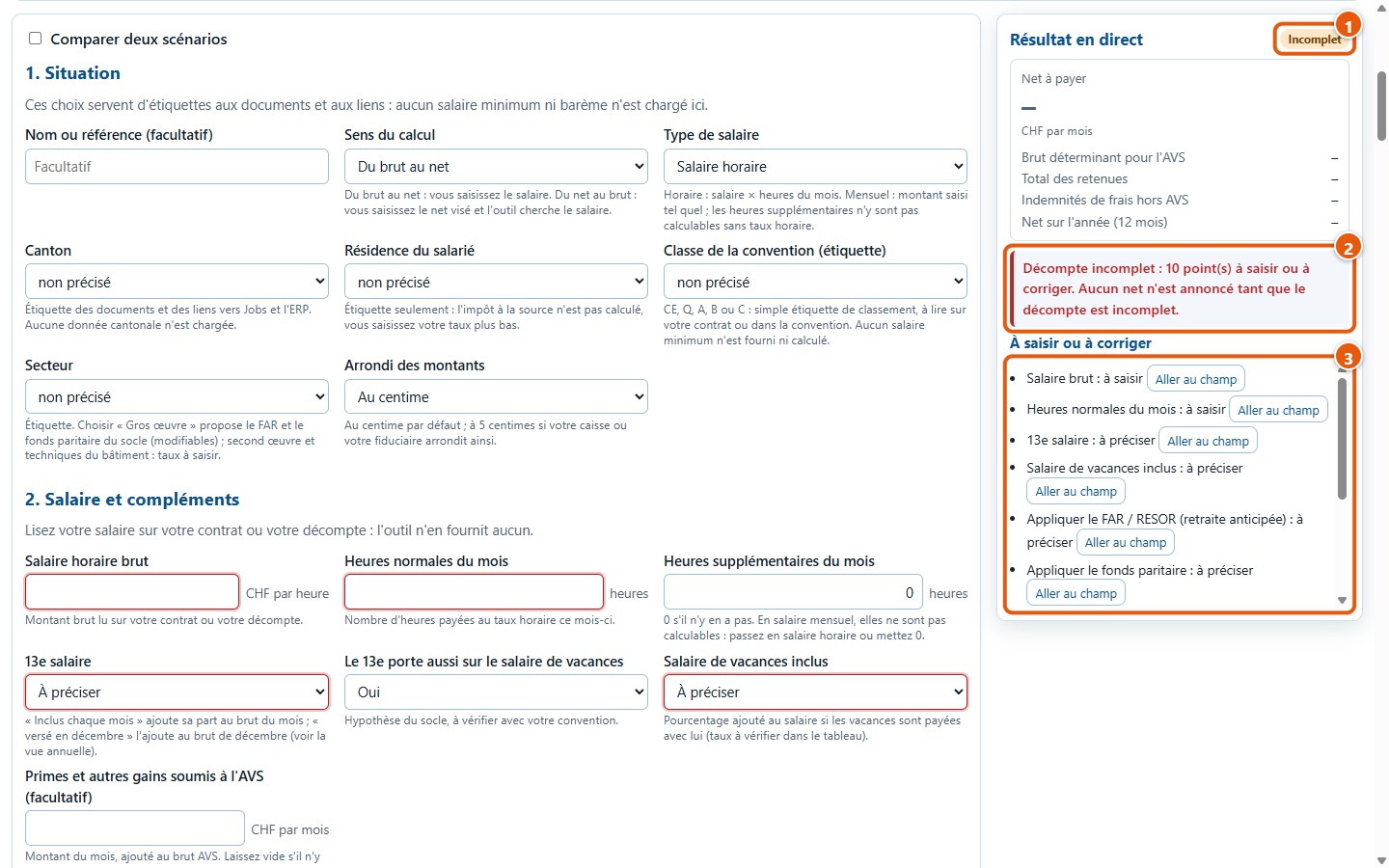
3Understanding « Incomplet »
At first, hardly any rates are pre-filled. The result shows Incomplet (1) and the message (2) states that no net amount is announced: an empty field is never counted as 0. The À saisir ou à corriger list (3) names each item to enter or clarify, and the relevant fields are circled in red on the form.
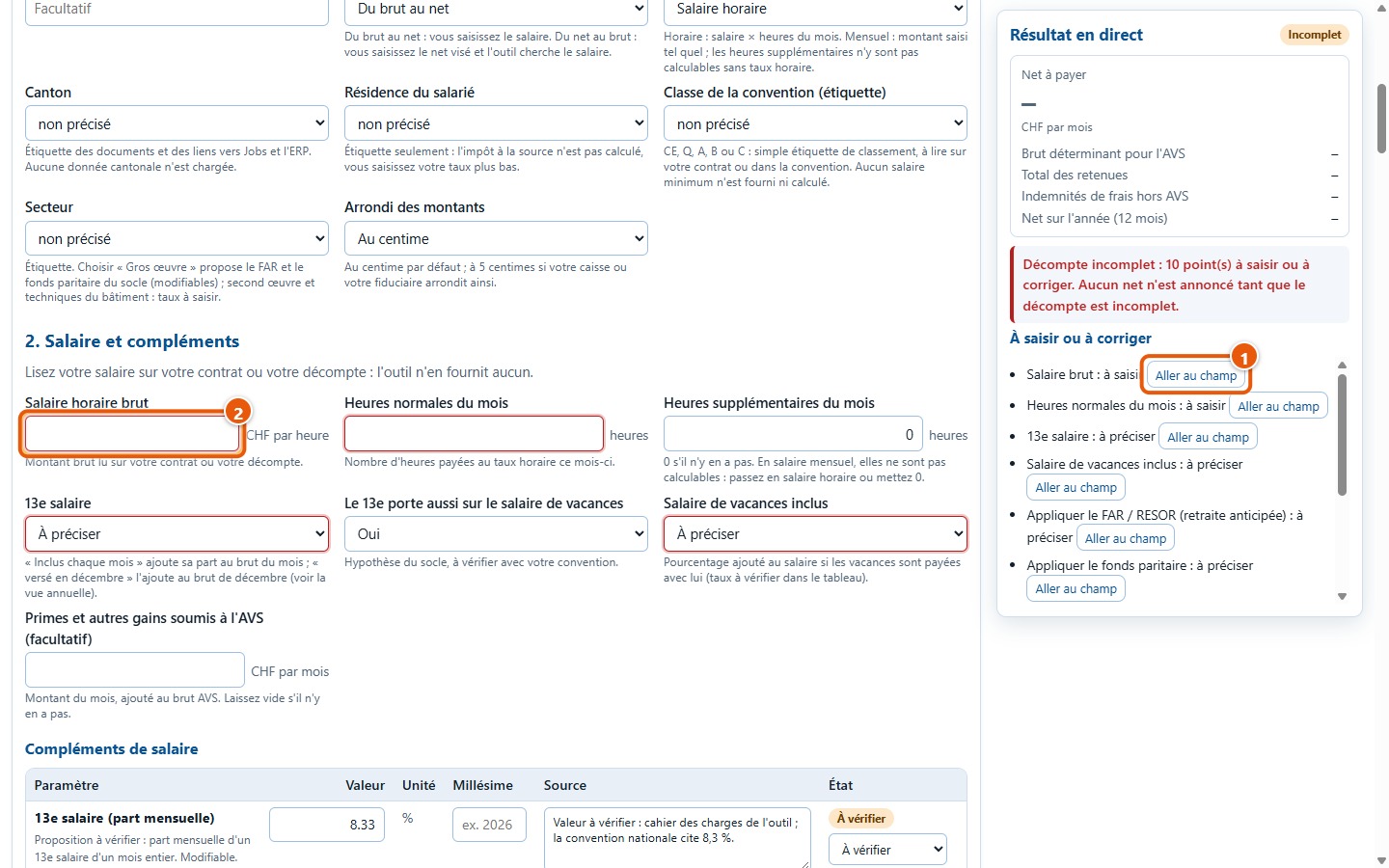
4Go to the field to fill in
In the list, the Aller au champ button (1) scrolls the form to the required spot and places the cursor in the relevant field (2). You do not have to search for it.
5Load a sample scenario
To try it without entering anything, click on Charger un exemple fictif (1). A banner reminds you that these are rounded test figures with no official validity (2), and the result switches to Complet (3). The sample also prepares two scenarios to compare: chapter 5 explains them.
2. Filling in the form
6The Situation section
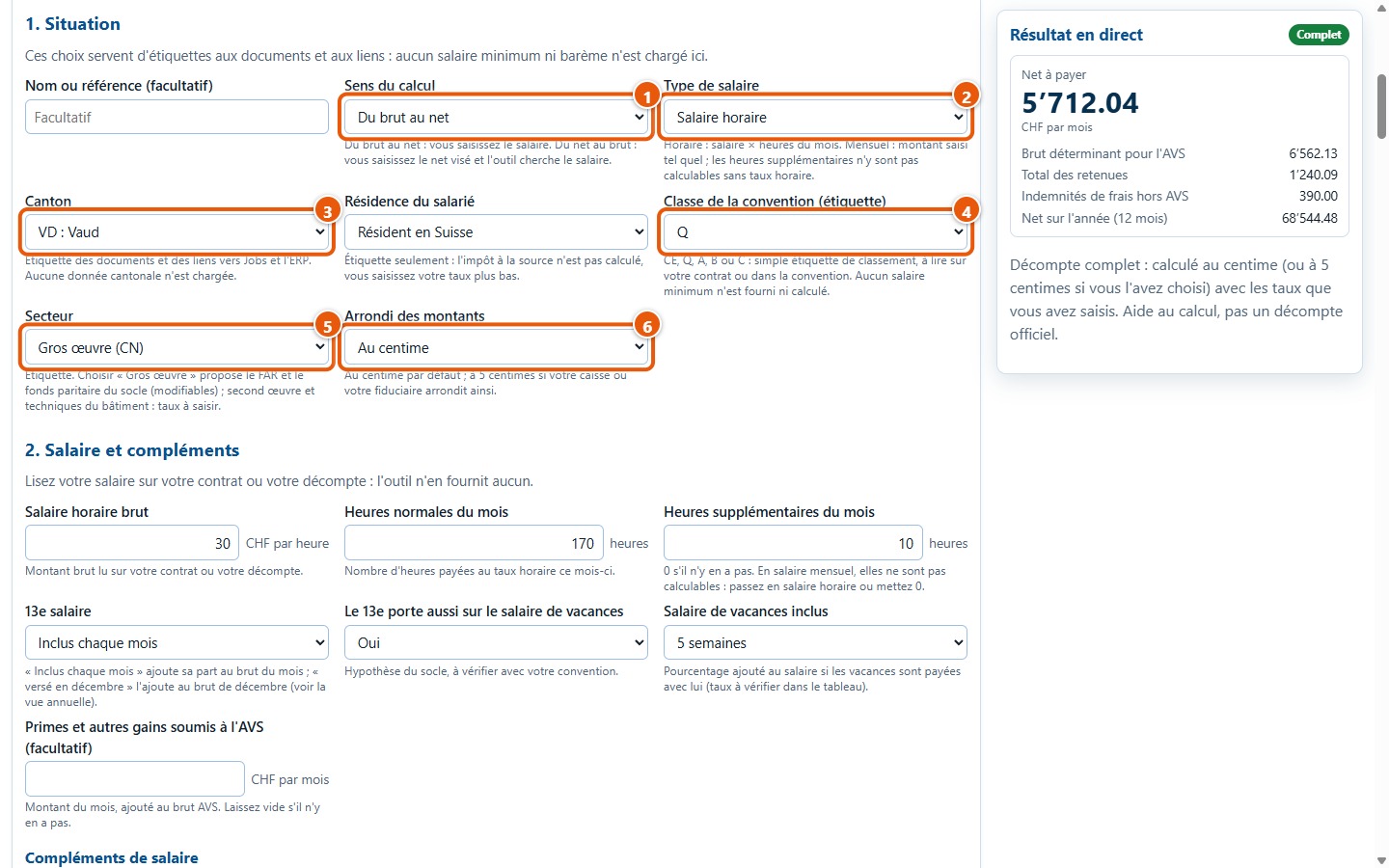
Six options describe the situation: calculation direction (1), wage type by hour or month (2), canton (3), collective agreement wage category (4), sector (5), and rounding (6). The canton, residence, and category are simple labels: no minimum wage or scale is loaded. Selecting the « Gros œuvre » sector also suggests applying the FAR and the joint fund, which you can untick. If you select « Frontalier » as residence, a help text notes that scales and rules may differ.
7The Salary and supplements section
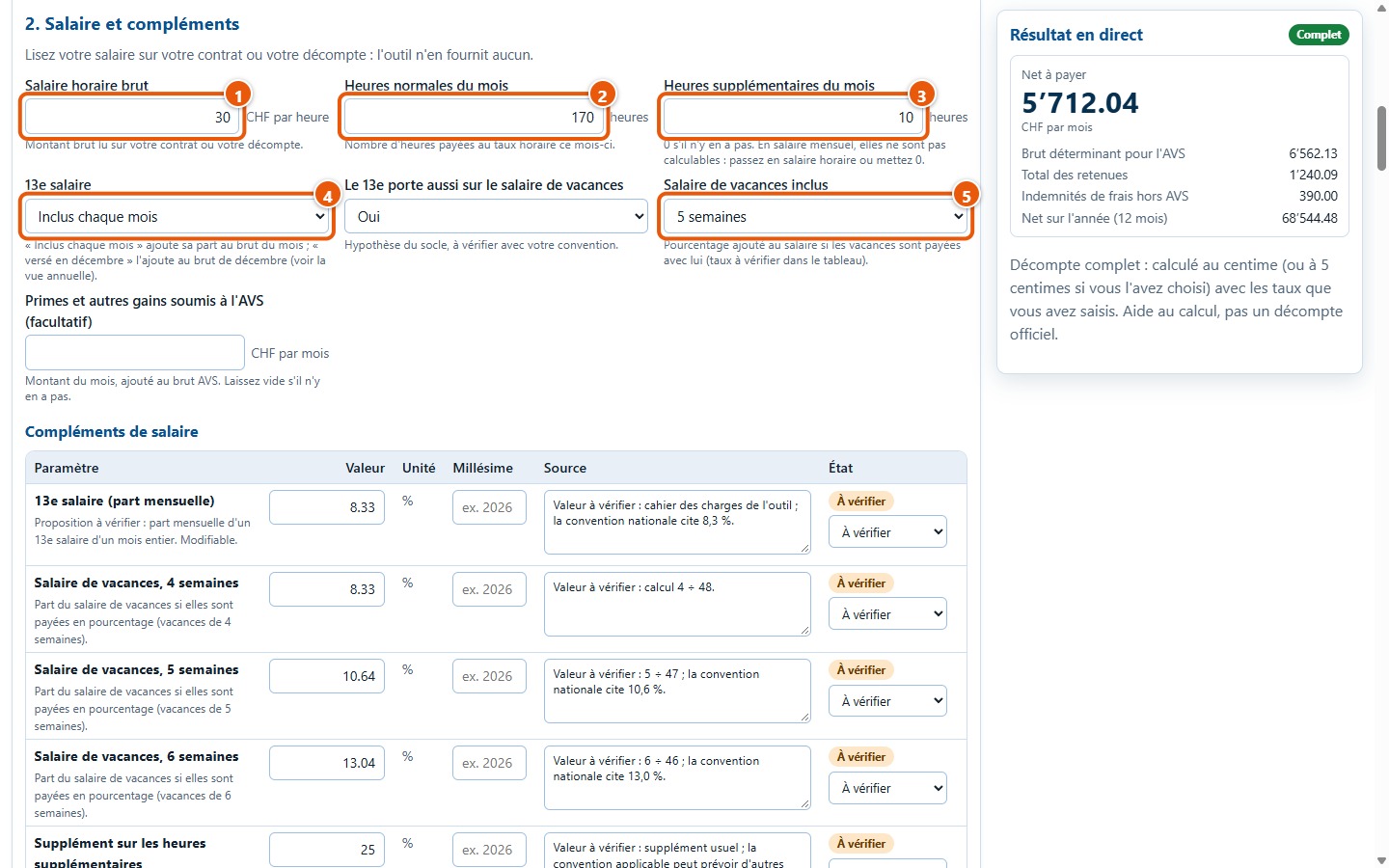
Enter the gross salary (1) read from your contract or pay slip: the simulator provides none. Add standard hours (2) and any overtime hours (3), then select the 13th-month salary (4) and included holiday pay (5). The field for bonuses and other earnings subject to AVS is optional.
8Percentages for 13th-month salary and holidays
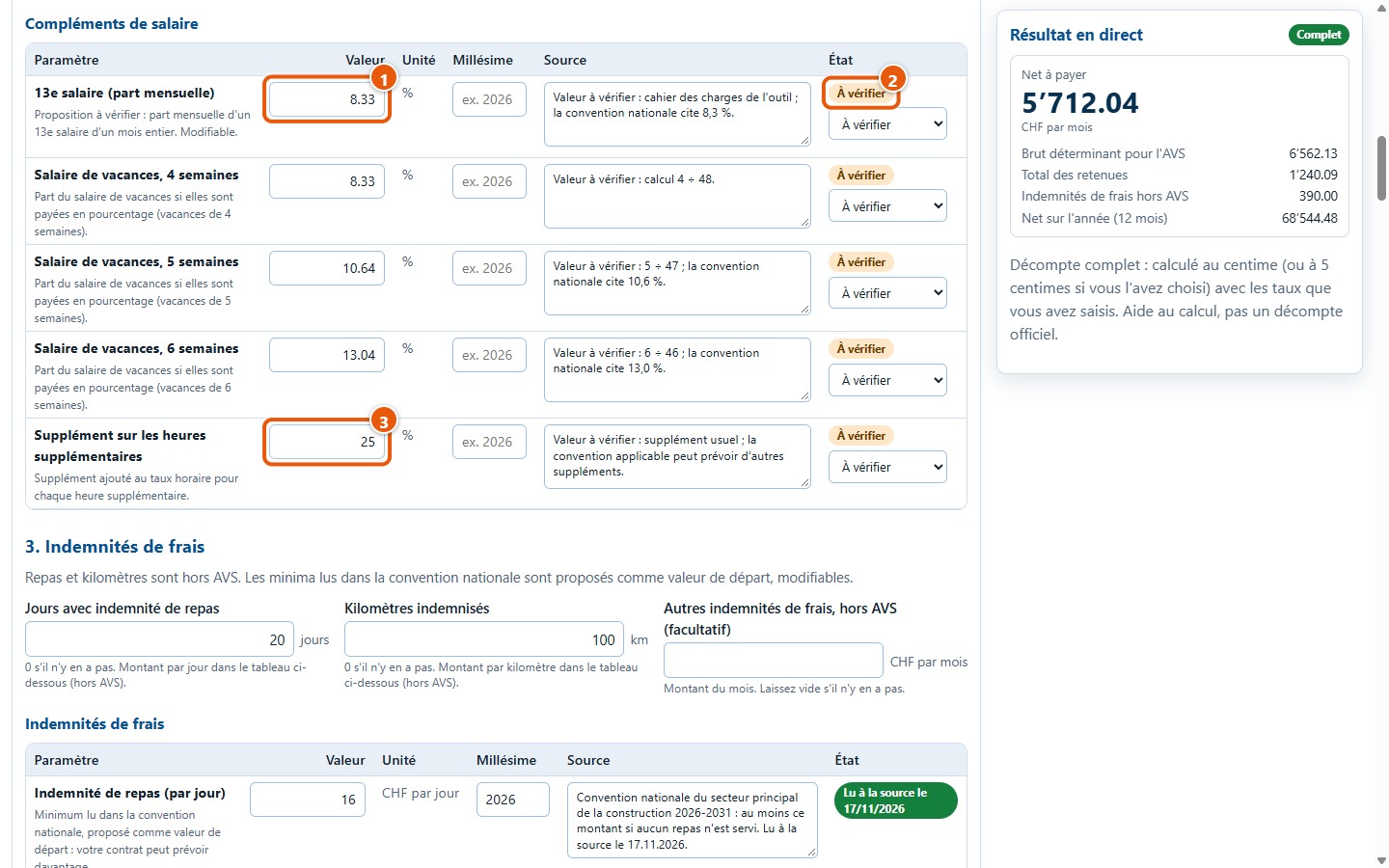
The Compléments de salaire table gives the percentages used: the monthly share of the 13th-month salary (1), holiday pay for 4, 5, or 6 weeks, and the overtime supplement (3). These values are marked À vérifier (2): they are suggestions that you modify according to your collective agreement or contract.
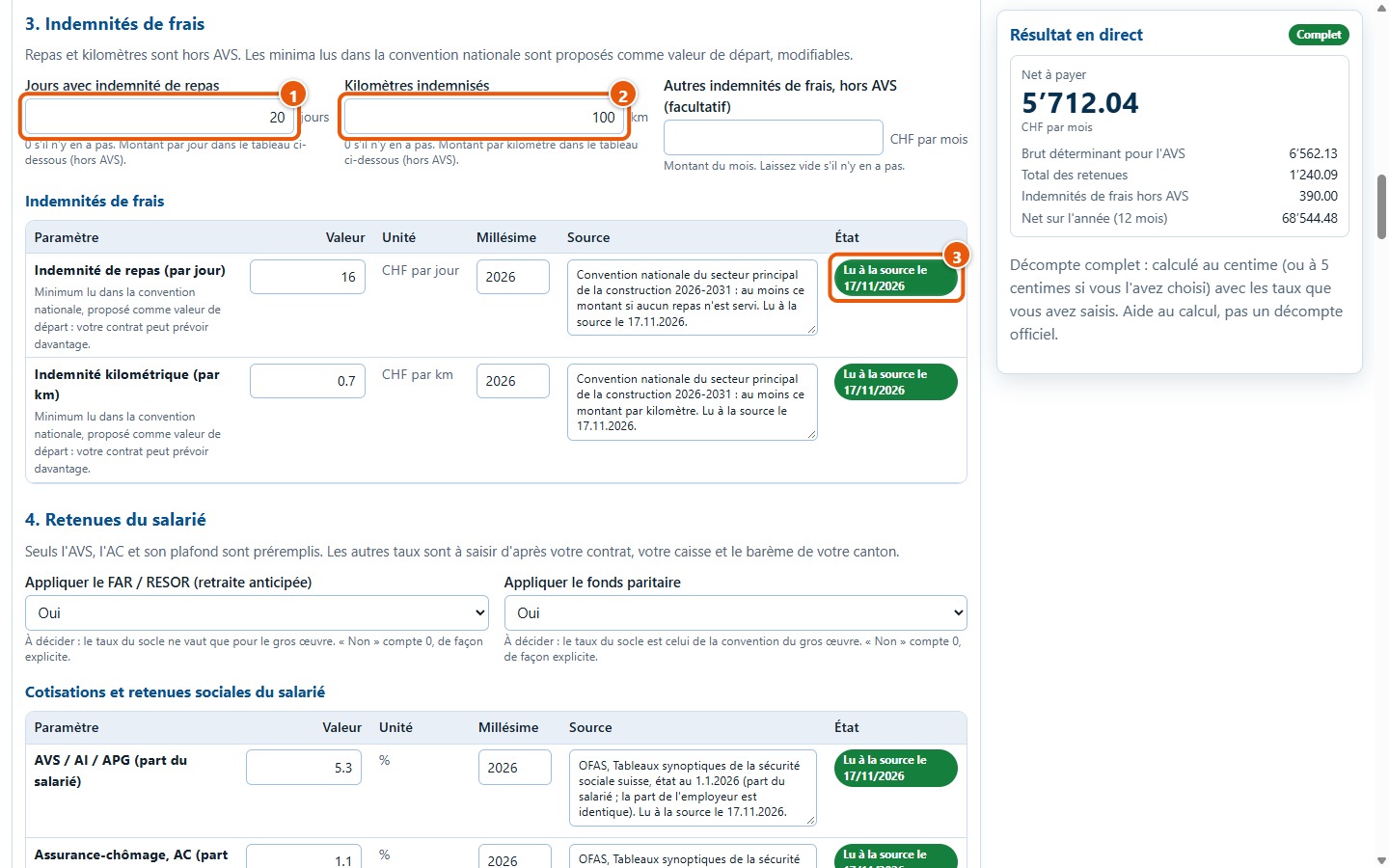
9The Expense allowances section
Meals and mileage are expense allowances, exempt from AVS: they are added to the net amount after deductions. Enter the number of days with meal allowance (1) and the reimbursed kilometres (2). The amounts per day and per kilometre come from the table (3): these are initial values read from a source, which can be modified, as your contract may provide for more.
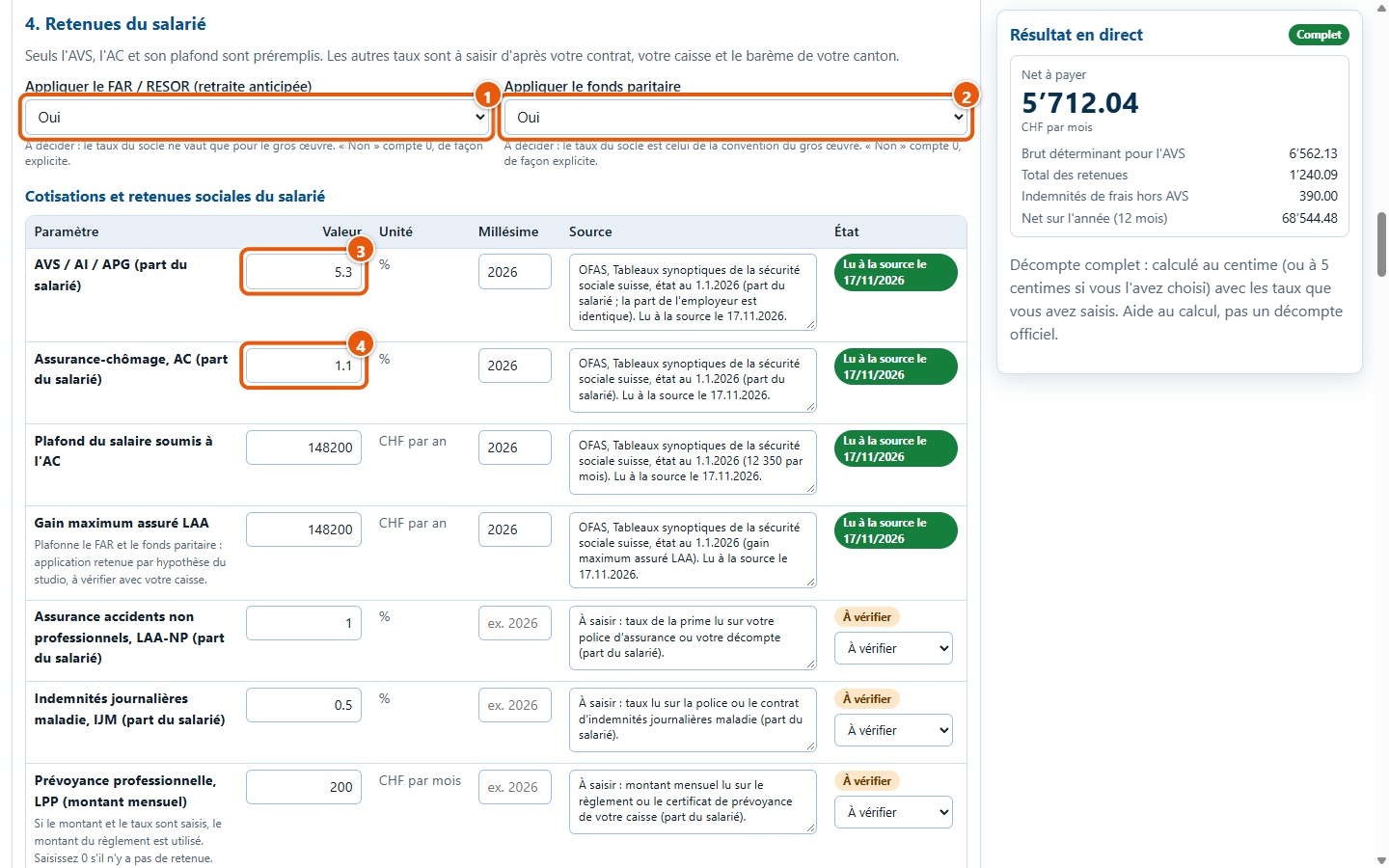
10The Employee deductions section
Choose whether or not to apply FAR early retirement (1) and the joint fund (2): « Non » explicitly counts as 0. Lower down, AVS, AI and APG contributions (3) and unemployment insurance (4) are already filled in. They are read from a source, such as the unemployment insurance ceiling, the maximum LAA earnings, FAR, and the structural work joint fund: each row shows its vintage, its source and the date it was retrieved.
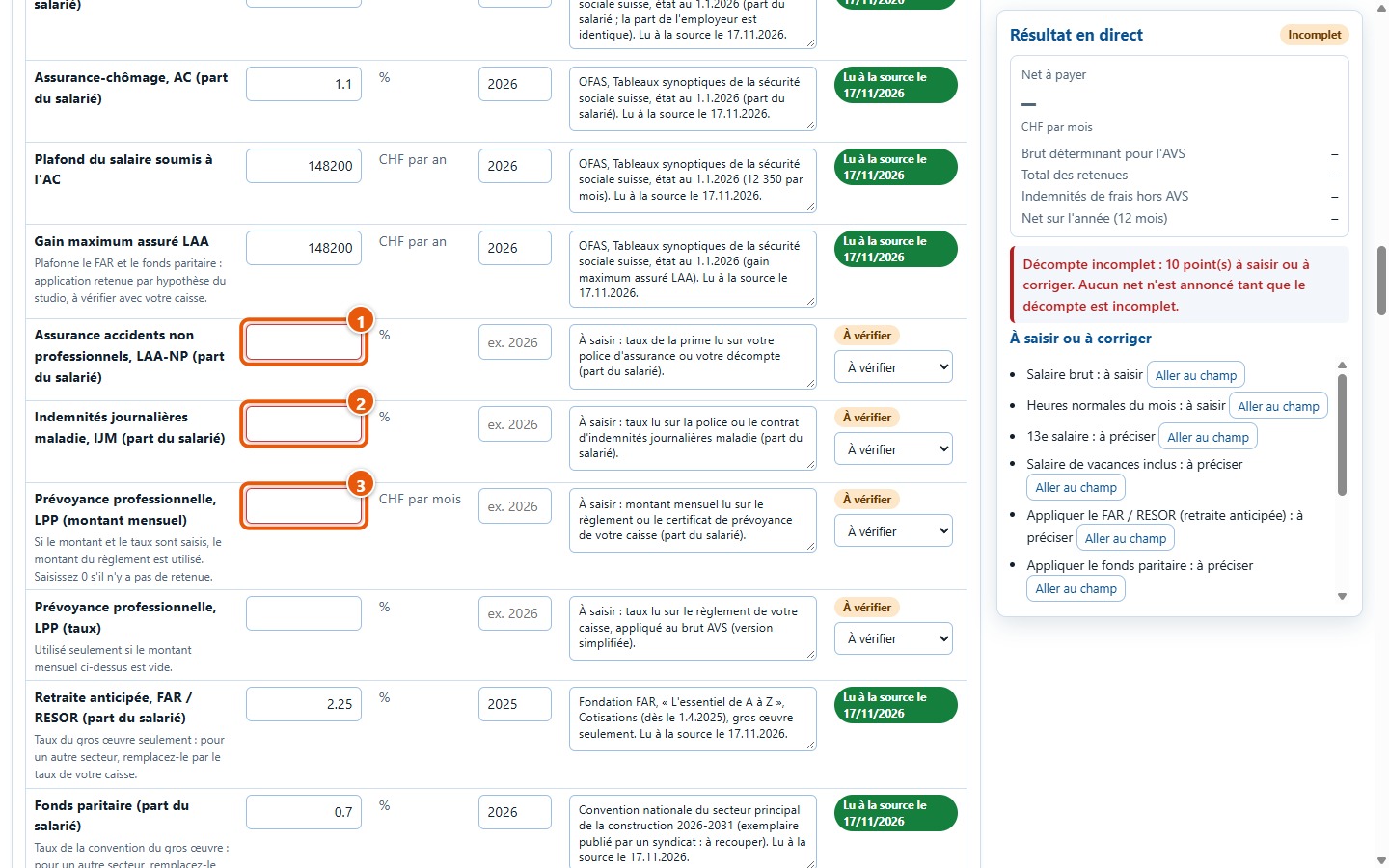
11Deductions you enter yourself
Non-occupational accident insurance (1), daily sickness benefits (2) and occupational pension scheme (3) vary from one company to another: their fields remain blank. Read the rate or amount from your policy, contract or pension fund regulations. For the occupational pension scheme, enter either a monthly amount or a rate; if both are entered, the regulation amount is used. Enter 0 if there is no deduction.
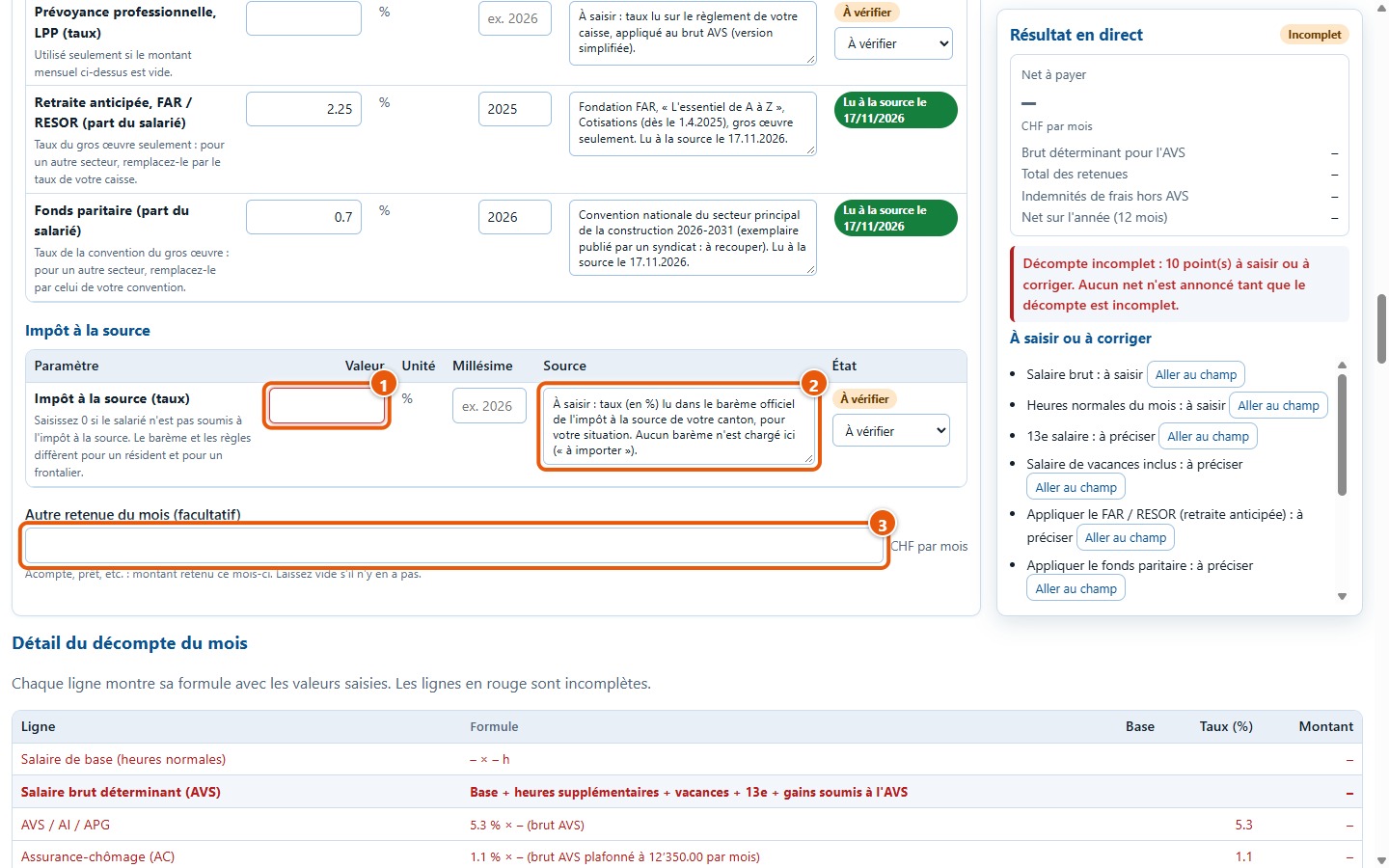
12Withholding tax and other deduction
The simulator does not calculate withholding tax: no tax schedule is loaded. Read your rate from the official scale of your canton (2) and enter it (1); enter 0 if the employee is not subject to withholding tax. The Autre retenue du mois (facultatif) field (3) is used for an advance payment or a loan deducted this month.
3. Reading the result
13Live result
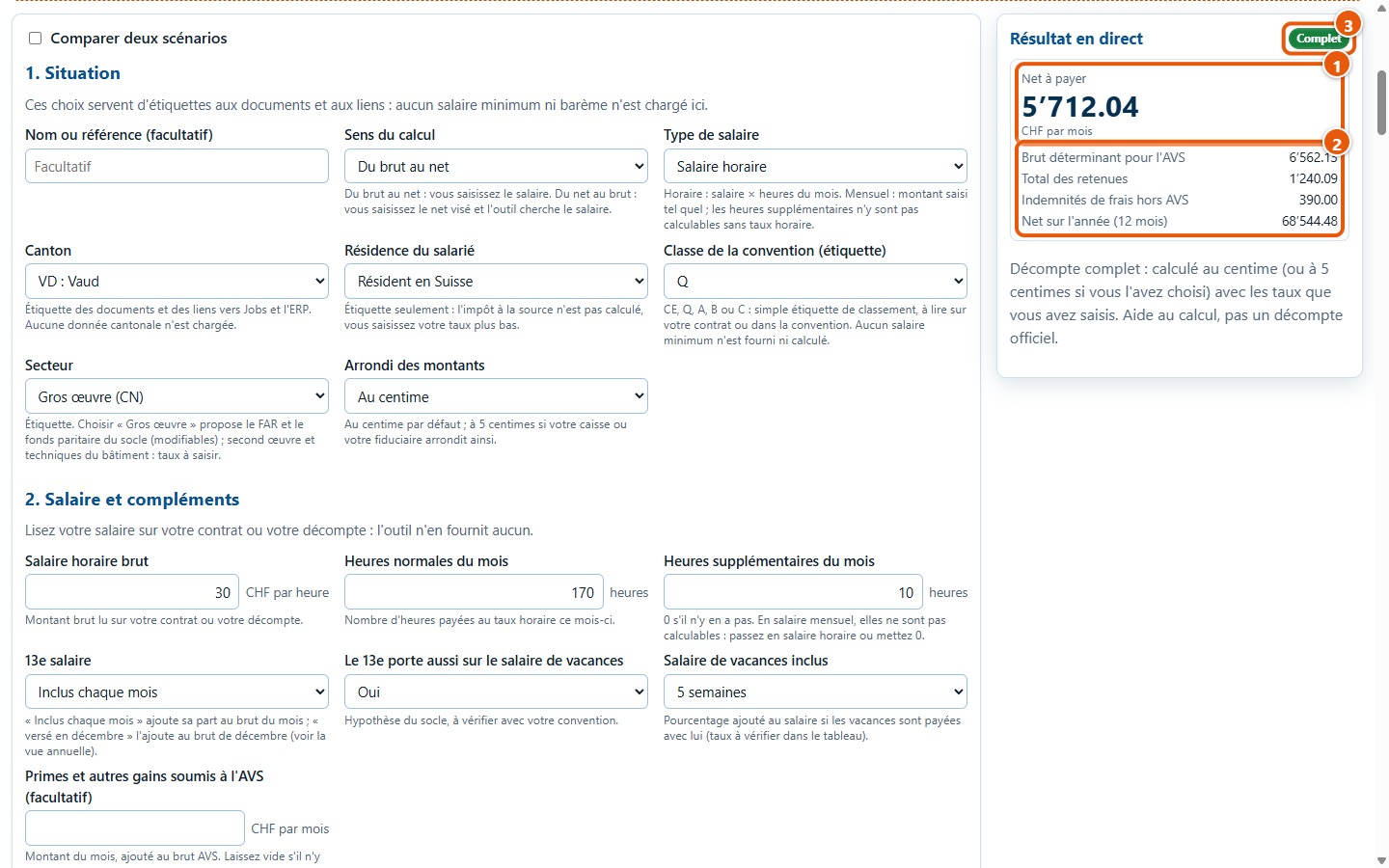
The result updates with each entry. The net pay (1) is the monthly amount, including expense allowances. Below (2) are the gross salary determining AVS, total deductions, non-AVS allowances and annual net. The Complet indication (3) appears once everything is entered.
14Line-by-line breakdown
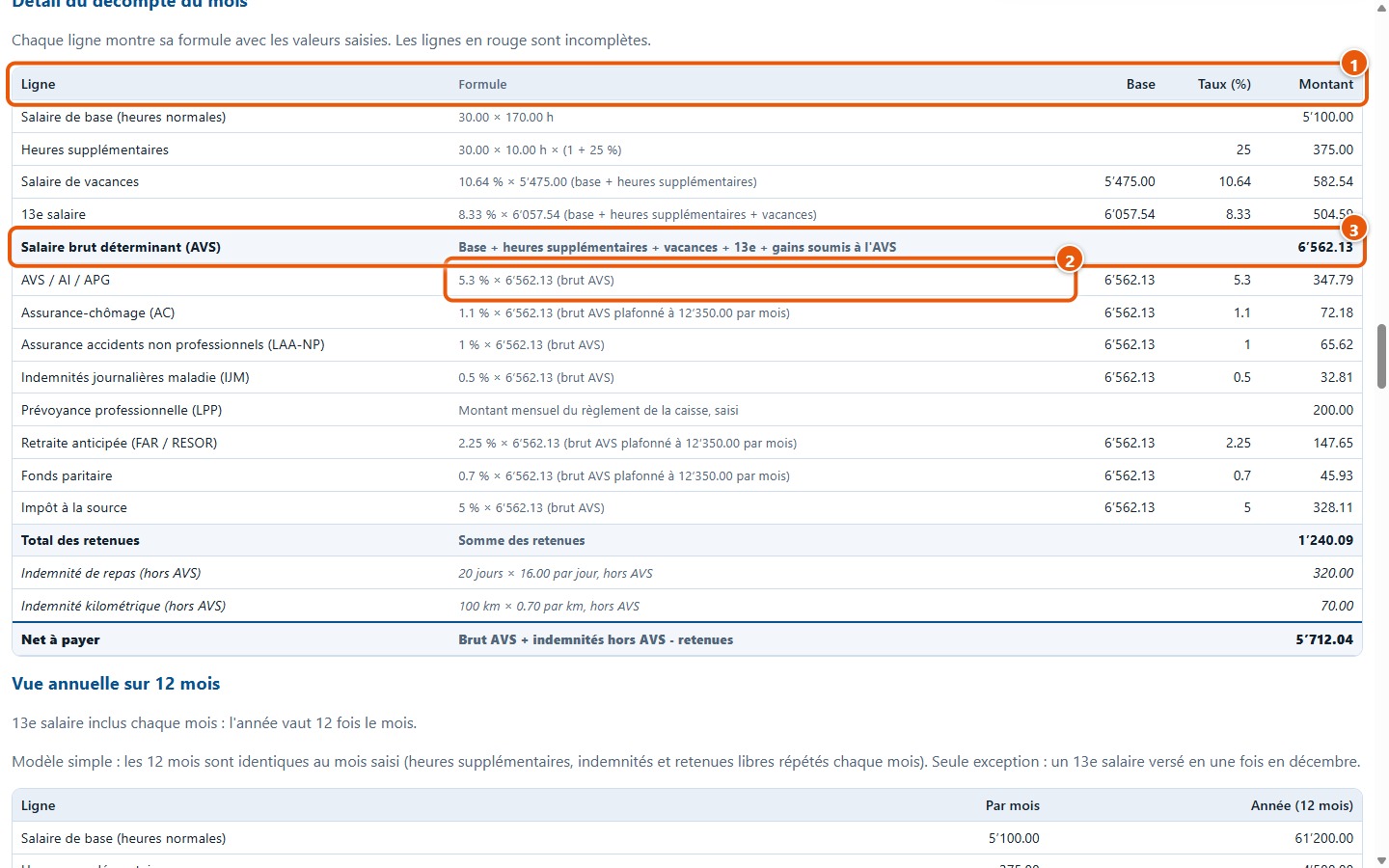
The Détail du décompte du mois table lists each row with its formula written with your values (2), its base, its rate and its amount (1). The gross salary determining AVS (3) is the base on which deductions are calculated. An incomplete row is displayed in red.
15From total deductions to net pay
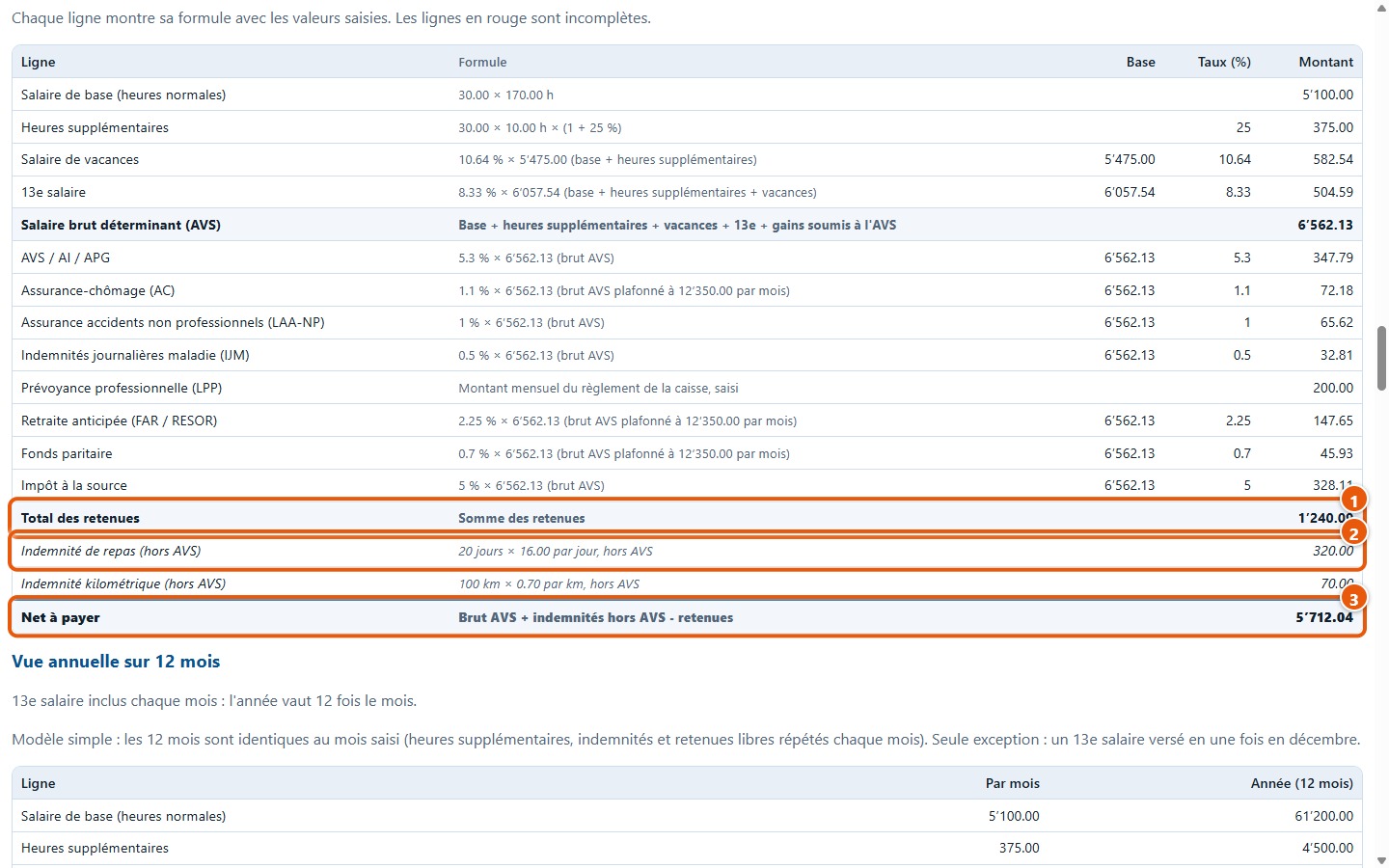
Total deductions (1) are subtracted from gross AVS. Meal and kilometre allowances (2) are added without deductions: they are exempt from AVS. Net pay (3) equals gross AVS plus non-AVS allowances, minus deductions.
16Annual overview
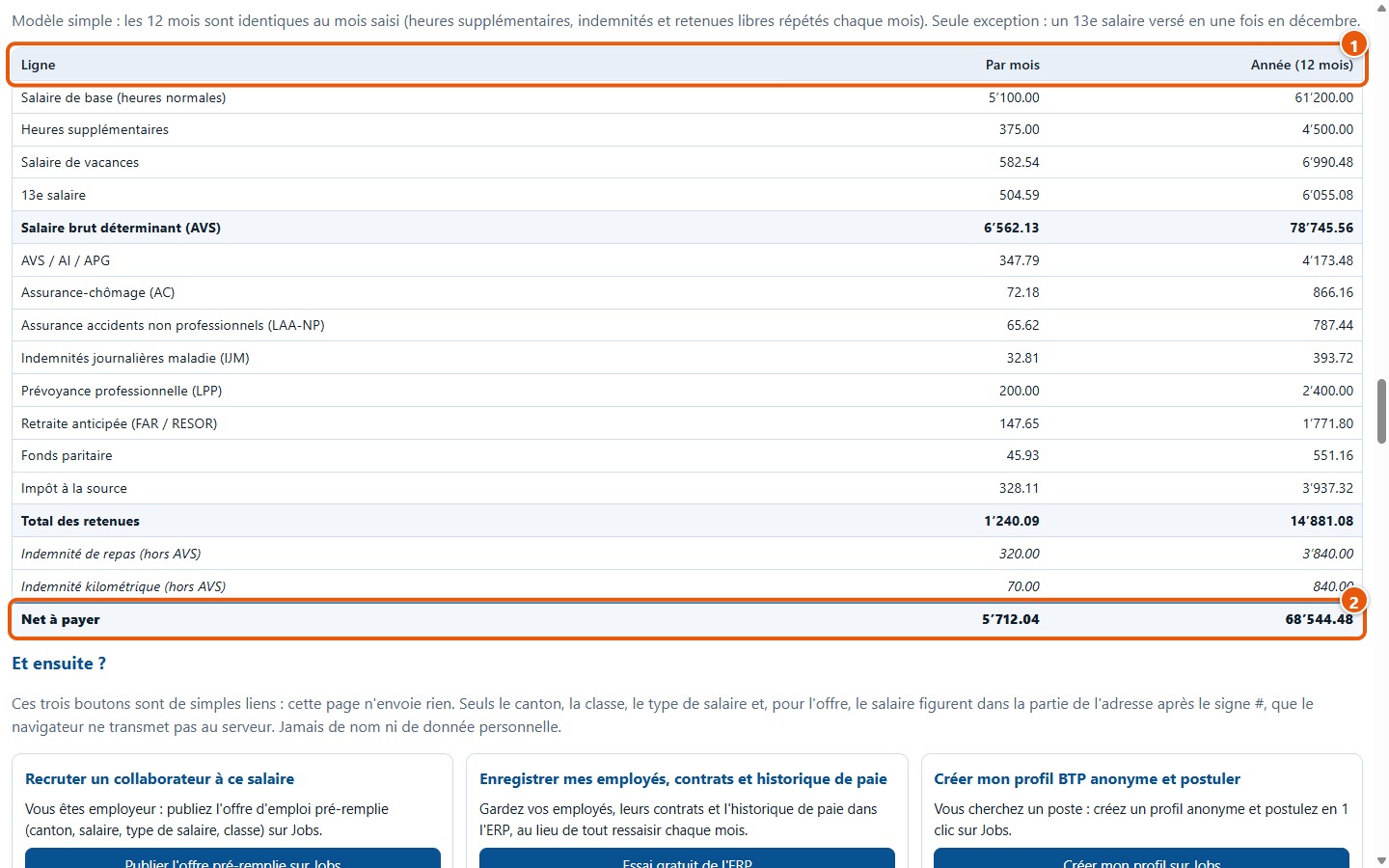
The 12-month annual overview (1) repeats the entered month twelve times, including overtime, allowances and deductions; the net for the year (2) is therefore twelve times the monthly net, unless the 13th month salary is paid in December (chapter 5). The model is intentionally simple: no salary changes during the year. As long as the monthly breakdown is incomplete, the annual overview is not displayed.
4. Starting values and their status
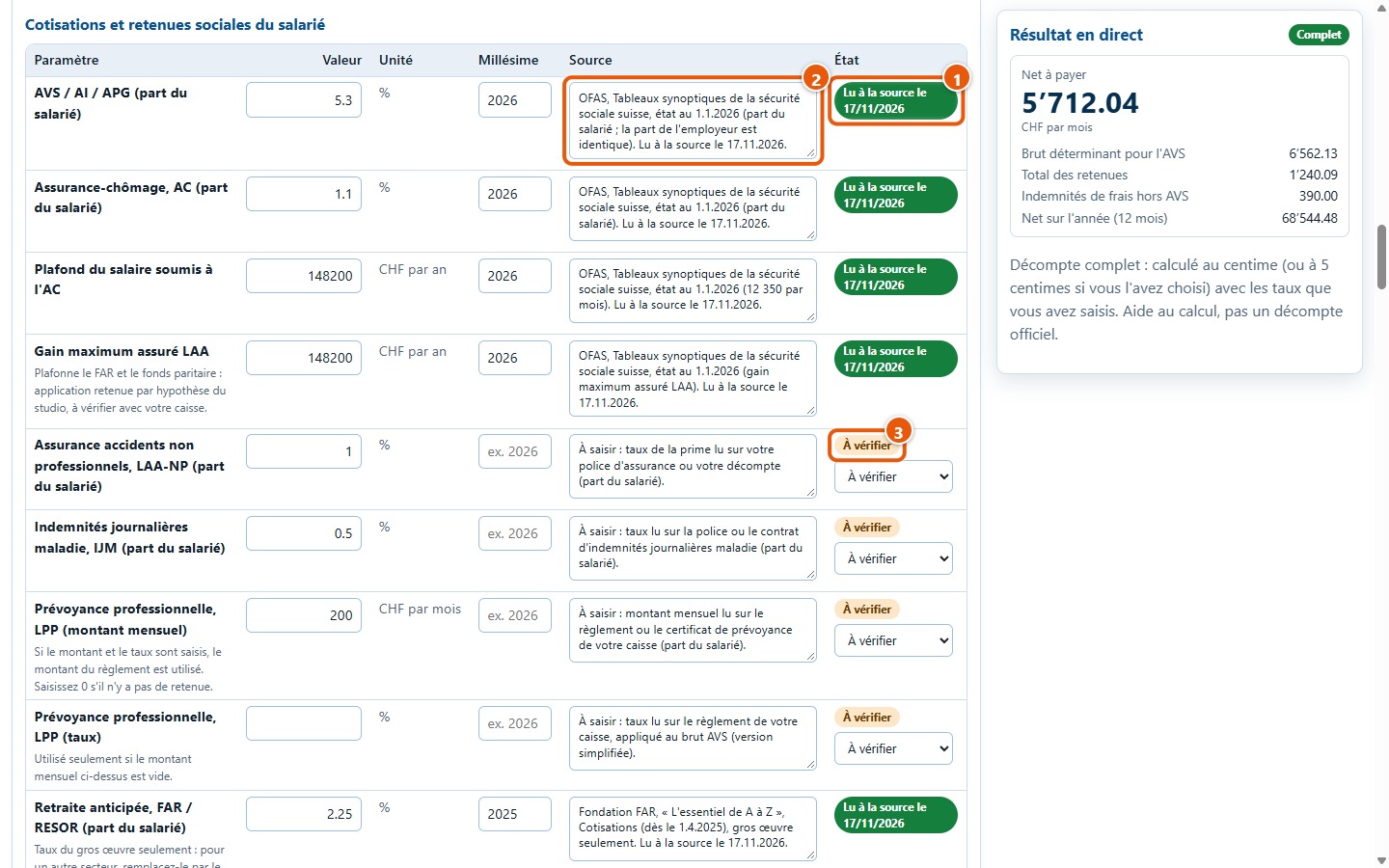
17Value, vintage, source and status
Each parameter displays its value, unit, vintage, source and status. « Lu à la source » (1) means the value was read from the cited source (2), on the indicated date. À vérifier (3) means the value is a proposal or remains to be entered by you. You can correct the vintage and the source.
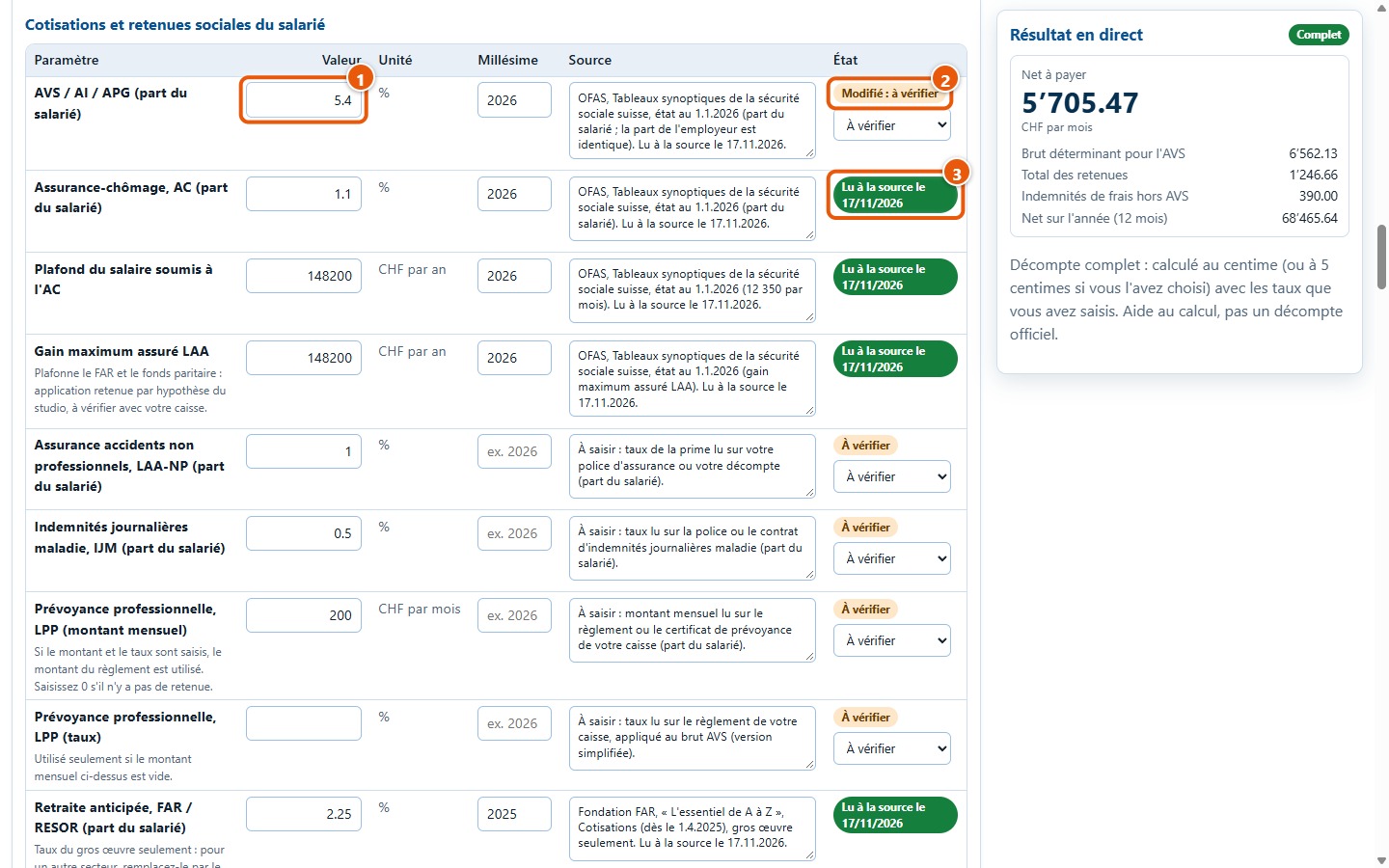
18Editing a value read from the source
If you change a value marked « Lu à la source » (1), its status changes to Modifié : à vérifier (2): reading from the source no longer covers your new value. The other rows keep their status (3).
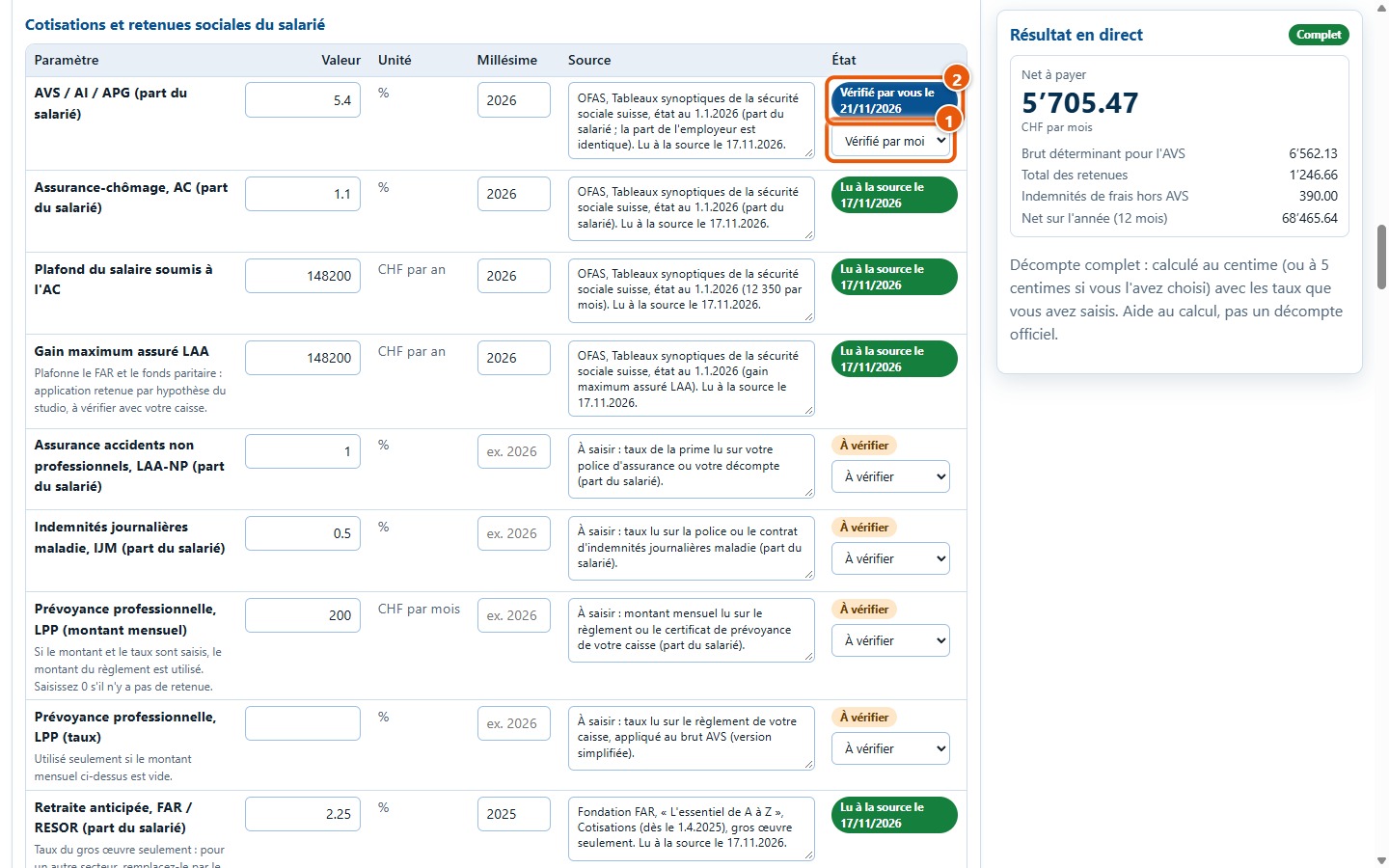
19Marking « Vérifié par moi »
Once you have checked a value in your documents, select Vérifié par moi from the status list (1): the row then displays « Vérifié par vous » with today's date (2).
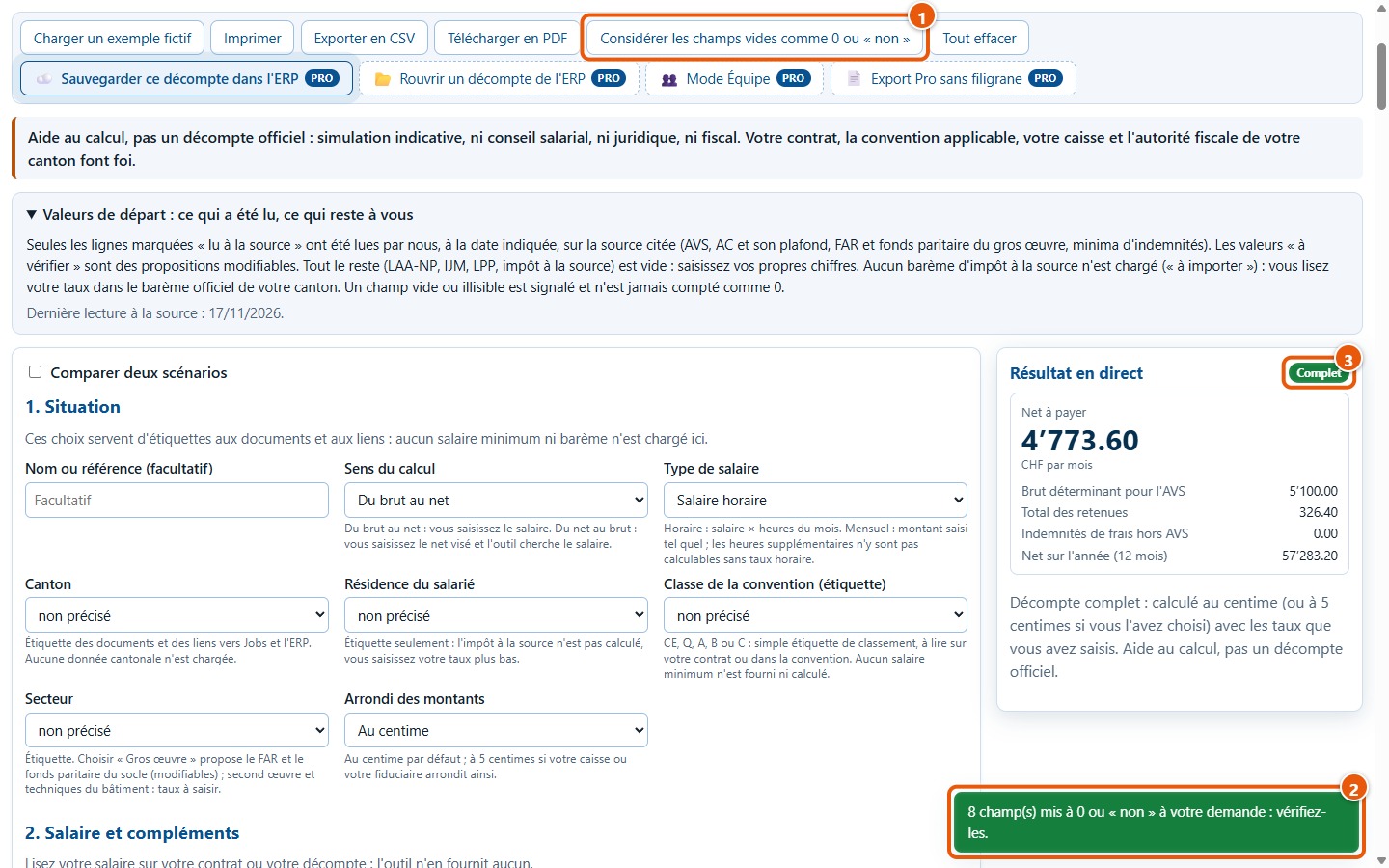
20Treating blank fields as 0 or « non »
When you know a deduction does not apply, the Considérer les champs vides comme 0 ou « non » button (1) sets blank contributions to 0 and unselected choices (13th month salary, holidays, FAR, joint fund) to « Non ». A message indicates how many fields were changed (2): check them. The button does not alter salary, hours, AVS or unemployment insurance. The statement then switches to Complet (3).
5. Other cases
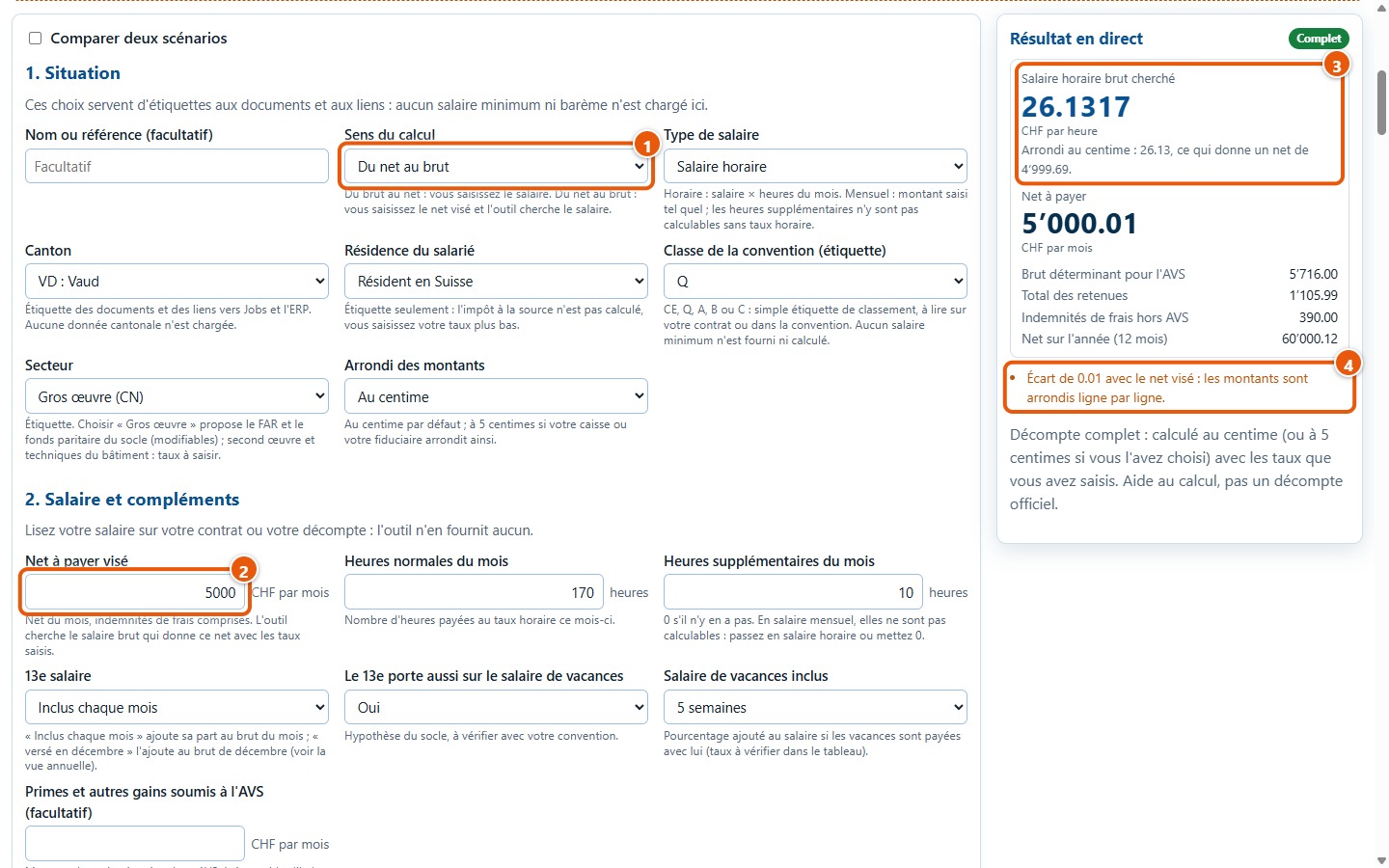
21Net to gross
To find the salary that yields a targeted net amount, select Du net au brut (1) and enter the target net pay (2), including expense allowances. The simulator finds the gross salary (3) using the entered rates and displays it to four decimal places; it also shows the rounded figure to the nearest cent and the net pay it produces. This net pay may differ by a few cents from the target net pay because figures are rounded line by line: a warning indicates the difference (4).
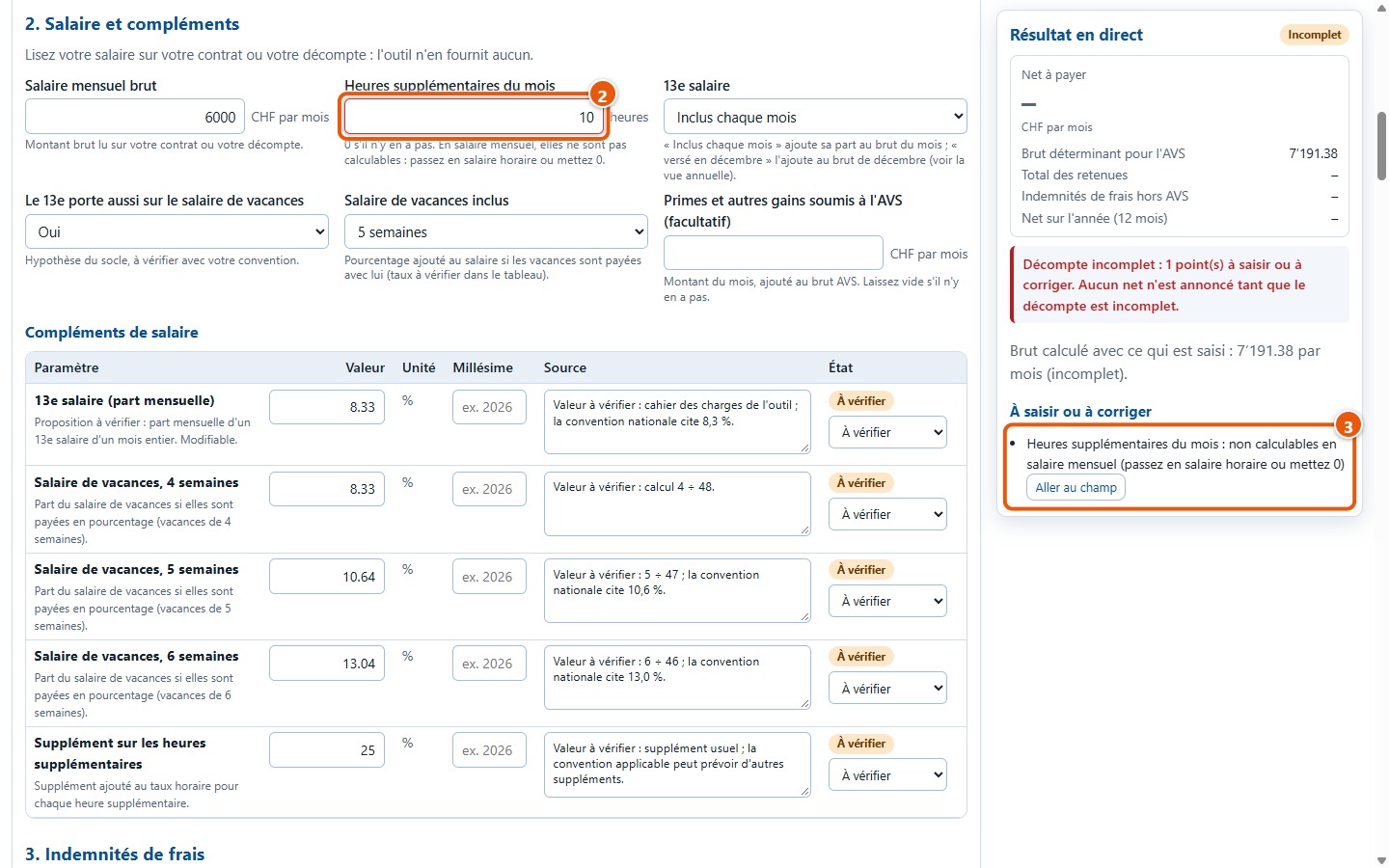
22Monthly salary and overtime
With Salaire mensuel (1), the salary is taken as is: the simulator does not know the hourly rate and therefore cannot calculate overtime. If its field (2) is not set to 0, the statement remains Incomplet and the issue is flagged (3). Enter 0, or switch to an hourly wage. Earnings subject to AVS can be entered as bonuses.
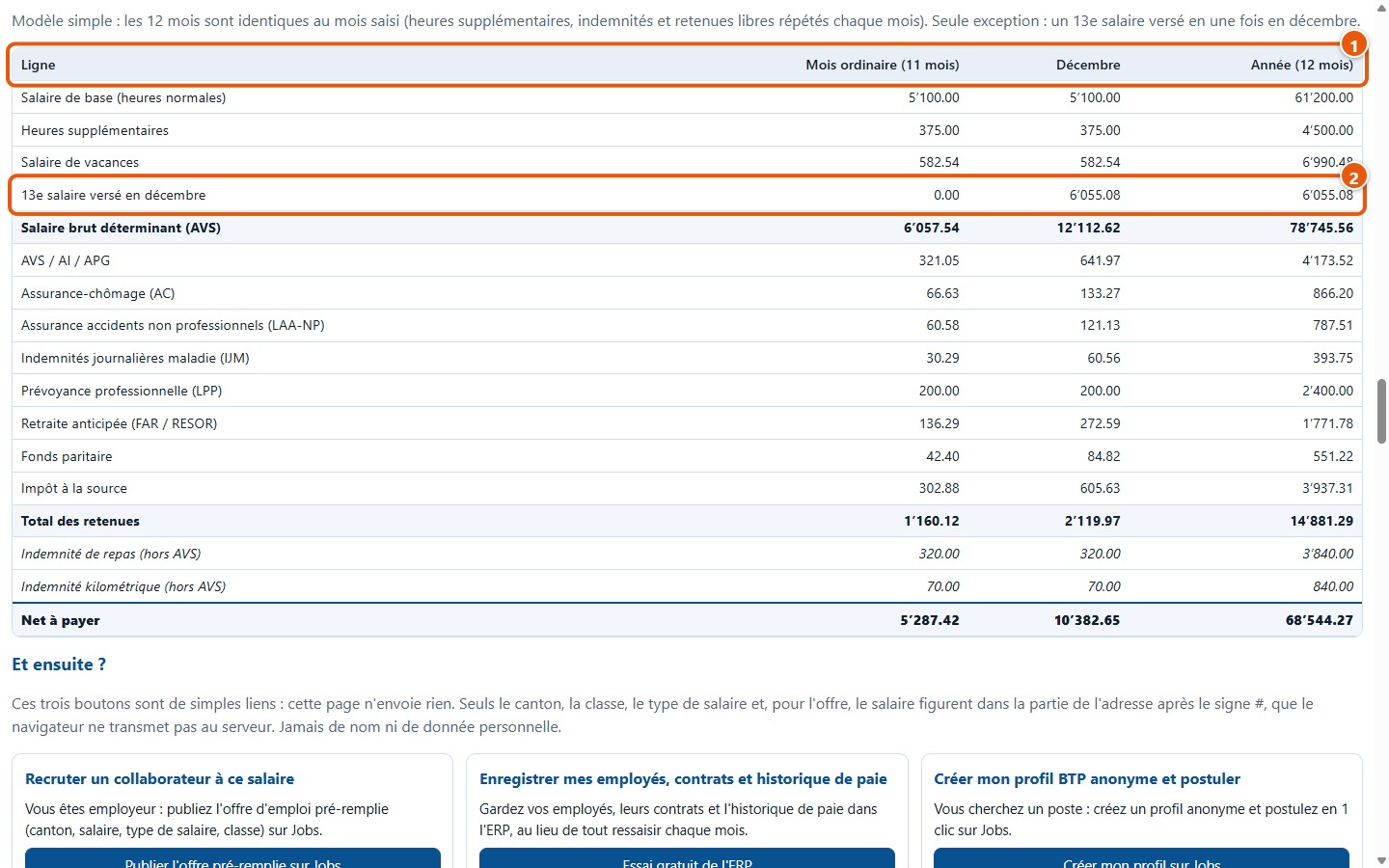
2313th-month salary paid in December
With Versé en une fois (décembre), the monthly statement does not include the 13th-month salary. The annual view adds a « Décembre » column (1) where it appears (2), subject to AVS; the ceilings for unemployment insurance, FAR and the joint fund are then applied over the year.
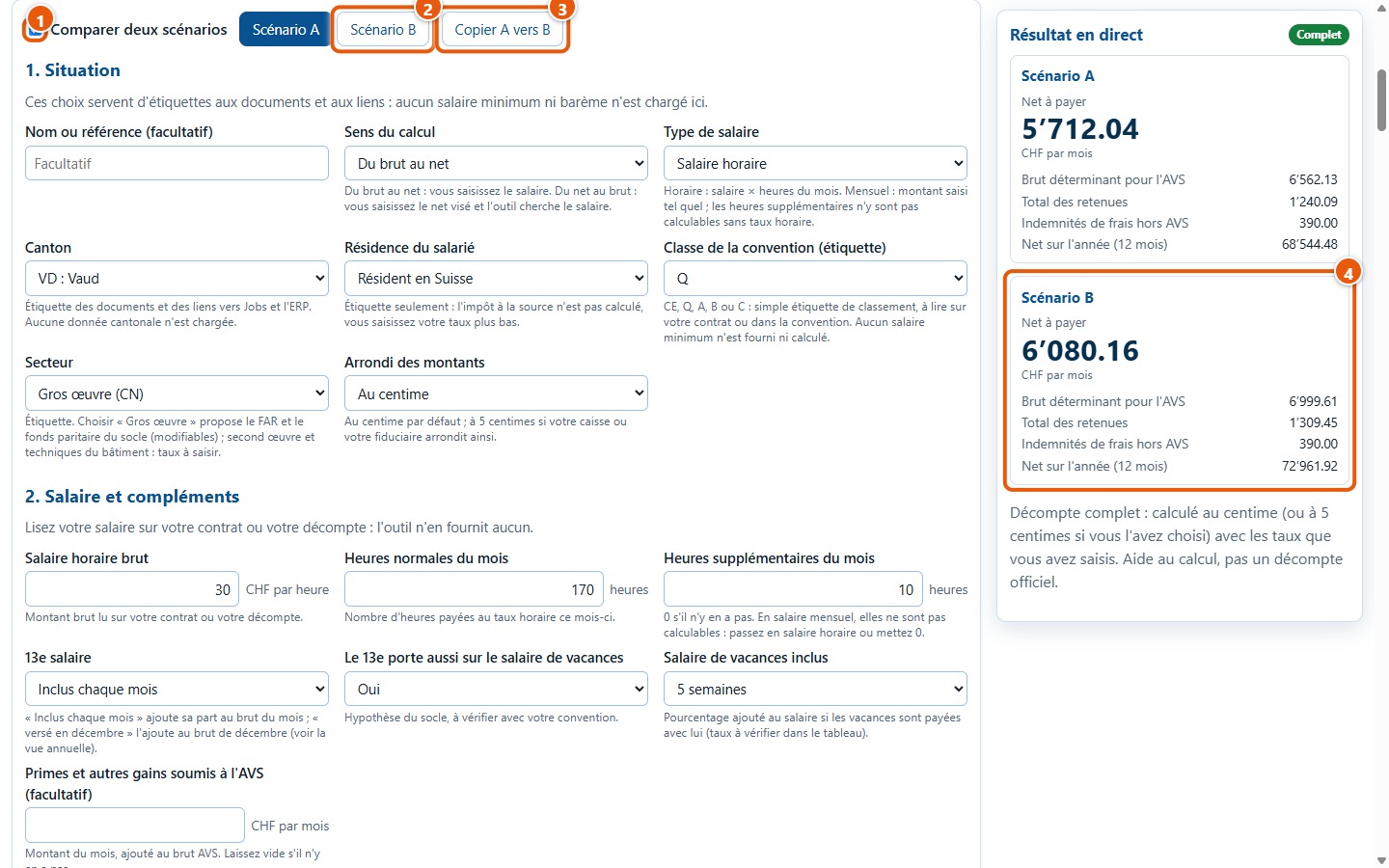
24Compare two scenarios
Tick Comparer deux scénarios (1): two tabs appear, Scénario A and Scénario B (2), each with its own situation, salaries and parameters. Copier A vers B (3) copies A into B to start from the same situation. The results for both scenarios are displayed on the right (4).
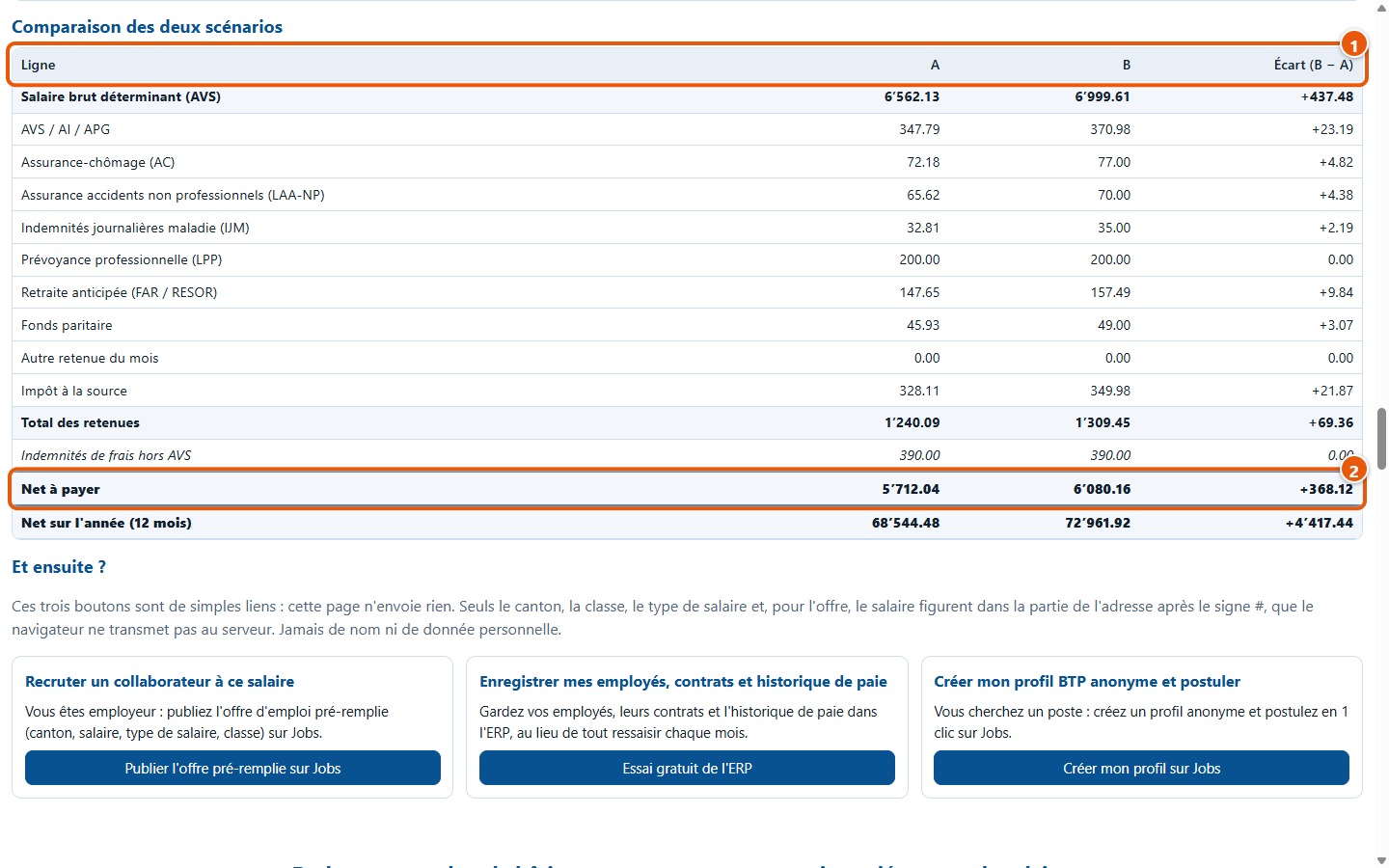
25Read the variances table
The Comparaison des deux scénarios table (1) shows, for each line, the amount for A, that for B and the variance « B − A ». The net pay line (2) shows the difference in net pay between the two scenarios; the annual net pay appears just below.
6. Print and export
26Choose the standard version
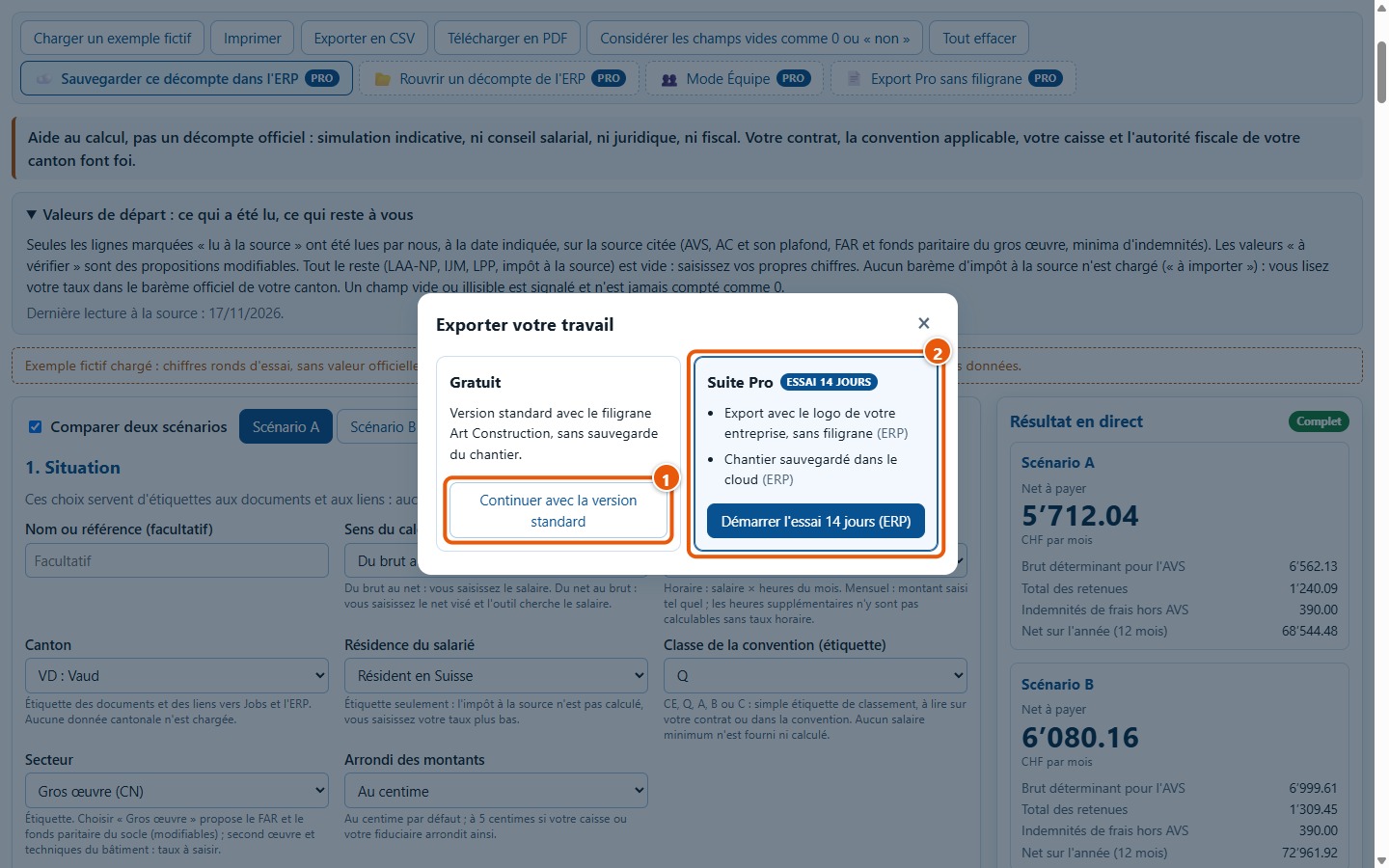
On your first export during the visit (print, CSV or PDF), a window displays two columns. Continuer avec la version standard (1) starts the export with the Art Construction watermark. The column Suite Pro (2) presents the ERP with a 14-day trial, in a new tab. If you close the window without choosing, nothing is exported. Once your choice is made, it will not appear again unless you reload the page.
27The printable sheet
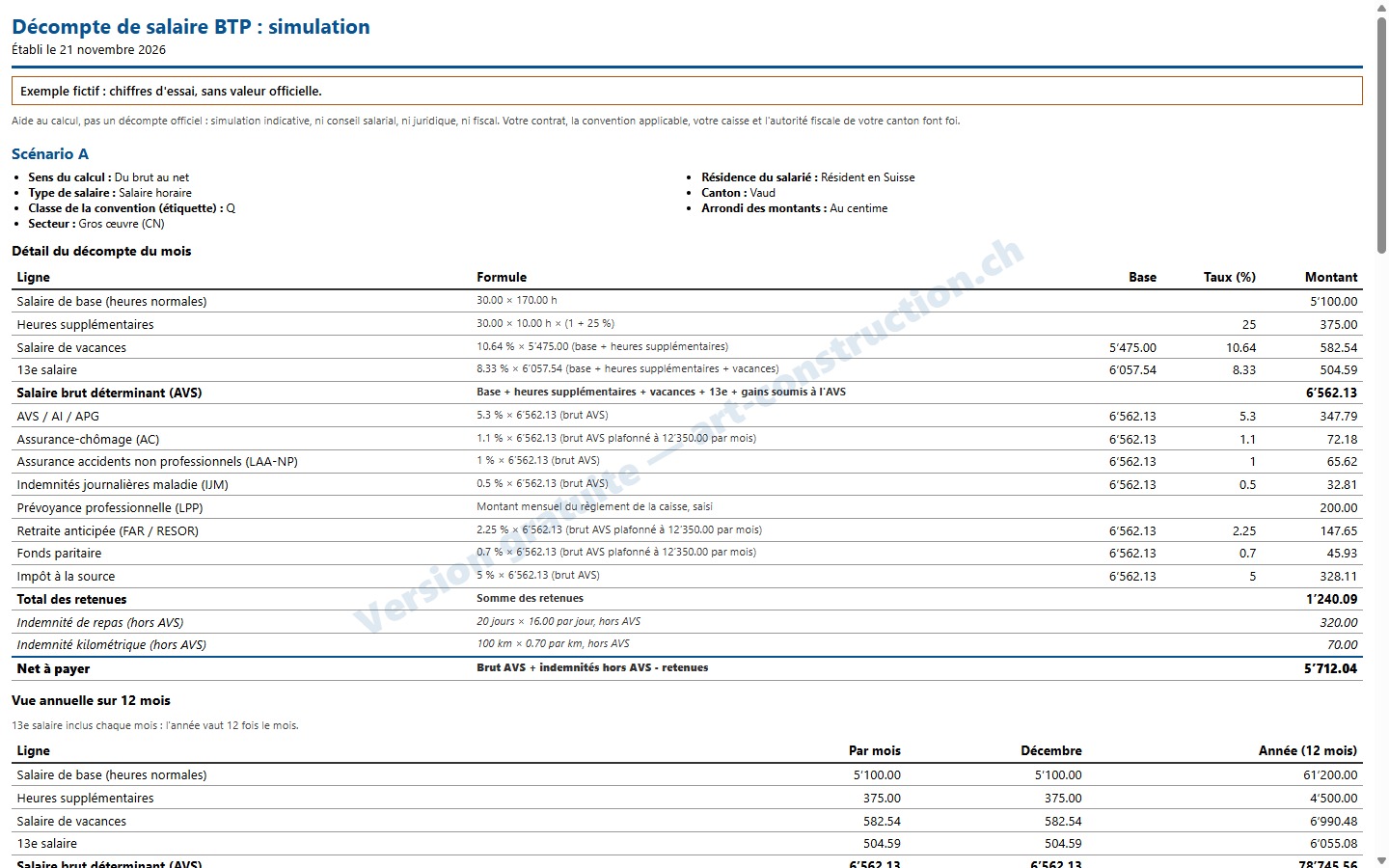
Imprimer prepares a sheet with the title, date, situation, full statement breakdown with its formulas and the annual view for each scenario. The standard version includes a watermark. The image shows the sheet as it appears on screen before printing; for this example, the sheet notes this at the top.
28Parameters used
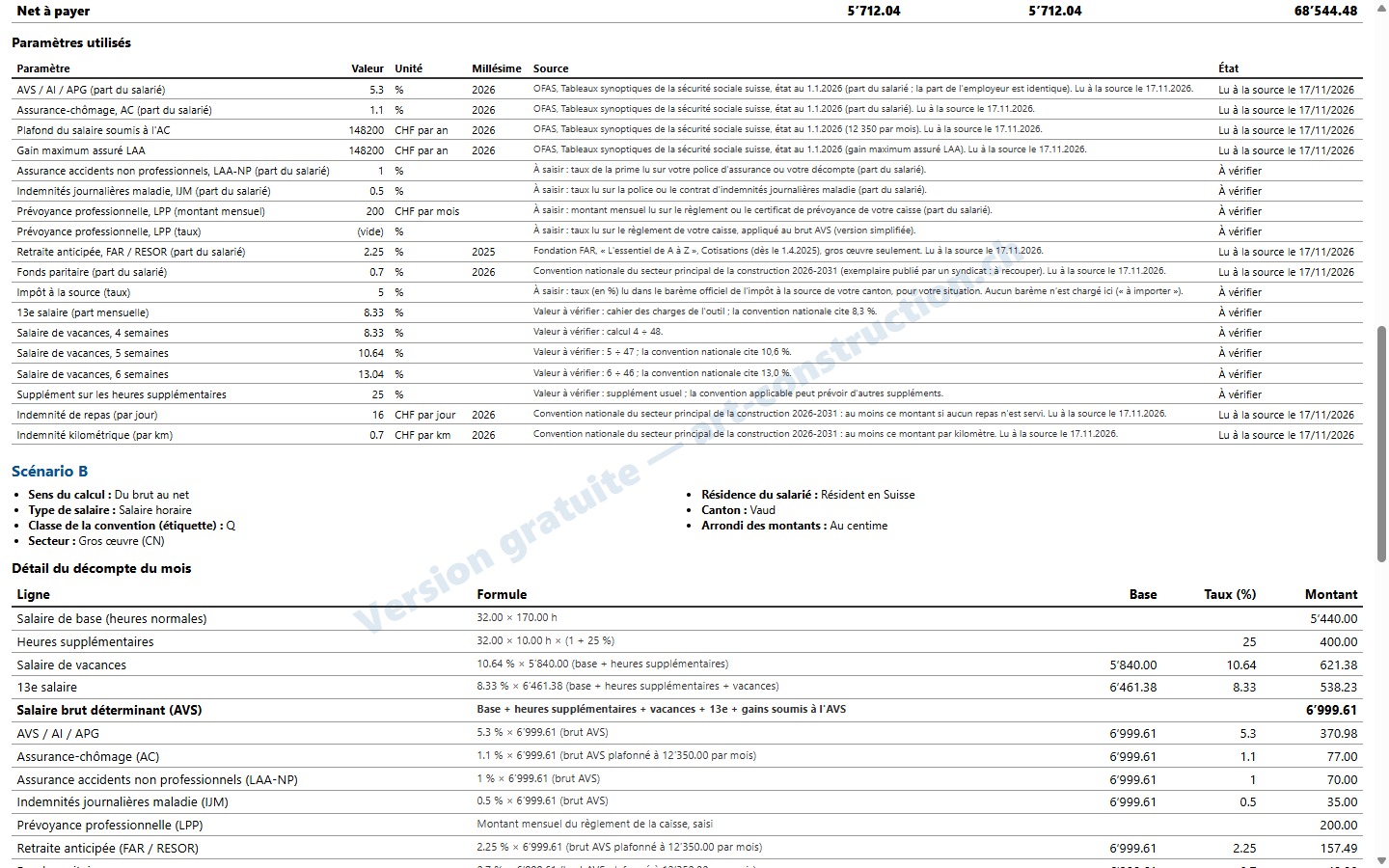
For each scenario, the sheet concludes with the list of parameters used, along with their vintage, source and status: the reader can see what was retrieved from a source and what remains to be checked.
29CSV and PDF
Exporter en CSV (2) downloads a spreadsheet file (semicolon separator) with statement details, the annual view and parameters. Télécharger en PDF (3) downloads a PDF with the same tables. Imprimer (1) prepares the sheet. Both files bear the standard version label and, for this fictitious example, a notice stating so. The simulator saves nothing: export or print before closing the page.
7. What next?
30The three links below the statement
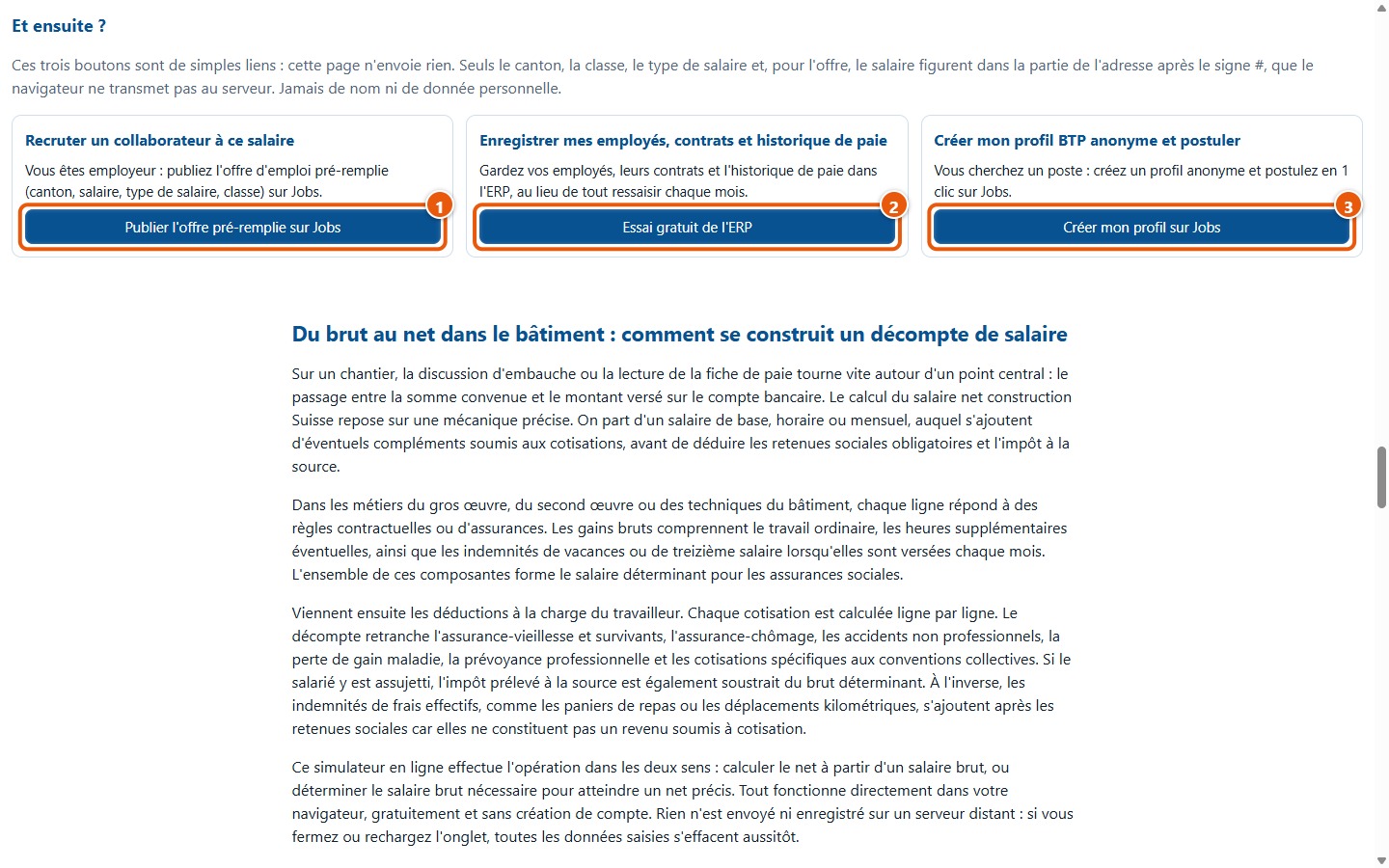
Below the statement, three buttons open a new tab: publish a pre-filled job advert on Jobs (1), try the ERP to manage employees, contracts and payroll history (2), or set up an anonymous profile on Jobs to apply (3). These are plain links: the page sends nothing. Only the canton, class, salary type and, for the advert, the salary appear in the URL fragment after the # sign, which the browser does not send to the server. The entered name never appears there.
31The « Pro » buttons
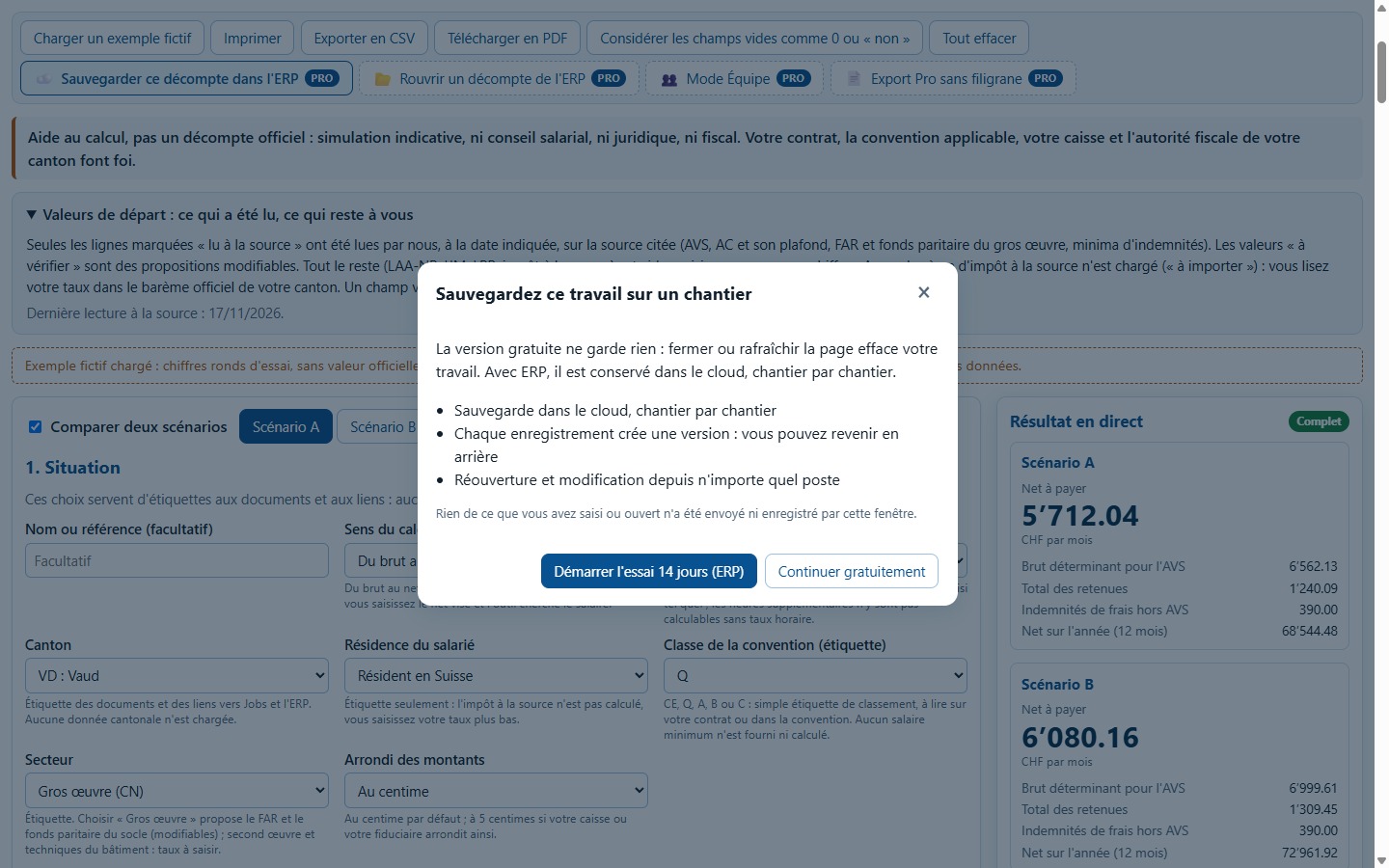
The four buttons marked « Pro » (saving the statement to the ERP, reopening it, Team mode, watermark-free export) open a pop-up presenting the ERP and offering a 14-day trial. In this page's simulator, they do not record anything: Continuer gratuitement closes the pop-up and returns you to your statement.
8. What this software does not do
- It provides no salary, legal, or tax advice. The result is indicative: your contract, the applicable collective agreement, your compensation fund, and your cantonal tax authority prevail. Have it verified by a professional (fiduciary, compensation fund, HR) before using it.
- It includes no minimum wage and no withholding tax scale: the salary and the tax rate must be entered by you. The class, sector, canton, and residence are labels.
- It only pre-fills values retrieved from a source on 17.11.2026 (AVS, AI, APG, unemployment insurance and its cap, LAA maximum earnings, structural work FAR and joint fund, meal and mileage allowances). 13th-month pay, holiday pay, and overtime premiums are proposals to check; non-occupational accident insurance, sickness daily allowance, occupational pension, and withholding tax remain empty. A contribution rate may change.
- It simplifies: percentage deductions (non-occupational accidents, sickness daily allowance, occupational pension rate, withholding tax) are calculated on the AVS gross; it applies neither coordination deduction nor age scales for the occupational pension; the FAR and joint fund cap is the maximum LAA earnings divided by 12, an assumption to confirm with your compensation fund.
- It does not calculate overtime on monthly salaries due to the lack of an hourly rate, and its annual view assumes twelve identical months, without salary changes during the year.
- It produces neither an official payslip nor a salary certificate: these are simulations bearing the standard version mention.
- It saves nothing: export or print before closing the page. The « Pro » buttons do not save in this version.
Have a question? Send an enquiry to support