SIA 451 Call for Tenders Reader and Editor Guide
This guide shows you how to open an architect's bill of quantities, enter your prices, review the offer and read the totals, directly in your browser. Each step is illustrated with a mock call for tenders and sample prices.
1. Open a call for tenders
1Open a file or the example
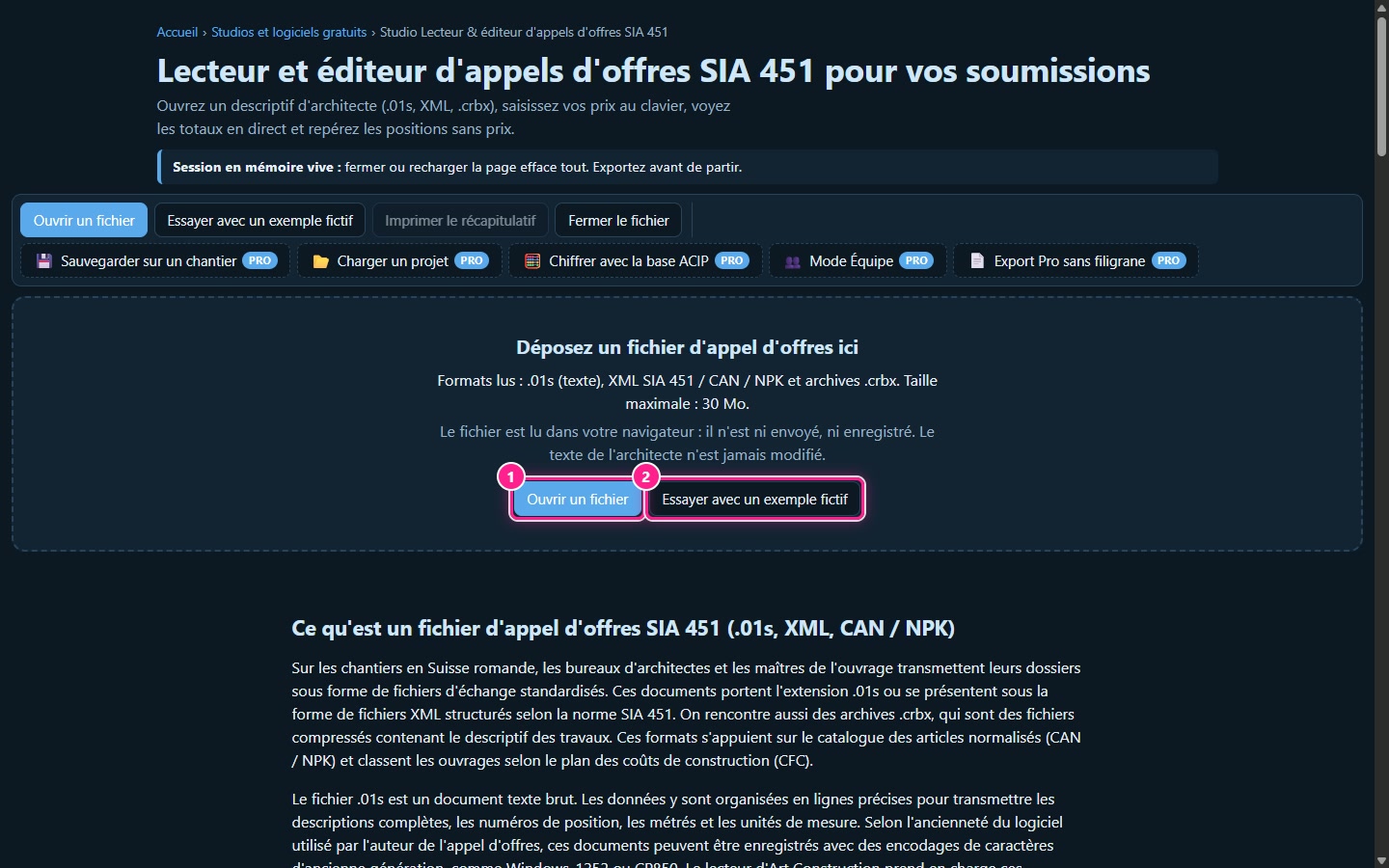
Click Open a file or drop a file onto the area. The studio reads .01s files, SIA 451, CAN or NPK XML files and .crbx archives, up to 30 MB. No file to hand? Try with a dummy example opens a mock call for tenders with no prices entered.
2Read the header
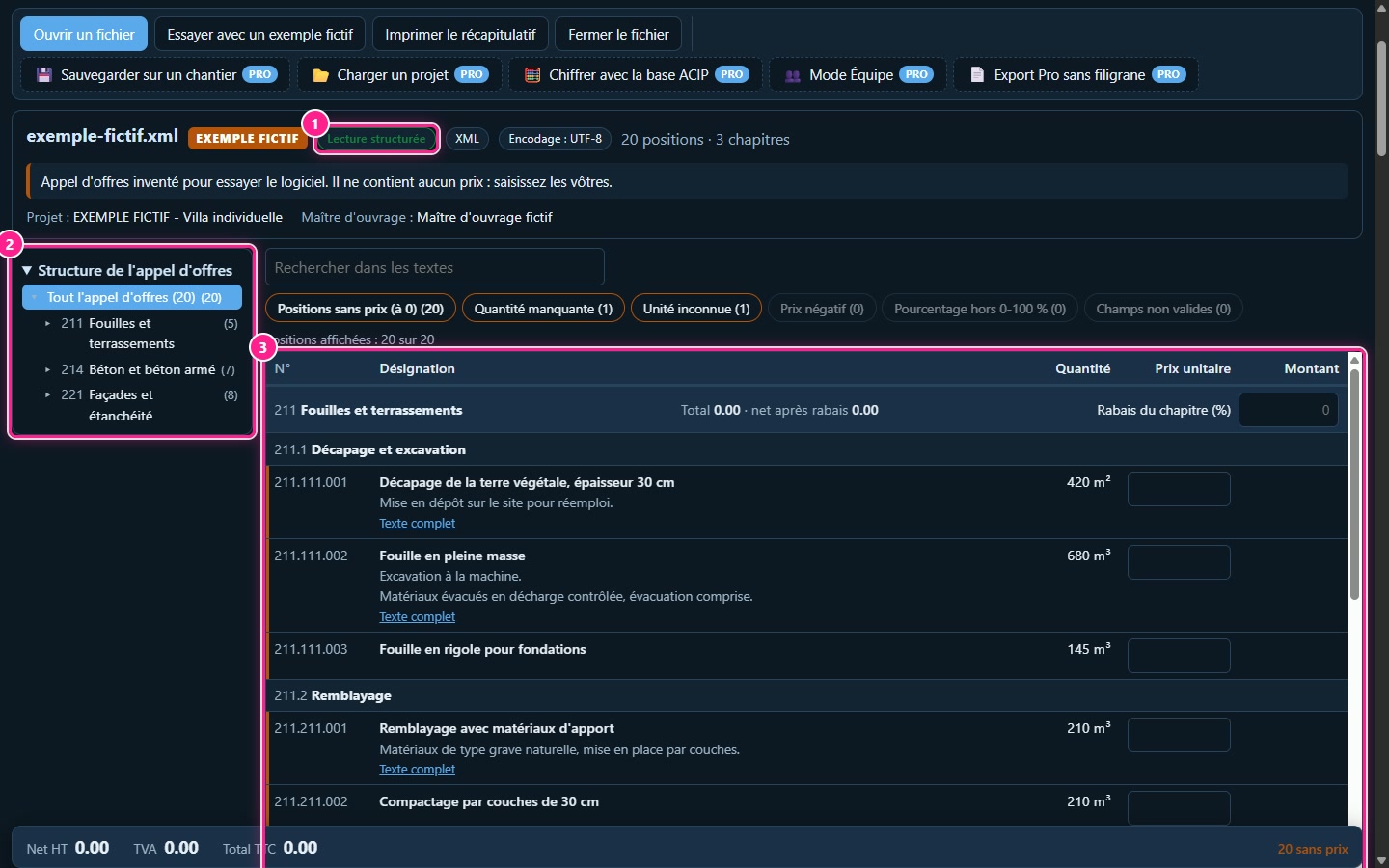
The top of the screen summarizes the file: its name, format, encoding, reading reliability, number of positions and chapters, followed by the project and client when included in the file. A "Heuristic reading: check recommended" means the structure was guessed: please double-check quantities and units against the architect's document.
2. Navigating the bill of quantities
3Use the tree view and search
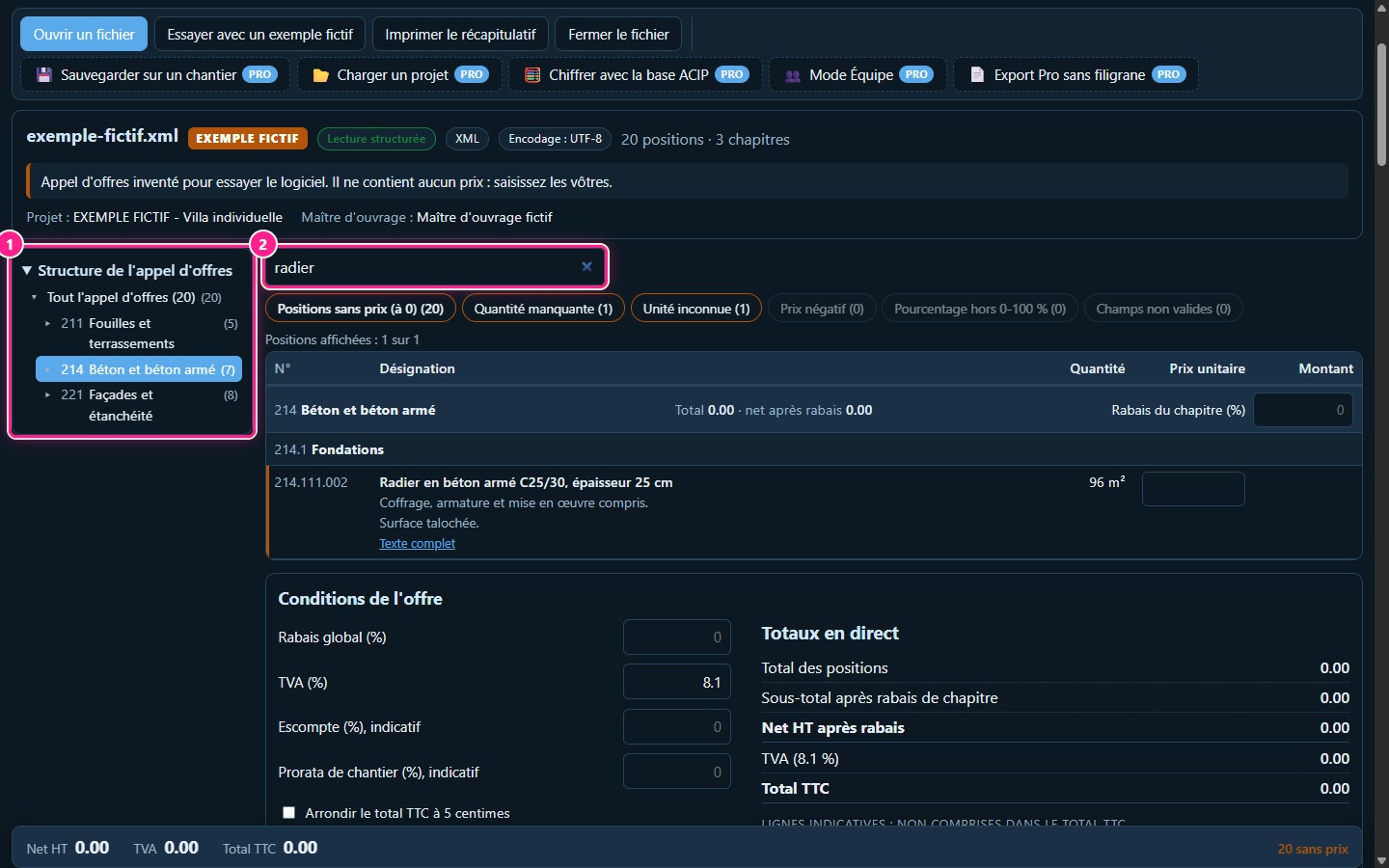
The tree view on the left organizes the bill of quantities by chapter and group: clicking a chapter displays only its positions. The Search in texts field searches within texts. Here, searching for "raft foundation" leaves just one position out of twenty.
4Read the full text
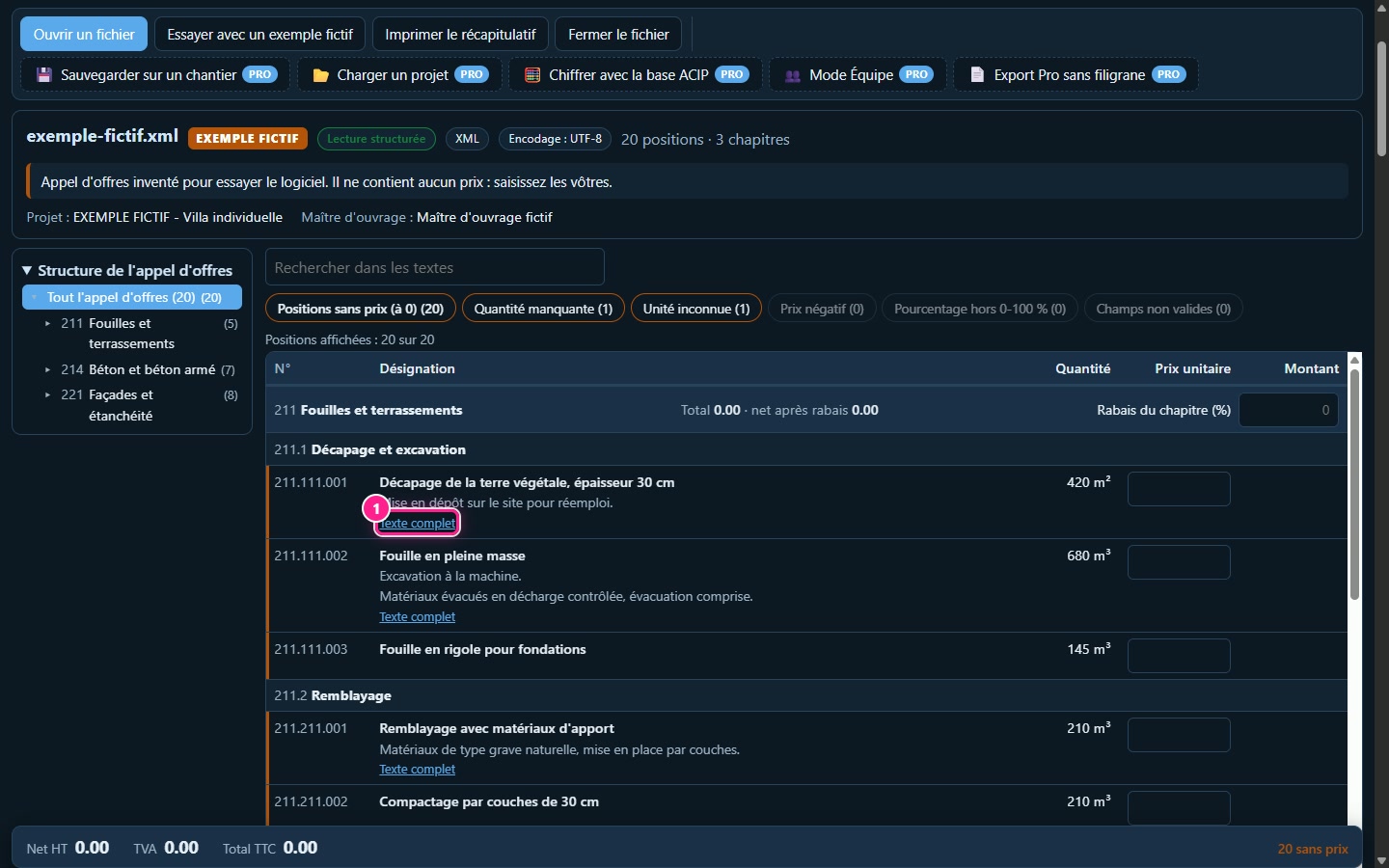
Each item shows its number, its short description, its quantity and its unit. Long descriptions are folded onto two lines: click on Full text to read the architect's full description (in the example, the descriptions are short: the display changes very little). Contingency items, variants and daywork are labelled.
3. Entering your prices
5Paste a column of prices from Excel
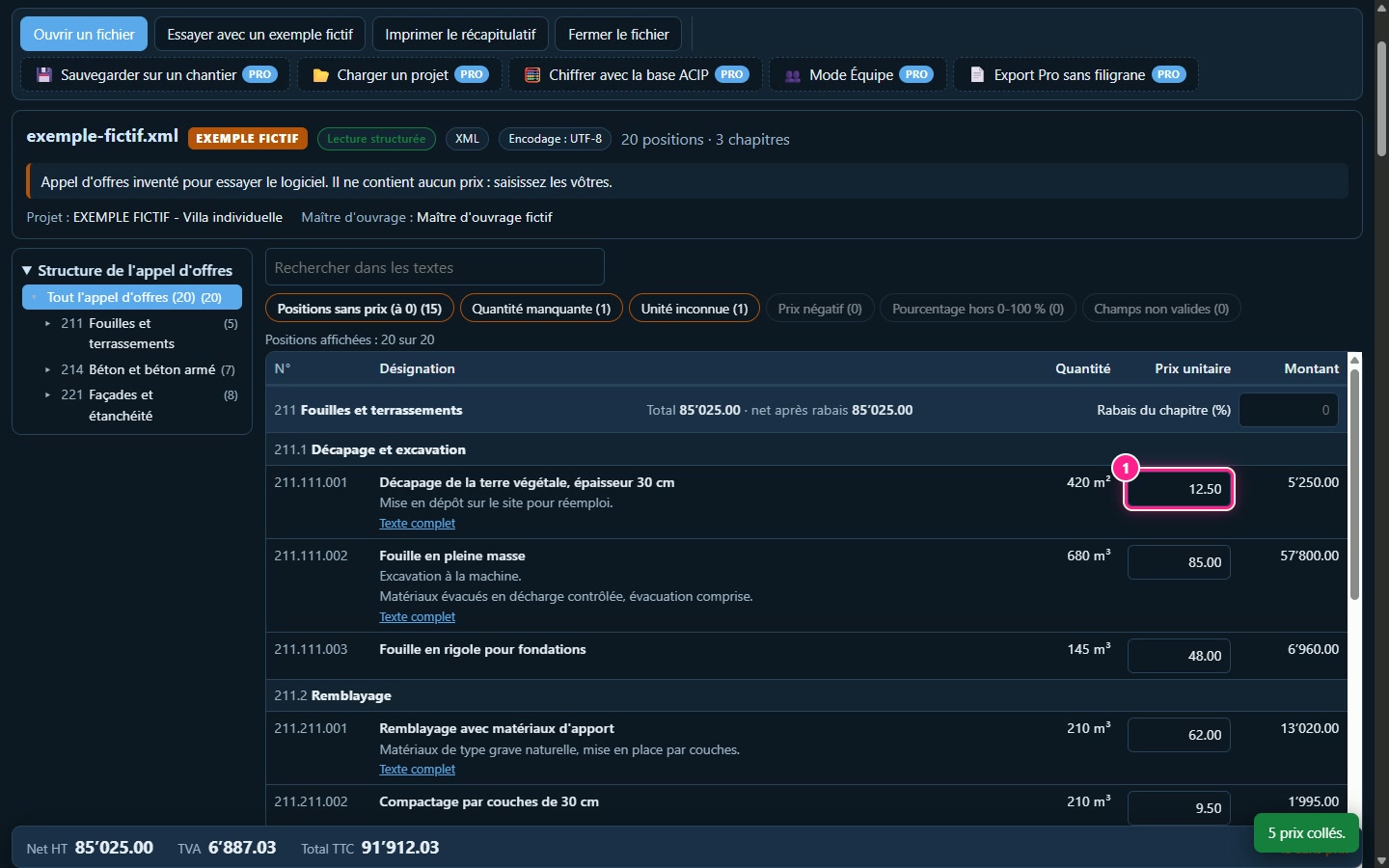
Copy a column of prices in Excel, click in the first price field to fill, then paste using Ctrl+V. The prices fill downwards and a message indicates how many were pasted. If you paste multiple columns, only the first one is used.
6Enter prices via the keyboard
Click a price cell, type the price, then press Enter: the cursor moves to the cell below. Tab and Shift+Tab move forward and backward, arrow keys navigate, and F2 edits the cell. Amounts and totals update with every price entered in the bottom bar.
7Enter missing quantities yourself
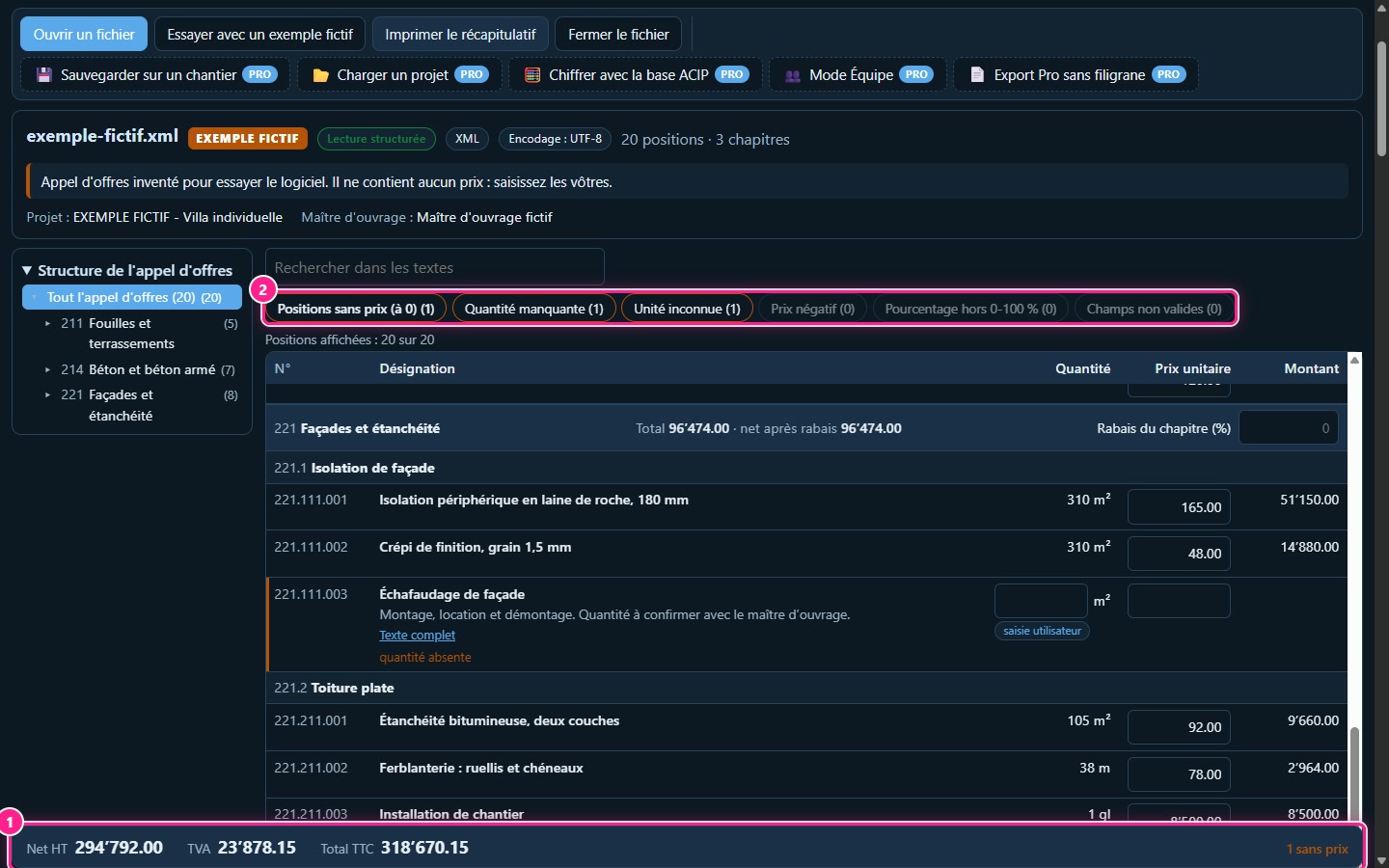
A standard bill of quantities contains no quantities. Each position then displays a user entry field. Your quantity is used for calculation and checks; it never replaces a file quantity and is never written into the architect's text. No prices are pre-filled upon opening.
4. Reviewing the offer
8Use the check badges
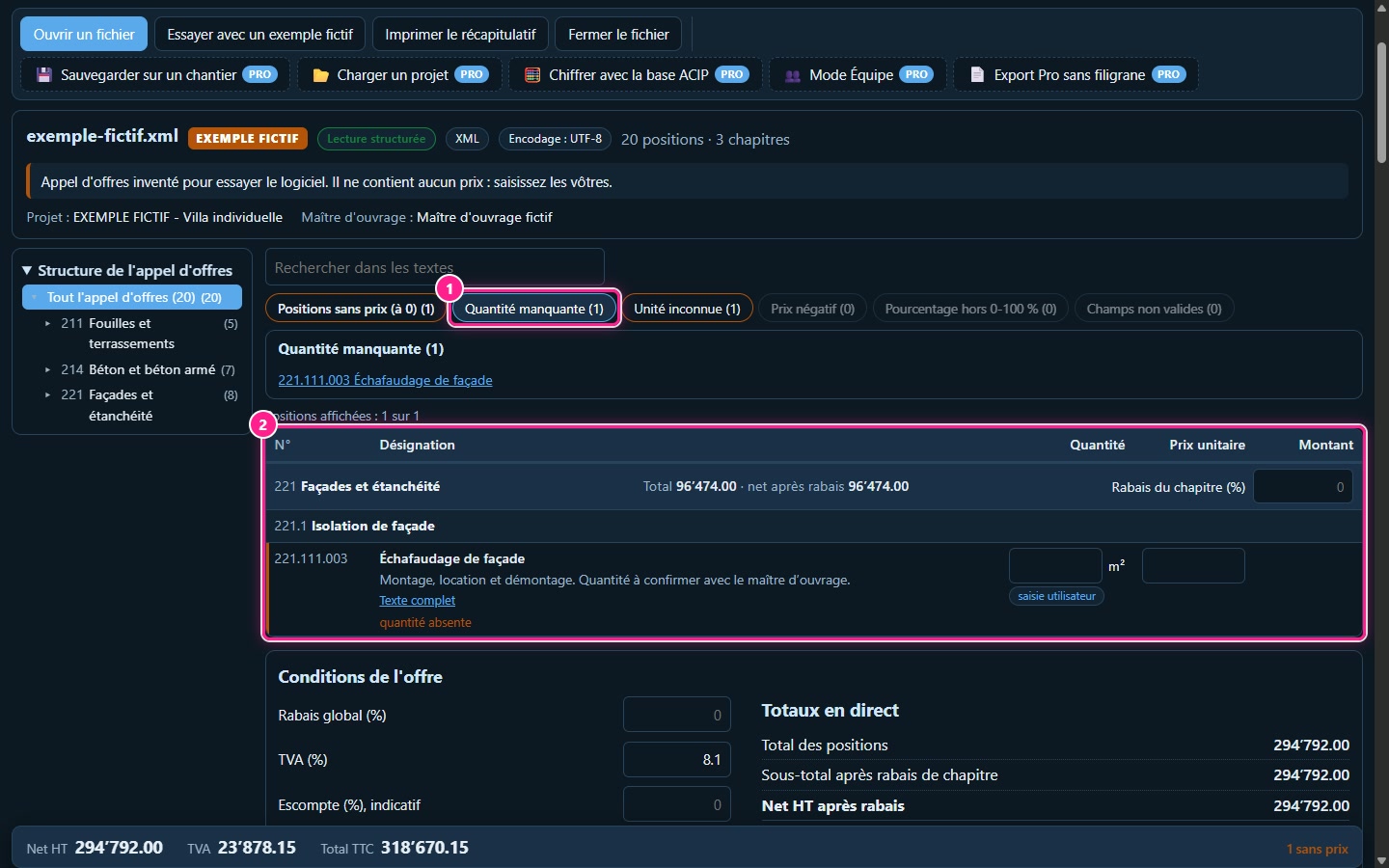
The badges count positions without prices, missing quantities, unknown units, negative prices, percentages outside 0-100% and invalid fields. Click a badge to filter the table, then click a row in the list to jump to it. Here, the scaffolding has no quantity.
5. Discounts, VAT and totals
9Applying a discount to a chapter
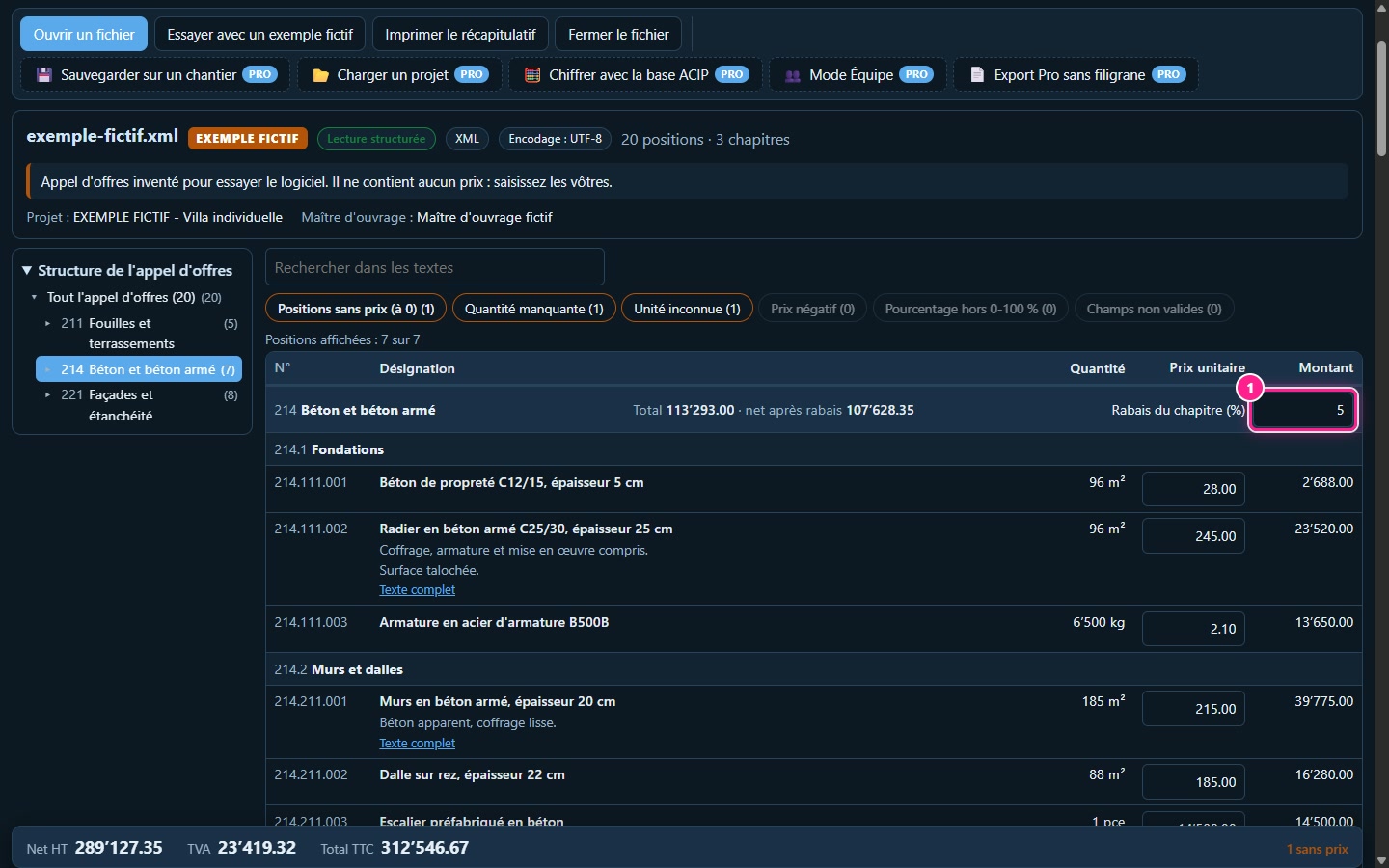
In the chapter row, type a percentage in the Chapter discount (%) field. The chapter displays its total and then its net amount after discount. Here, 5% on the Concrete and reinforced concrete chapter.
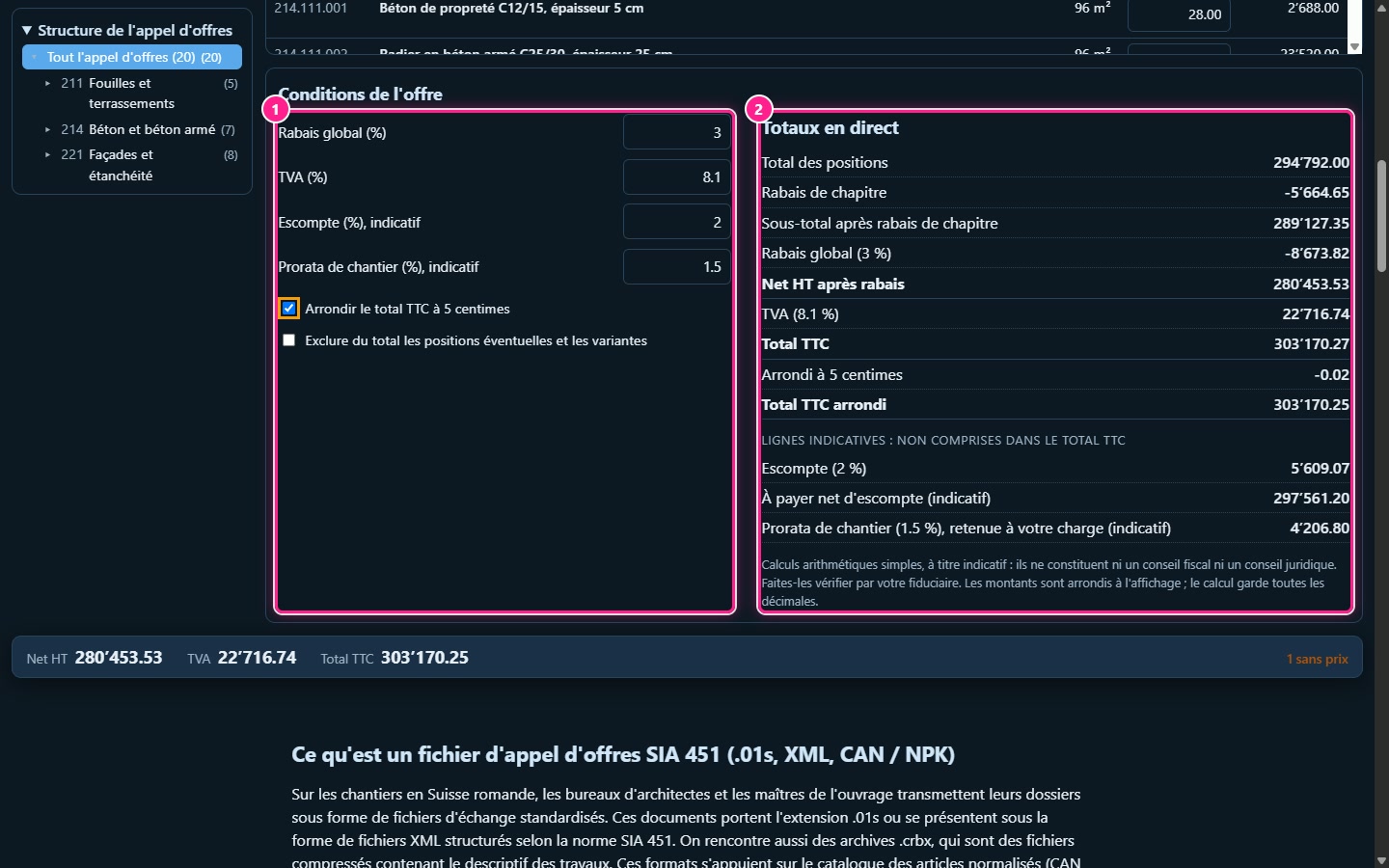
10Setting tender conditions
Below the table, the Tender conditions panel contains the overall discount, VAT (8.1% initially), cash discount and construction site pro-rata. Live totals follow the calculation order: amount = quantity × price, chapter total, chapter discount, subtotal, overall discount, net excl. VAT, VAT, total incl. VAT.
6. Printing the summary
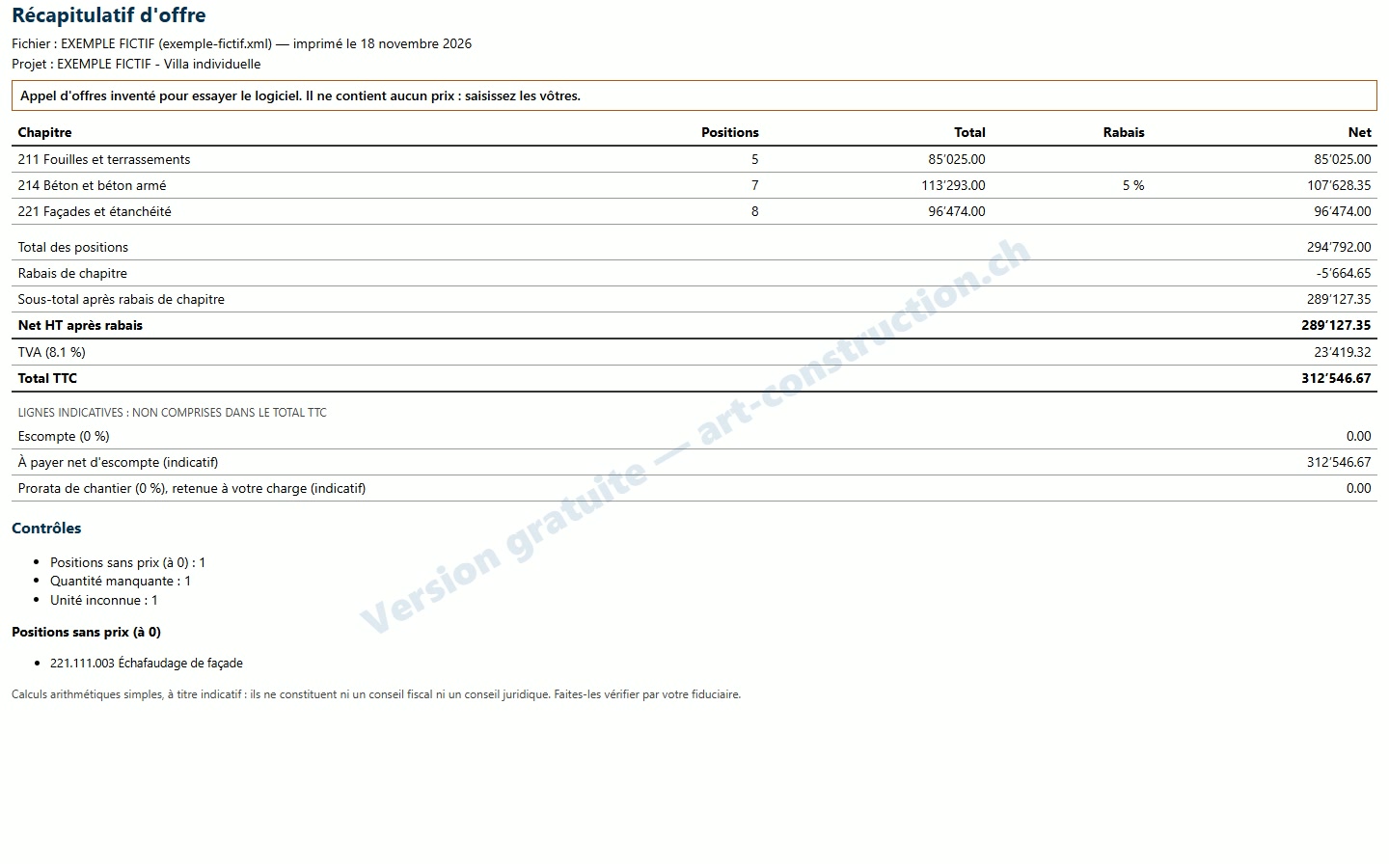
11One table per chapter, totals and checks
The Print summary button opens the browser print function. The sheet includes one table per chapter, totals and checks; the free version adds a watermark to it. The studio does not create any PDF.
7. Actual files and rejected files
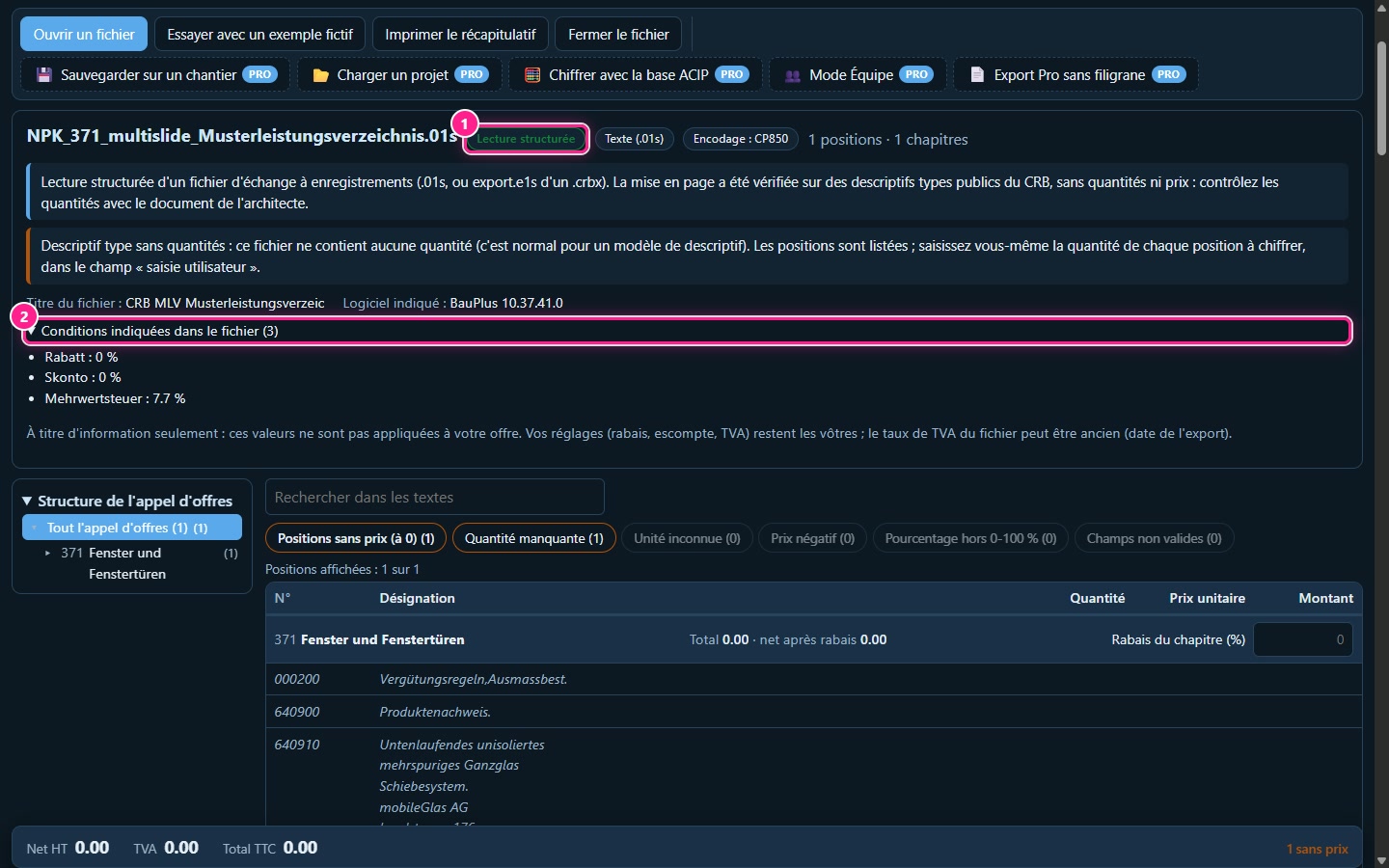
12Opening a standard CRB description
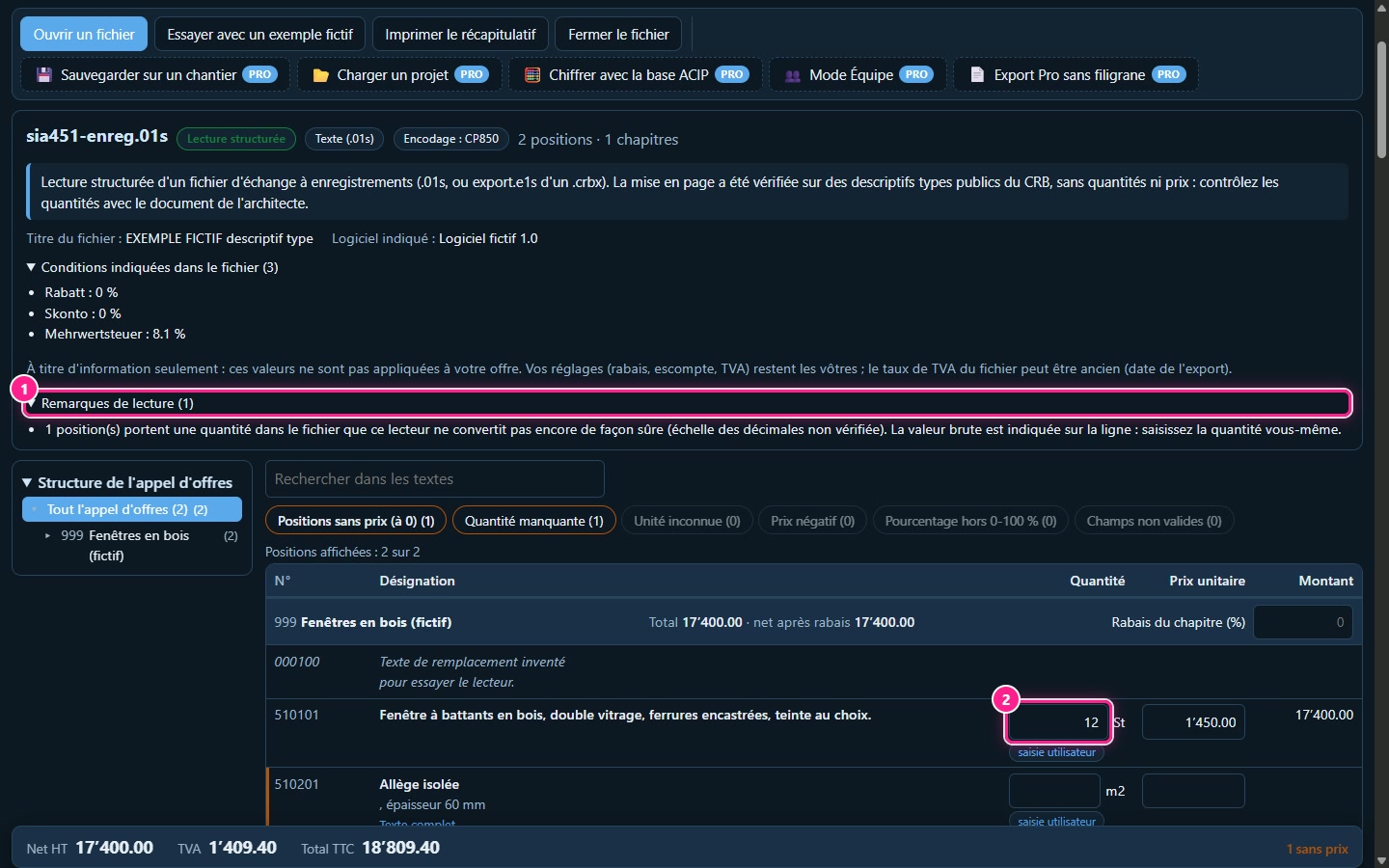
Here is a public standard CRB description (.01s), without quantities or prices. The studio reads it as a record-based file. The conditions indicated in the file (discount, cash discount, VAT) are displayed for information purposes only: they are never applied to your tender, as the file's VAT rate may be outdated.
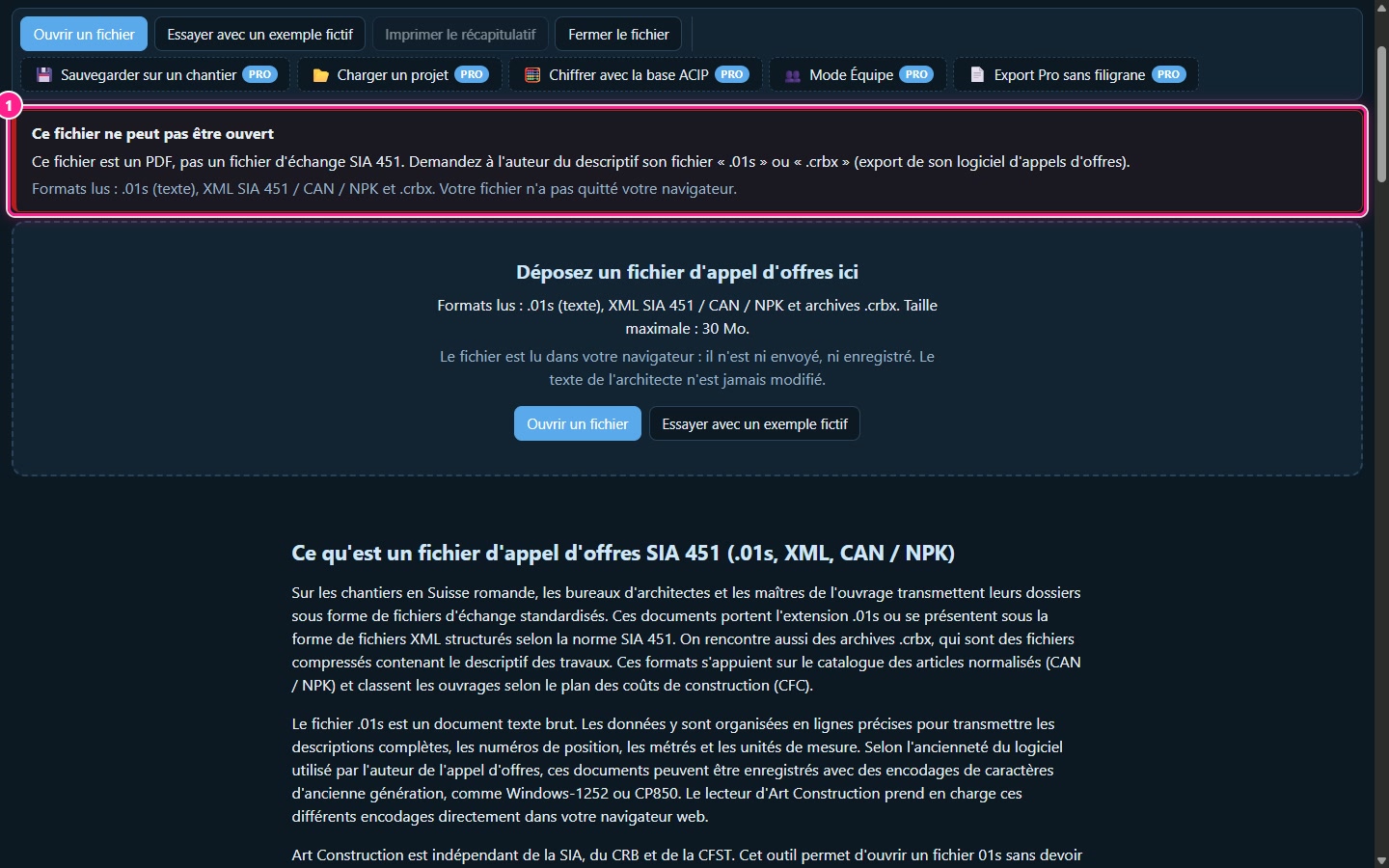
13Understanding a rejection
A PDF, an image or an Office document receives a specific message. A cut-off or incomplete file is rejected: it is never read halfway. Your file has not left your browser.
8. The Pro version
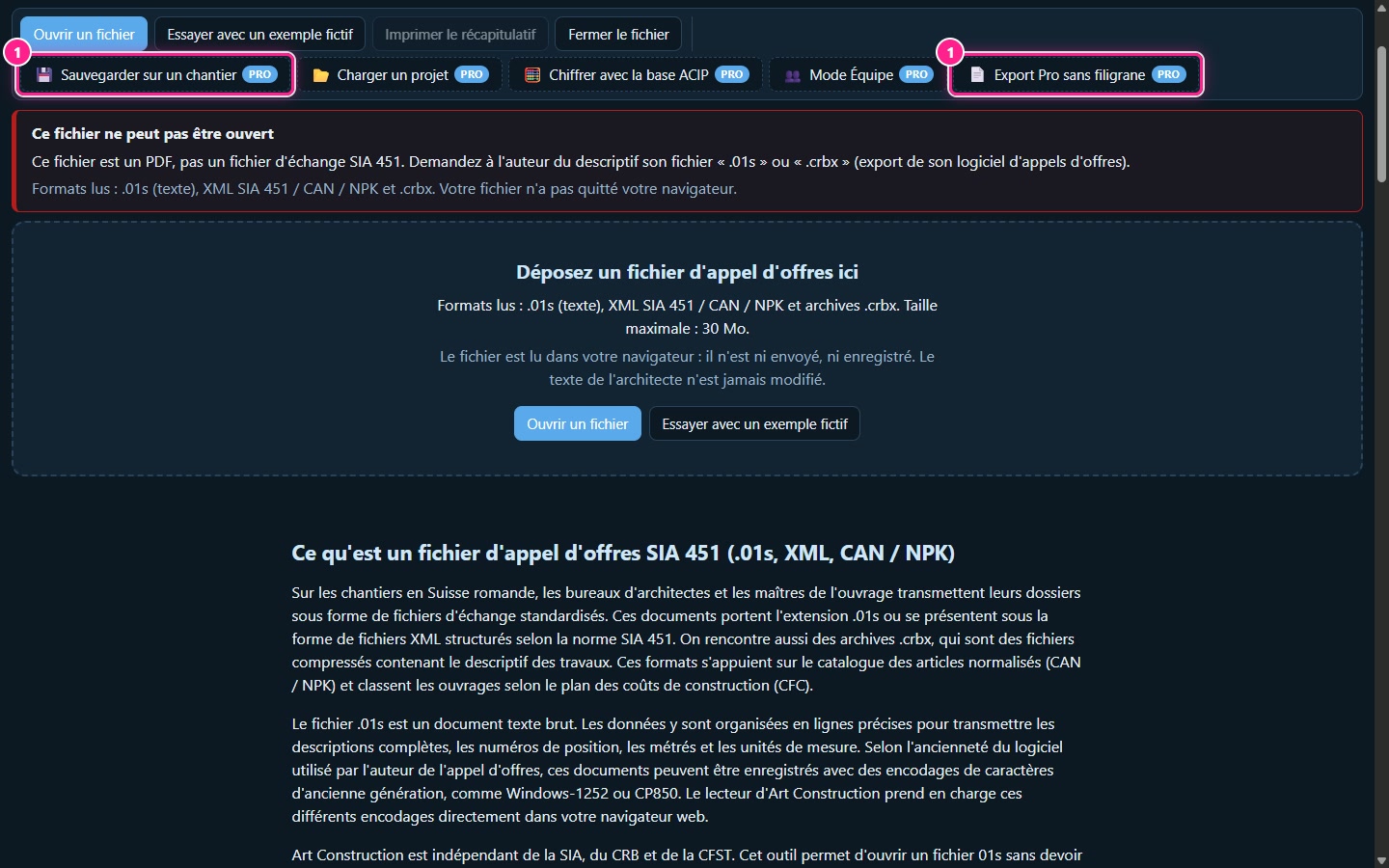
14The Pro buttons in the free version
The five buttons marked Pro are visible in the free studio. They open a window presenting what the Pro version adds; nothing you have entered is sent.
15What the Pro version adds
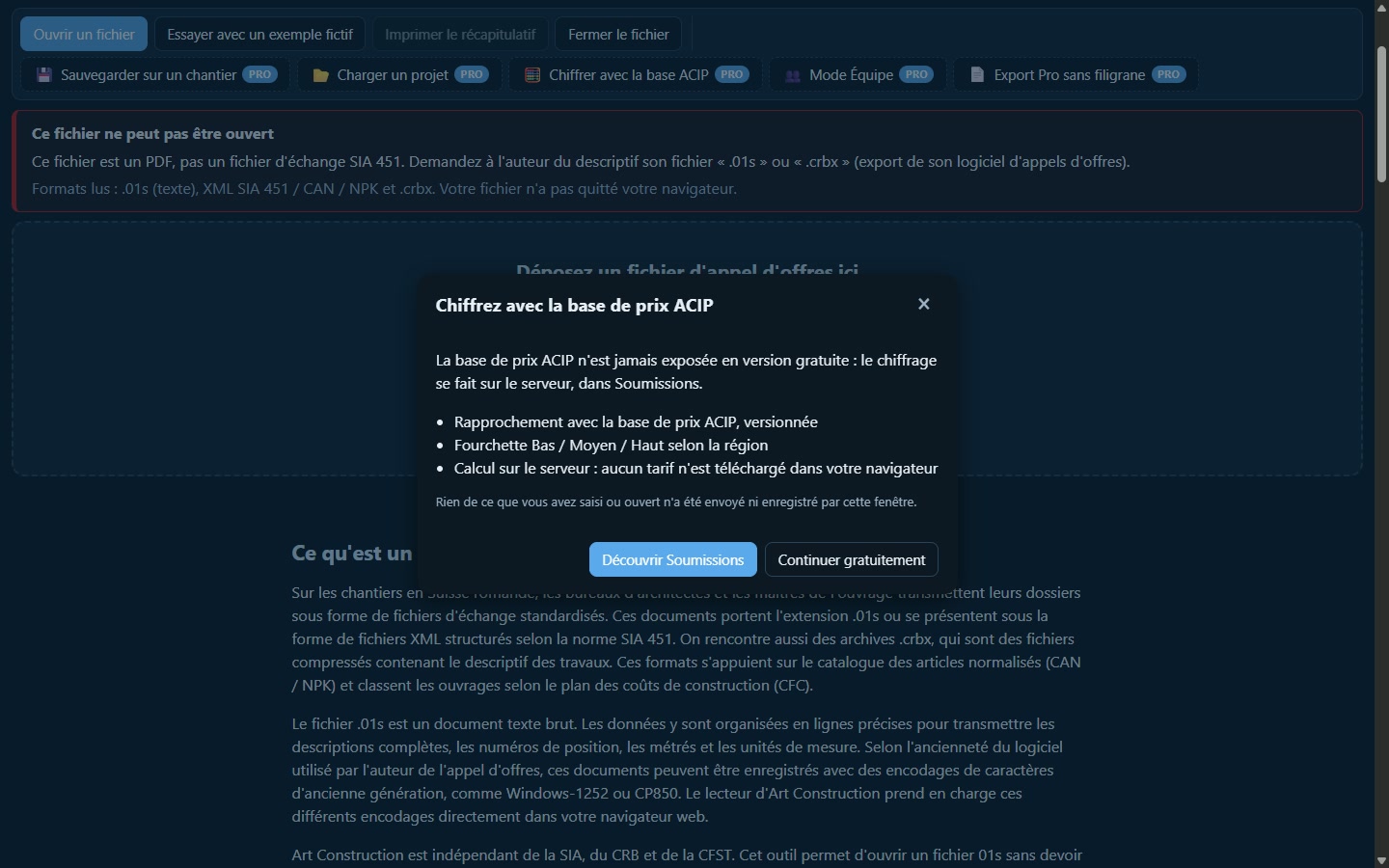
The same reader is integrated into Soumissions. It adds what the free studio does not do:
- save the call for tenders, entered prices and quantities, and reopen them later;
- suggest ACIP database prices, calculated on the server: no price is filled in without your click on each suggestion;
- export a return file with your prices, all or nothing, with a review check. This works for XML and for .01s in columns or free lines; CRB record-based files are rejected because the price location is not verified there.
9. What this software does not do
- It never modifies the architect's text and does not create any PDF.
- It does not apply file conditions (discount, cash discount, VAT): they are displayed for information purposes.
- It does not retrieve prices already present in a file without your request: an explicit button retrieves them.
- The actual files examined were standard descriptions, without quantities or prices. Quantities from a real priced call for tenders are not converted: the raw value is displayed and you enter the quantity.
- Writing a price in a record-based .01s file is rejected as long as its location is not verified.
- A file larger than 30 MB is rejected; beyond twenty thousand items, only the first ones are displayed, along with a message.
- It provides neither tax nor legal advice: calculations are arithmetic and indicative.
- It saves nothing in the free version.
Have a question? Send a request to support