Swiss construction CV and safety passport guide
This guide shows you how to draft a Swiss construction CV in your browser: photo, education, work experience, safety passport, then PDF in French, German or Italian. Each step is illustrated with a fictitious example.
1. Getting started
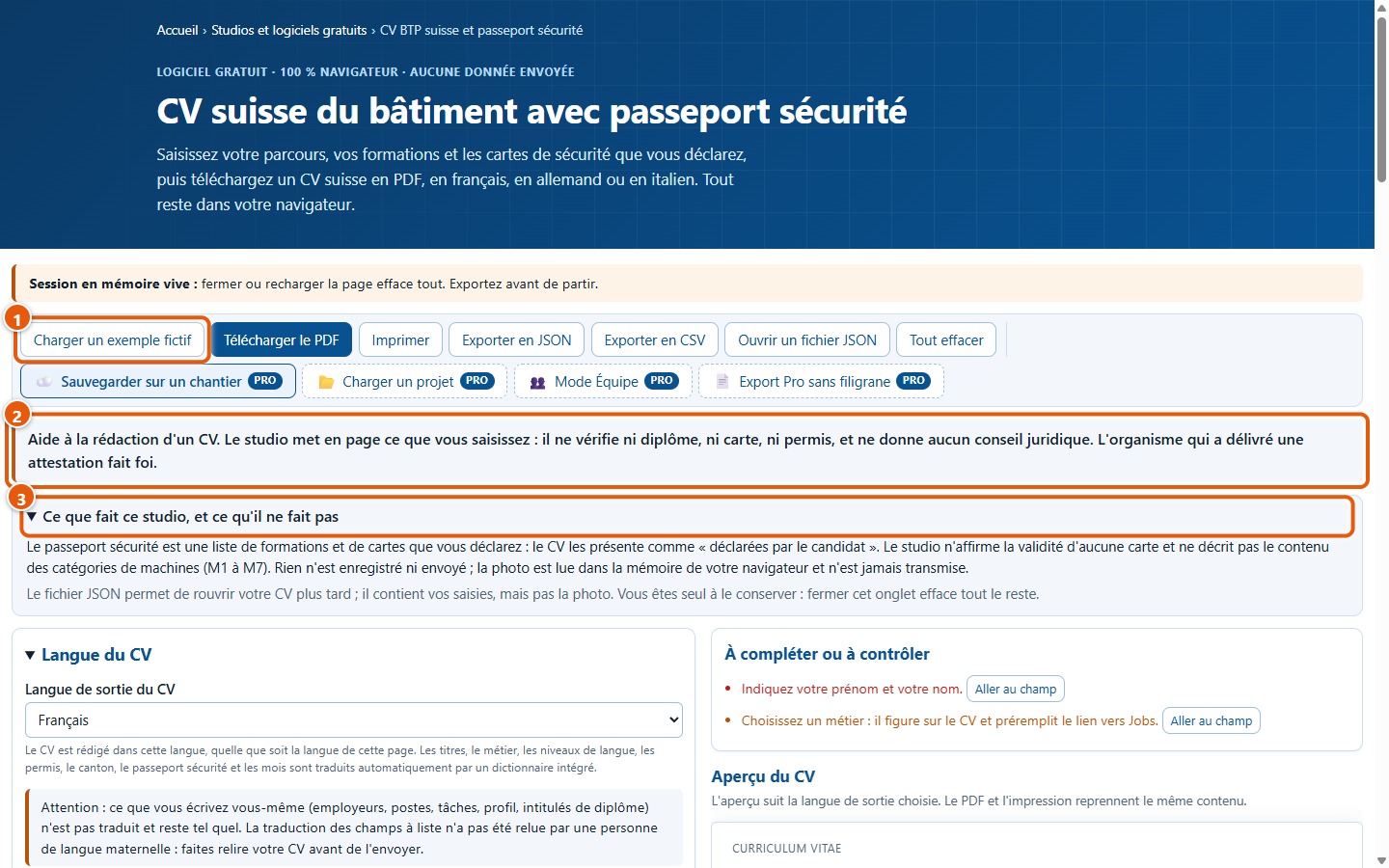
1Open the software and read the warning
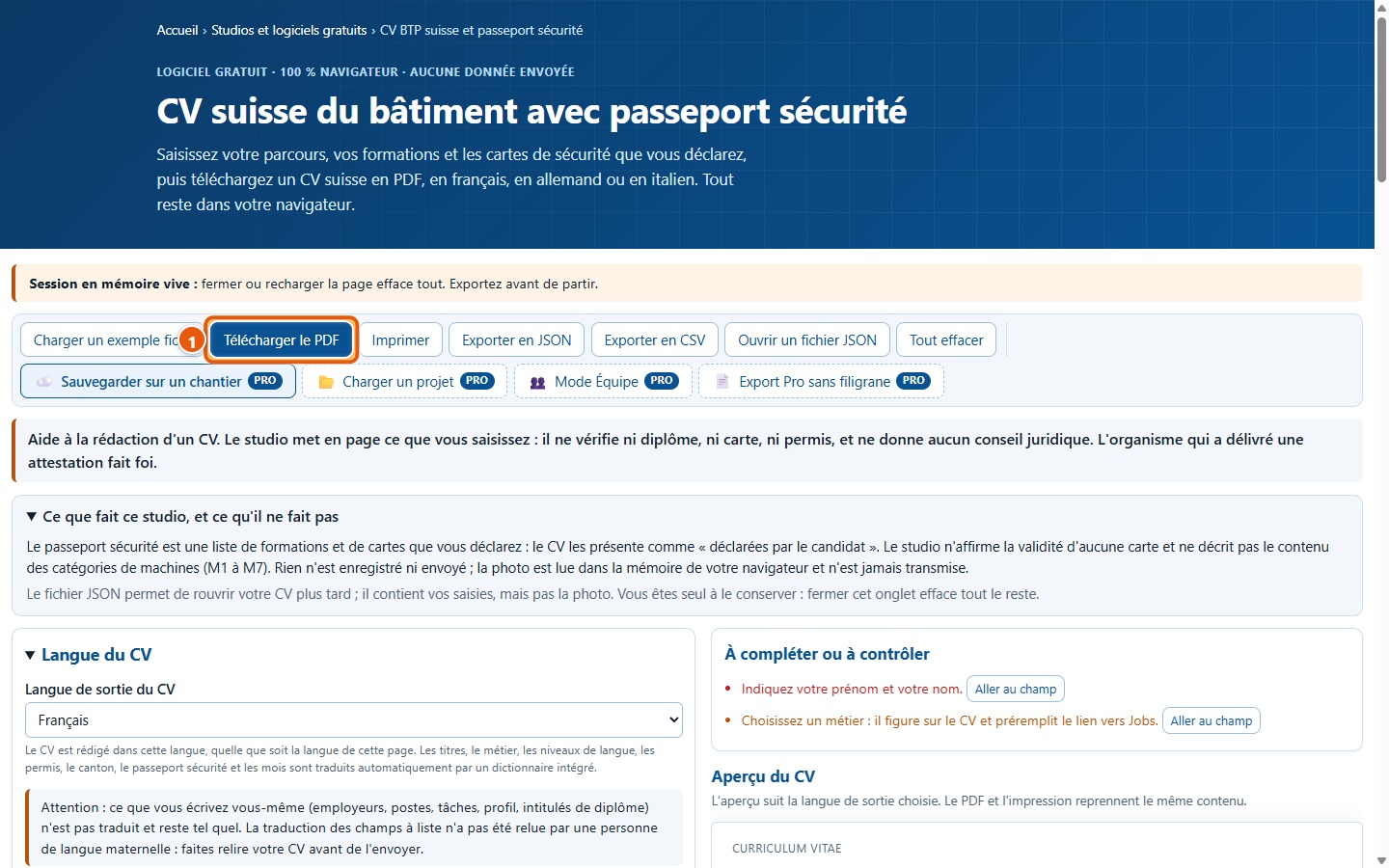
Everything is done on a single page. At the top, the toolbar: Charger un exemple fictif fills the CV with fictitious data, Télécharger le PDF and Imprimer provide the CV ready to send. Read the warning box and the text « Ce que fait ce studio, et ce qu'il ne fait pas »: they explain what the software does and does not do.
2Load a fictitious example
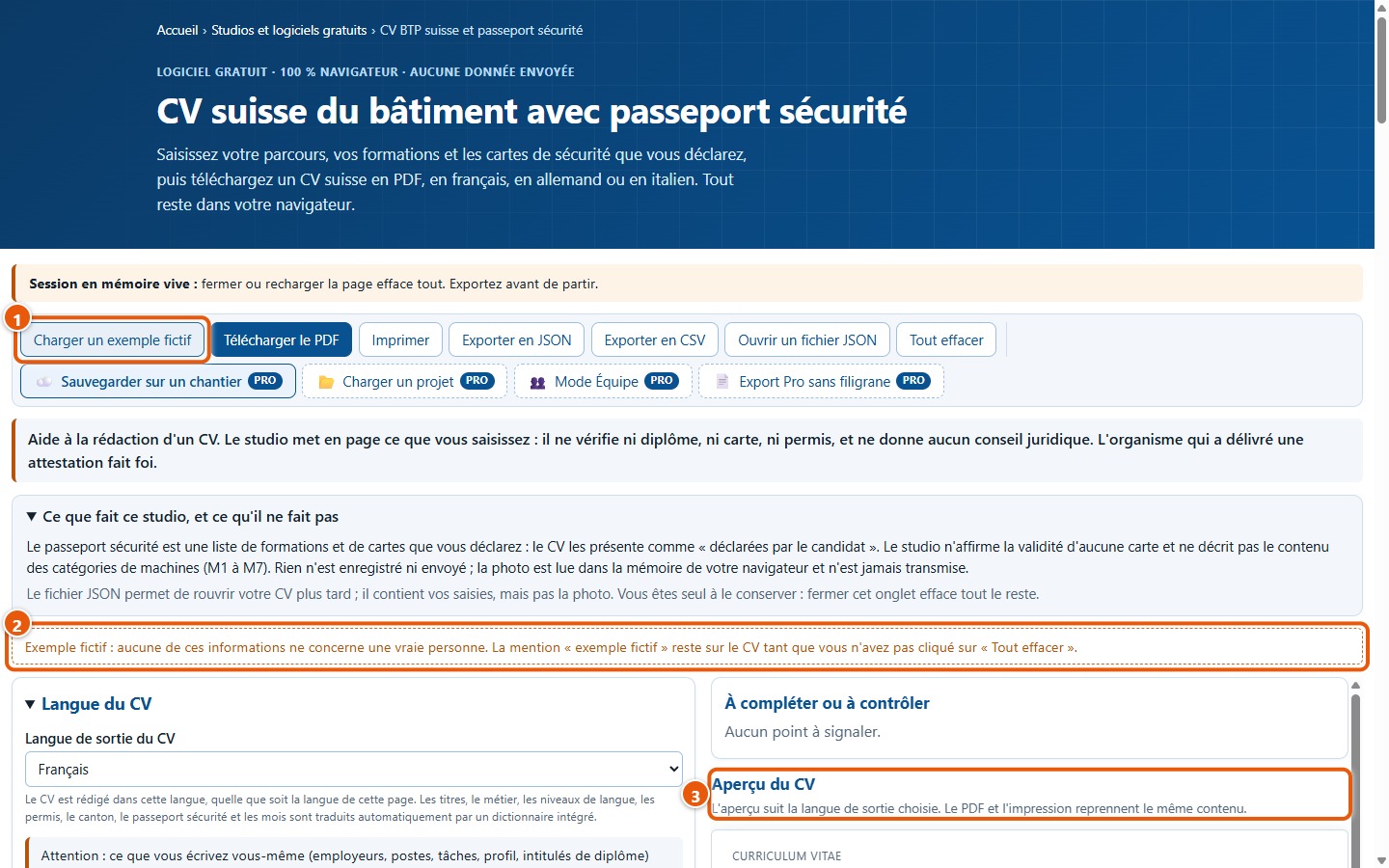
Click on Charger un exemple fictif. The form fills with Marc Exemple, a fictitious bricklayer from the canton of Vaud. An orange box points out that none of this relates to a real person, and the label « EXEMPLE FICTIF » remains on the CV until you click on Tout effacer.
3Understanding the screen
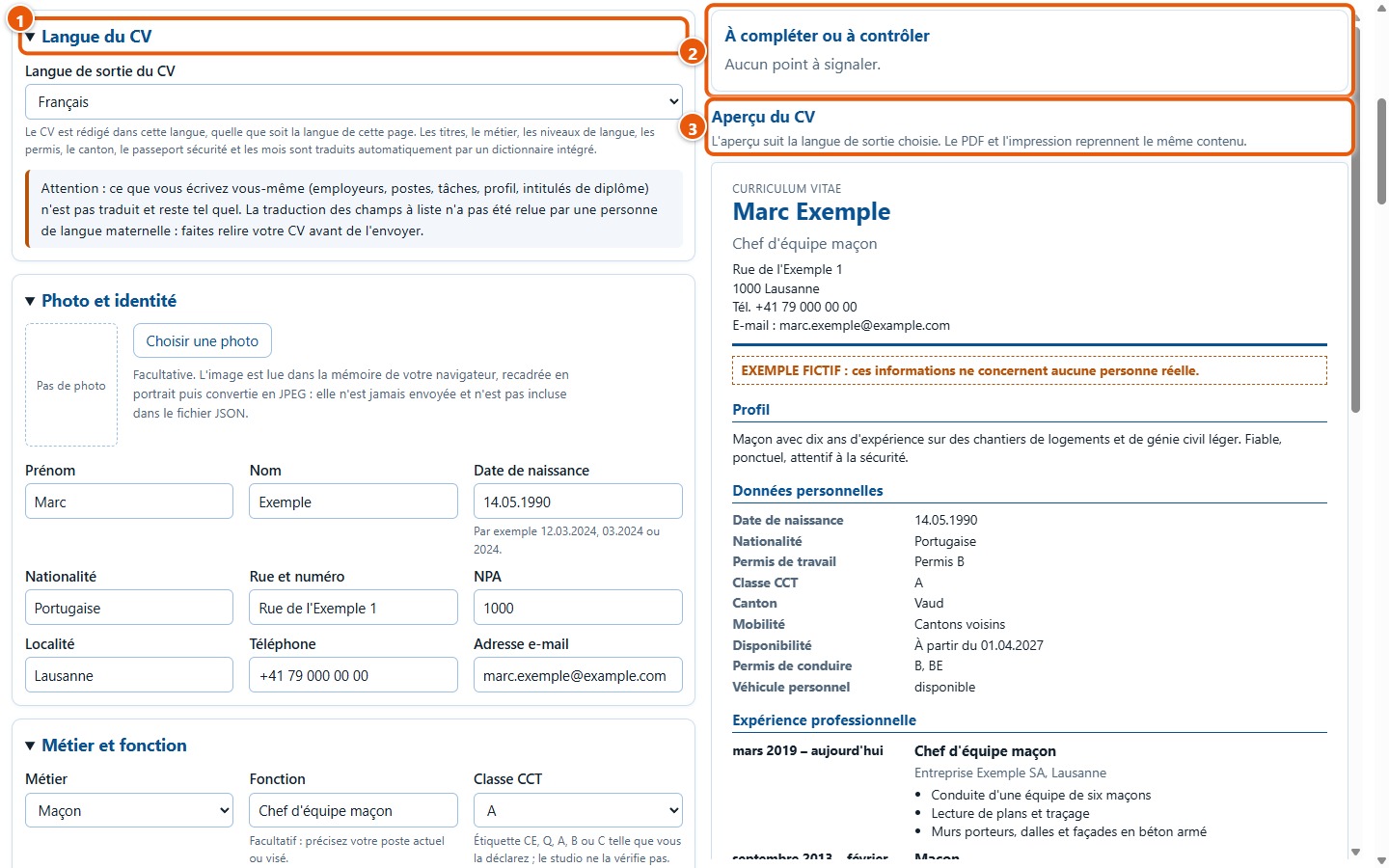
On the left, the form, in nine sections that you can expand or collapse. On the right, first the list « À compléter ou à contrôler », then « Aperçu du CV »: the preview updates as you type.
2. Filling in your CV
4Choose the CV language
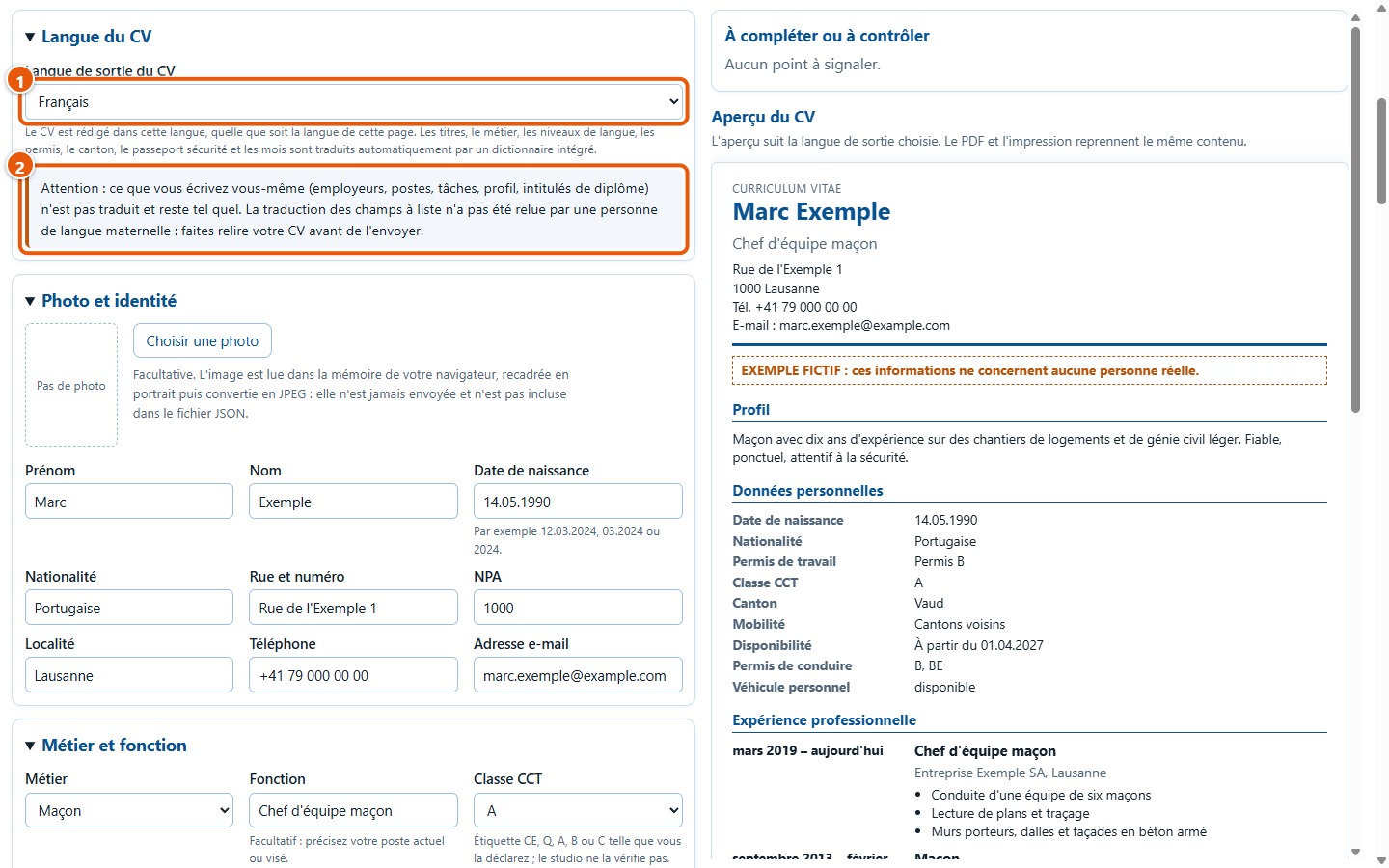
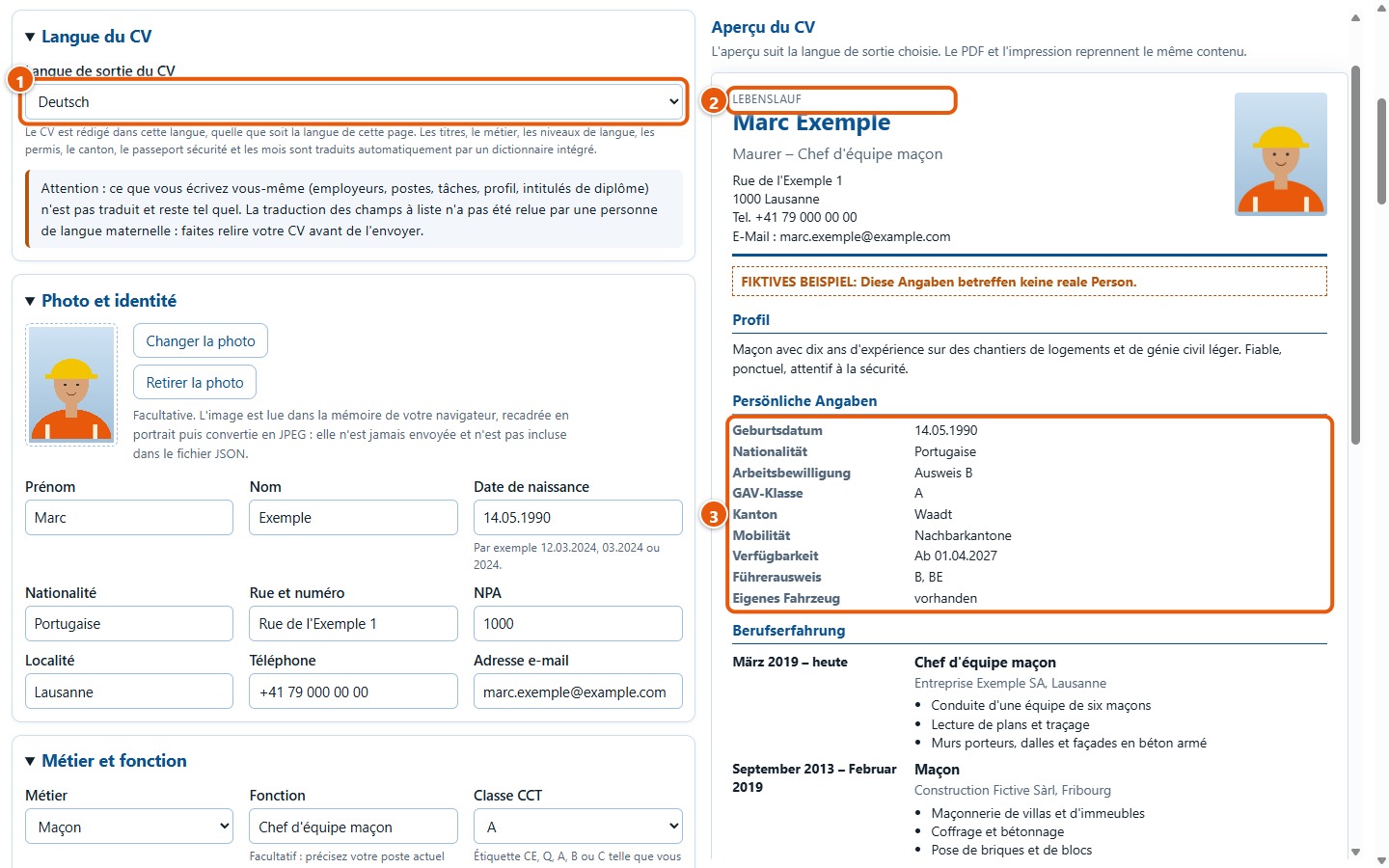
The section « Langue du CV » sets the language of the resulting CV: French, German or Italian, regardless of the language of this page. Headings, trades, permits, cantons, language levels and months are translated by a built-in dictionary. What you write yourself is not translated.
5Add a photo and enter your personal details
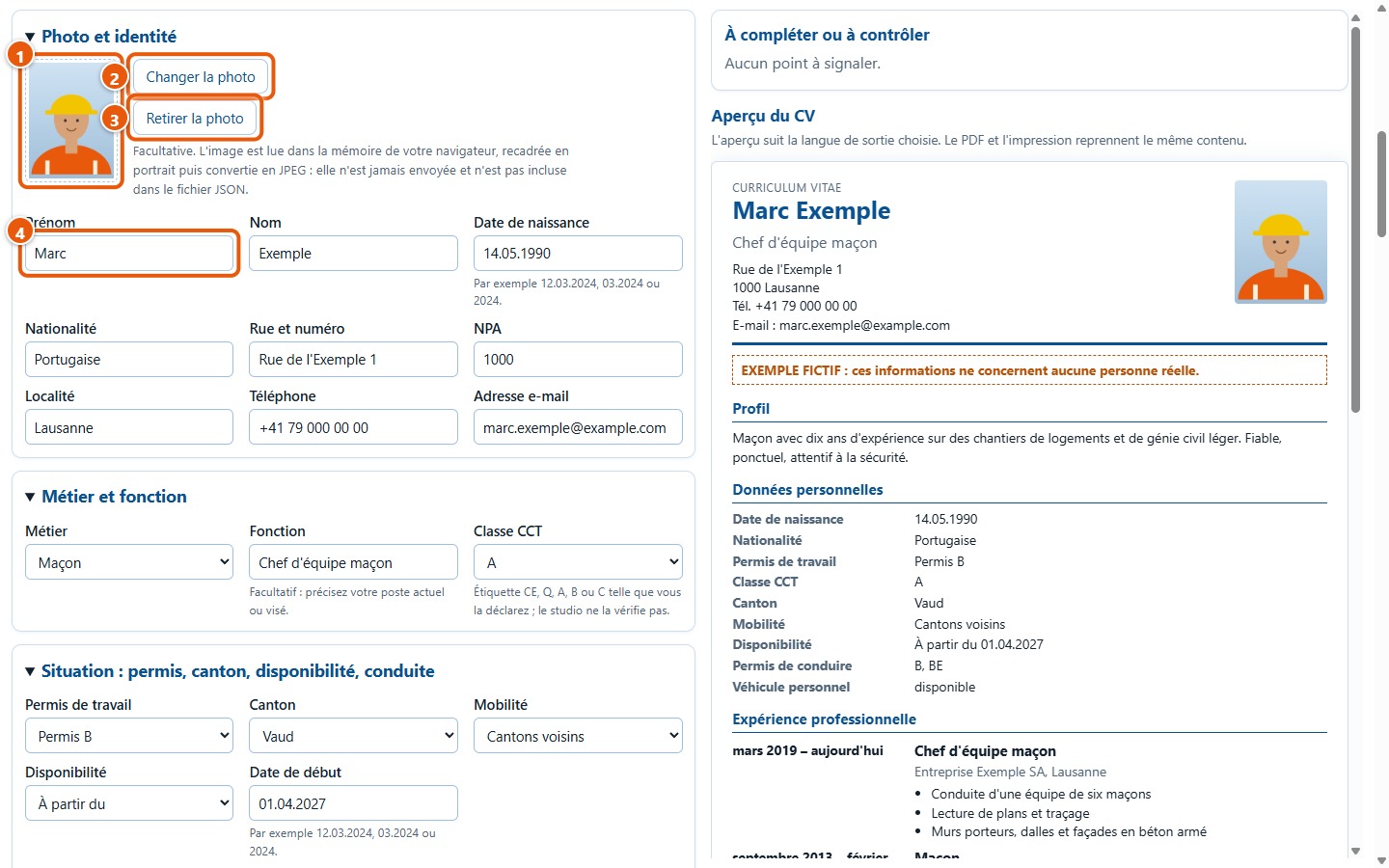
Click on Choisir une photo and select an image on your device. It is cropped to portrait, centred, then converted to JPEG: it remains in your browser and is never uploaded. To replace it, click on Changer la photo; to remove it, on Retirer la photo. Then fill in your first name, last name, date of birth, nationality, address, telephone number and email address: the software reminds you to provide at least your first name and last name.
6Enter your trade and job title
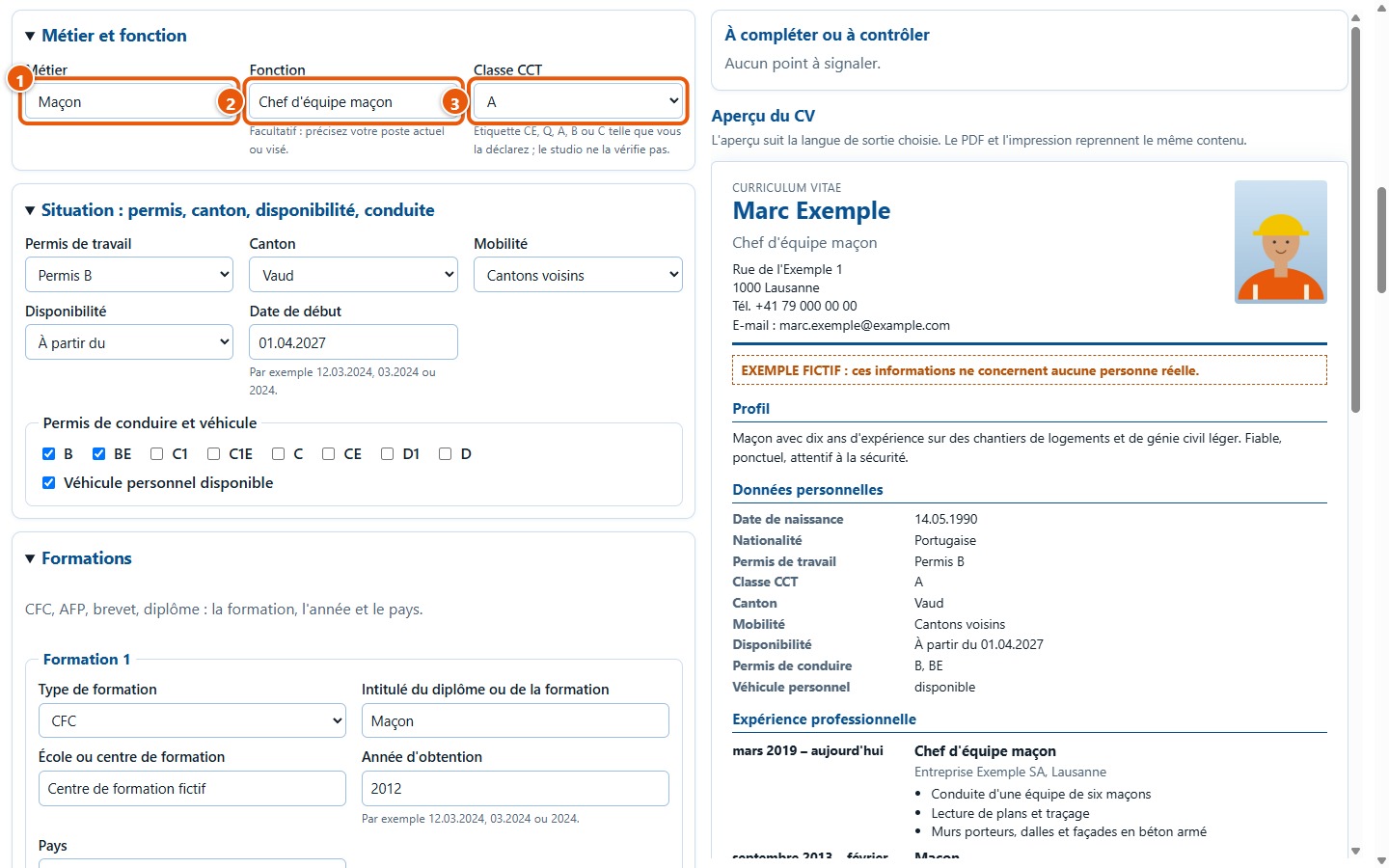
Select your trade from the list of 55 construction trades: it appears under your name on the CV. The field « Fonction » allows you to specify your position, for example « Chef d'équipe maçon ». « Classe CCT » is the CE, Q, A, B or C label that you declare: the software does not check it.
7Permit, canton, availability and driving
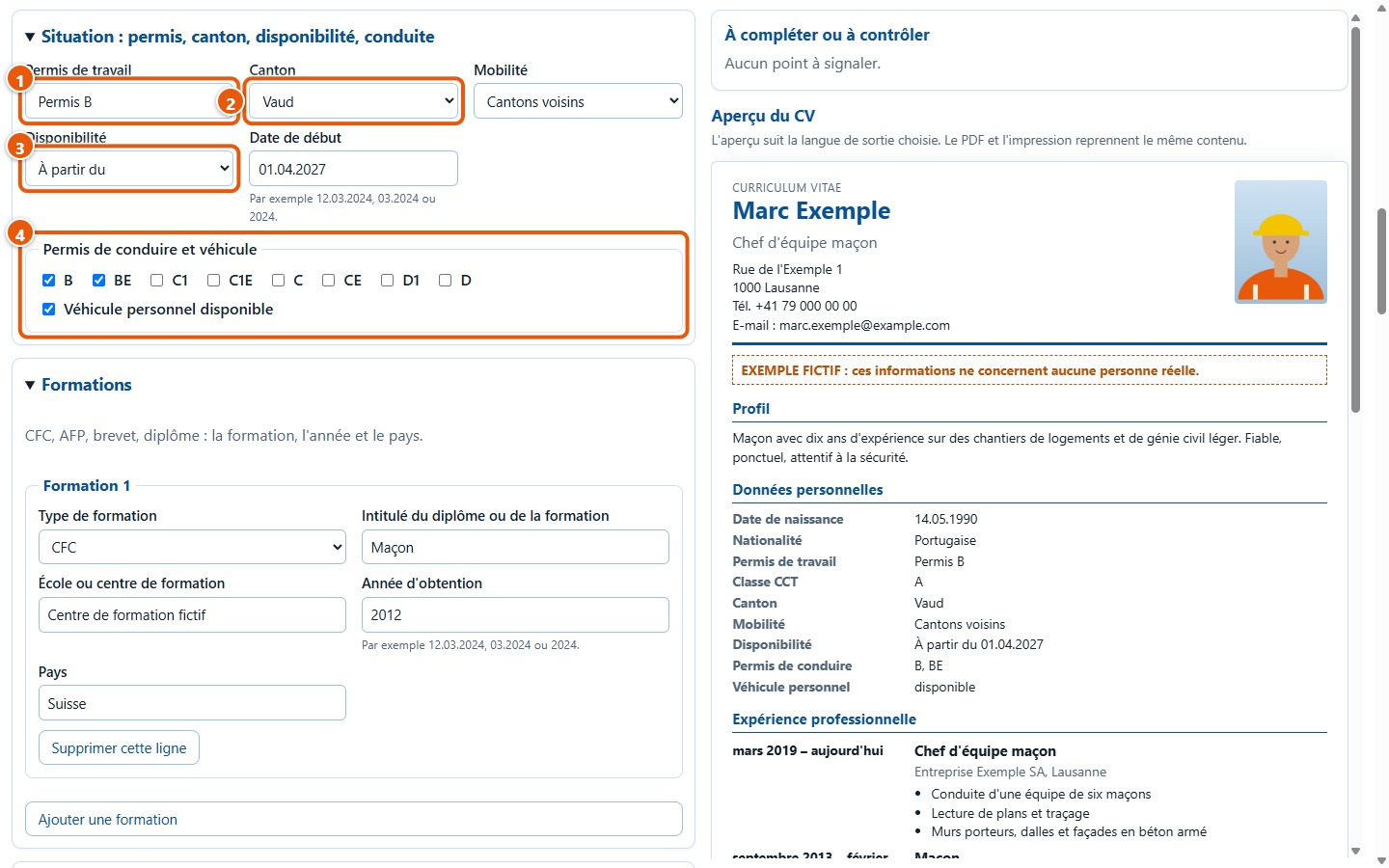
Select your work permit, canton, mobility and availability. With « À partir du », a date field appears. Then tick the categories of your driving licence and, if applicable, « Véhicule personnel disponible ».
8Add your qualifications
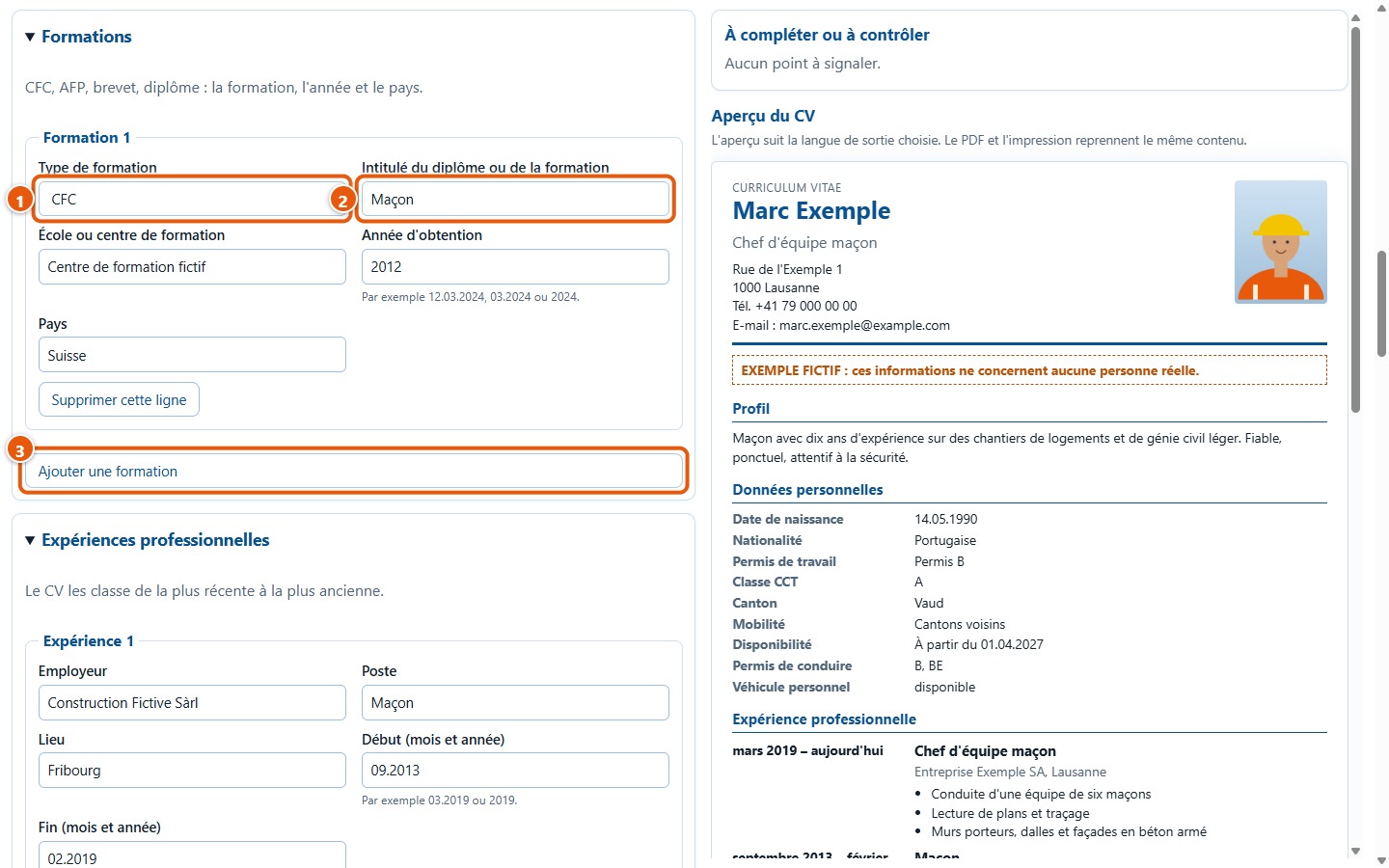
For each qualification, choose the type (CFC, AFP, federal diploma, diploma or other training), then enter the title, school or training centre, year and country. Click on Ajouter une formation for an additional row, or on Supprimer cette ligne to remove one.
9Add your work experience
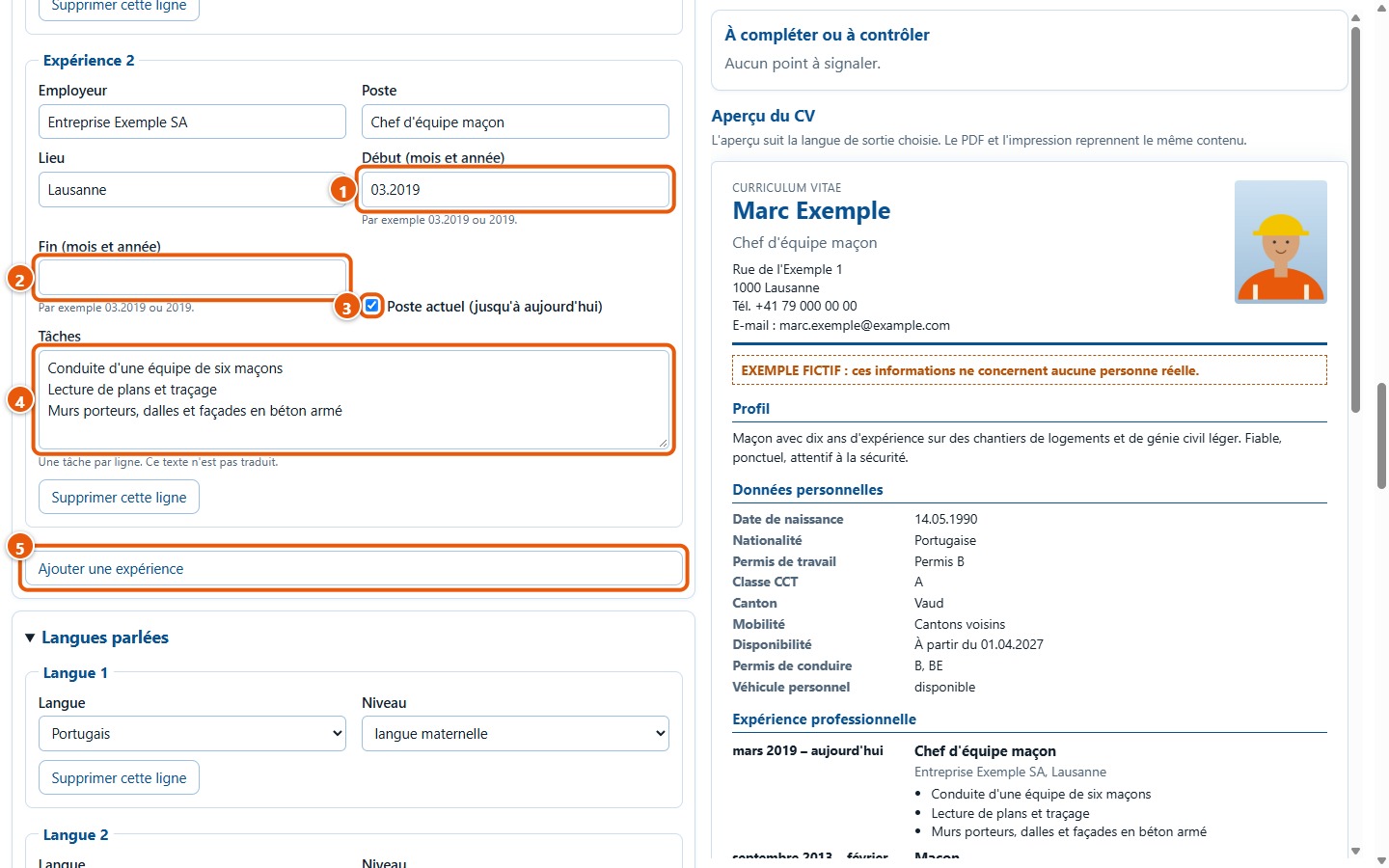
For each position: employer, job title, location, start and end (month and year, for example 03.2019). If you still work there, tick « Poste actuel (jusqu'à aujourd'hui) »: the end field is locked and the CV displays « aujourd'hui ». Enter one task per line. The CV sorts experiences from most recent to oldest.
10Specify your languages
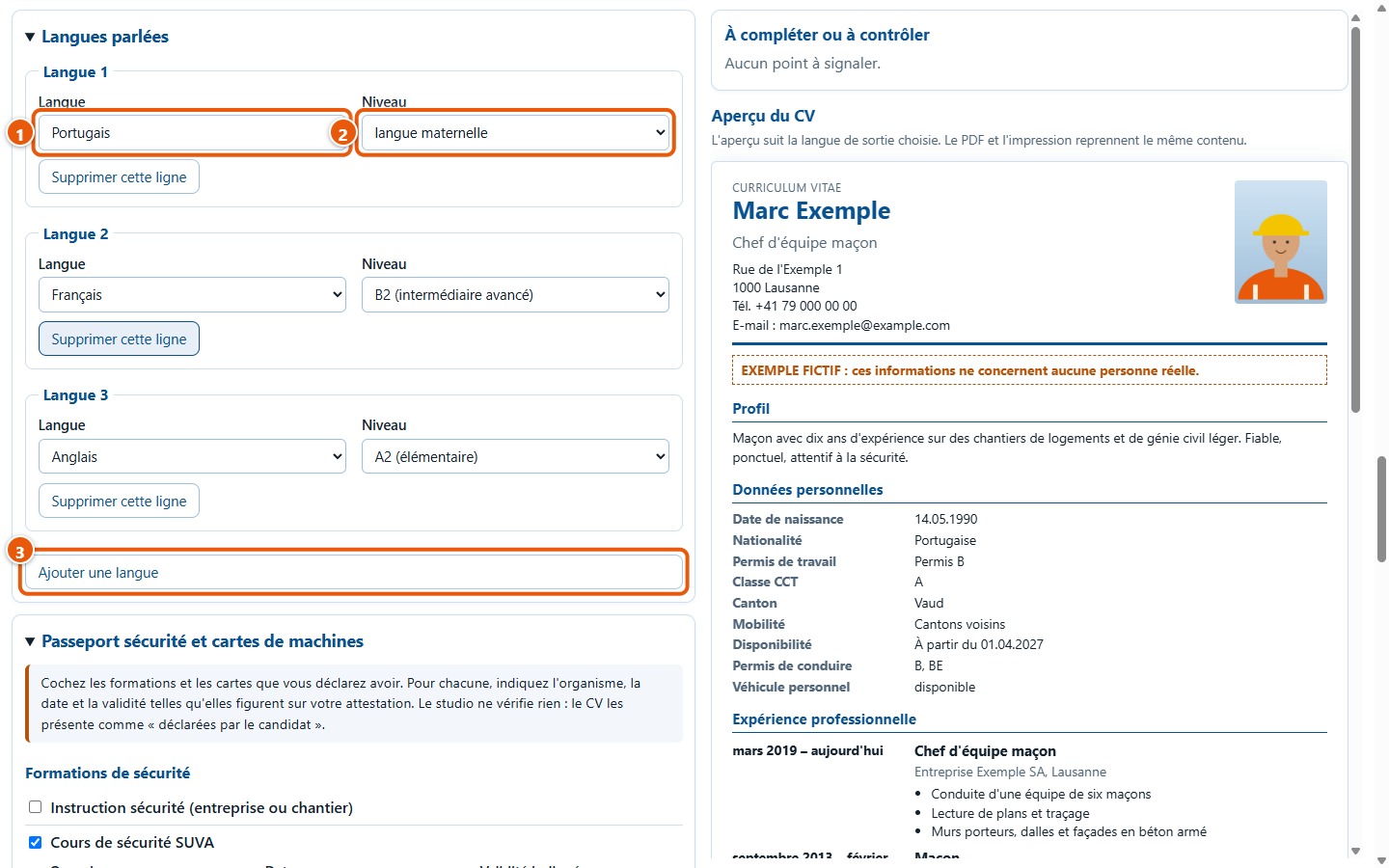
Choose a language and your level, from A1 to C2 or « langue maternelle ». For a language not on the list, select « Autre langue » and enter its name. Click on Ajouter une langue to add an extra line.
11Write a short profile
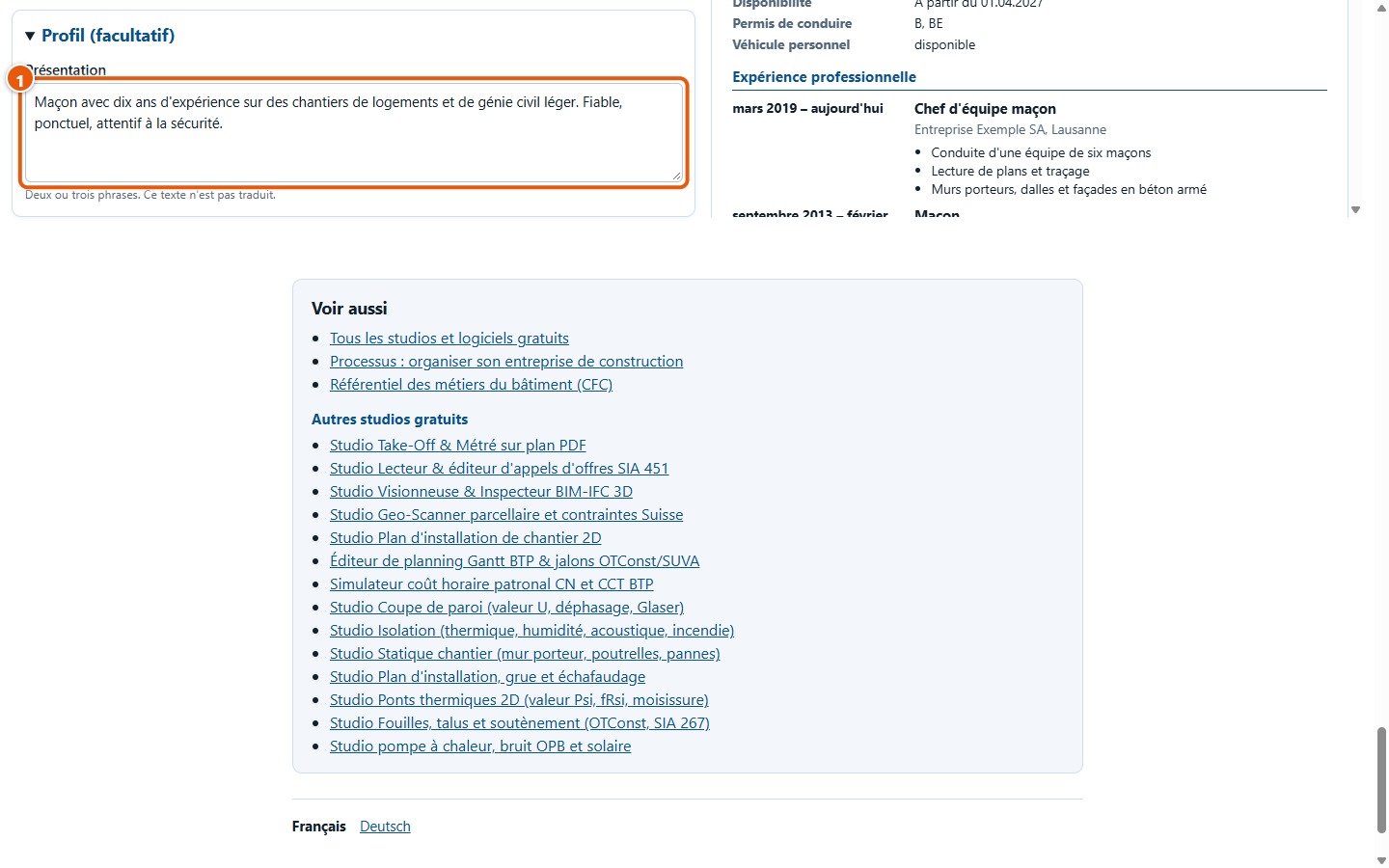
The « Profil (facultatif) » section is optional: two or three sentences about your background. This text is not translated.
3. The safety passport
12Tick your training courses and licences
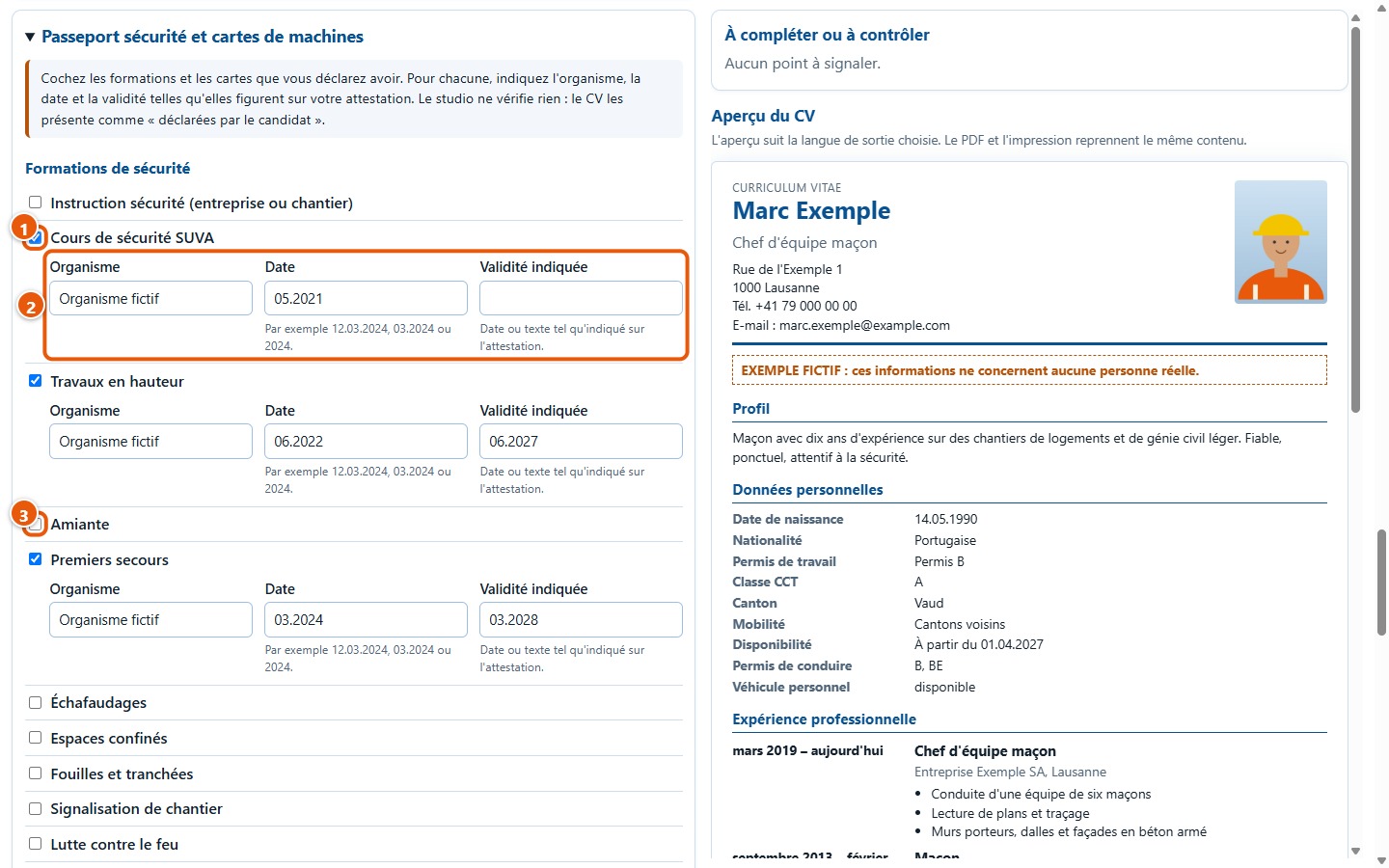
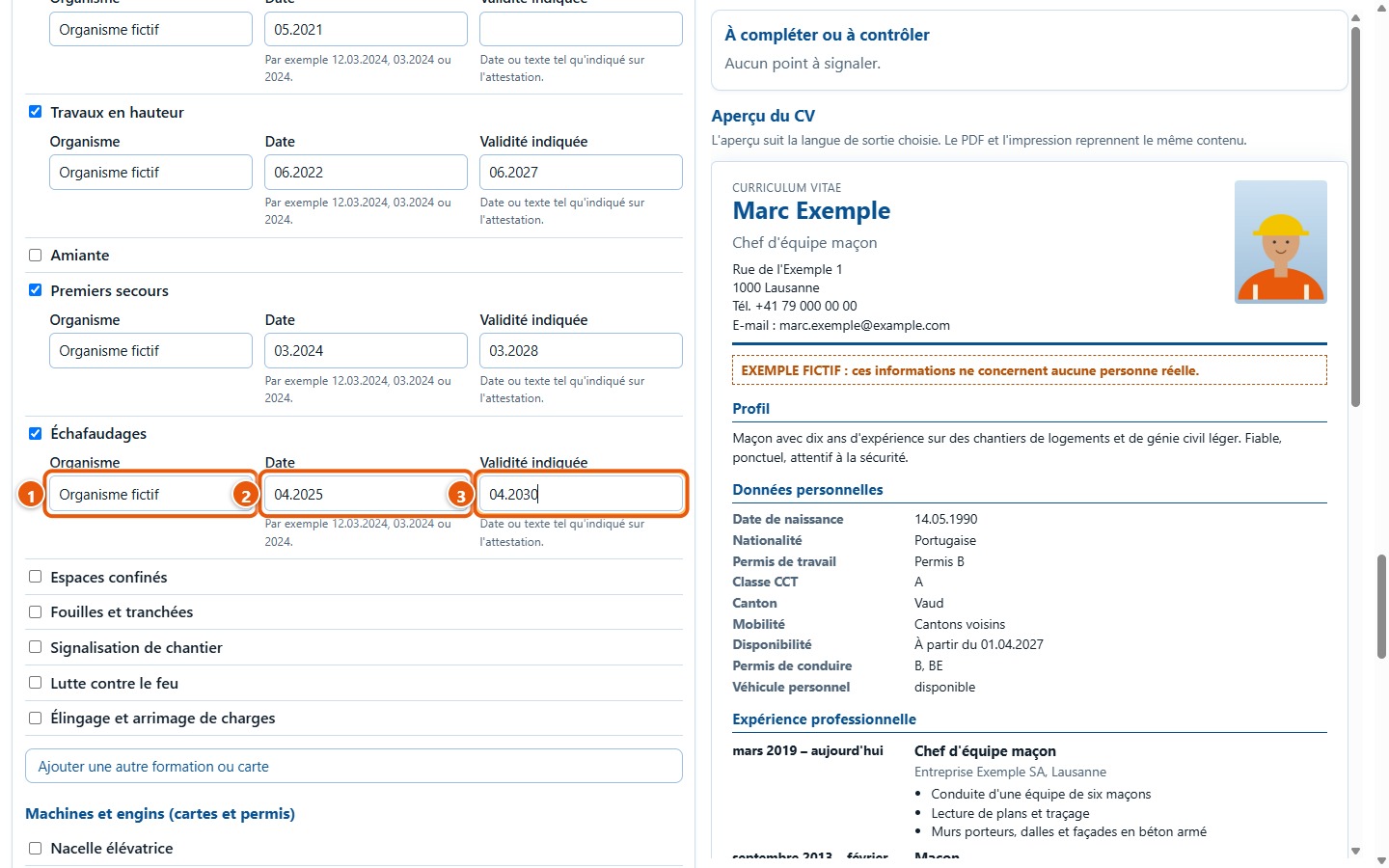
In « Passeport sécurité et cartes de machines », tick the training courses and licences you declare having: safety courses, working at height, first aid, scaffolding, MEWP, forklift driver, crane operator, plant operator M1 to M7 and others. Ticking a box opens three fields: the organisation, the date and the validity.
13Note the organisation, date and validity
Copy this information exactly as it appears on your certificate. Dates can be written 12.03.2024, 03.2024 or 2024; the validity can also be a short text as written on the card. If a date is not readable, the software flags it and prints it exactly as you entered it.
14Add another course or licence
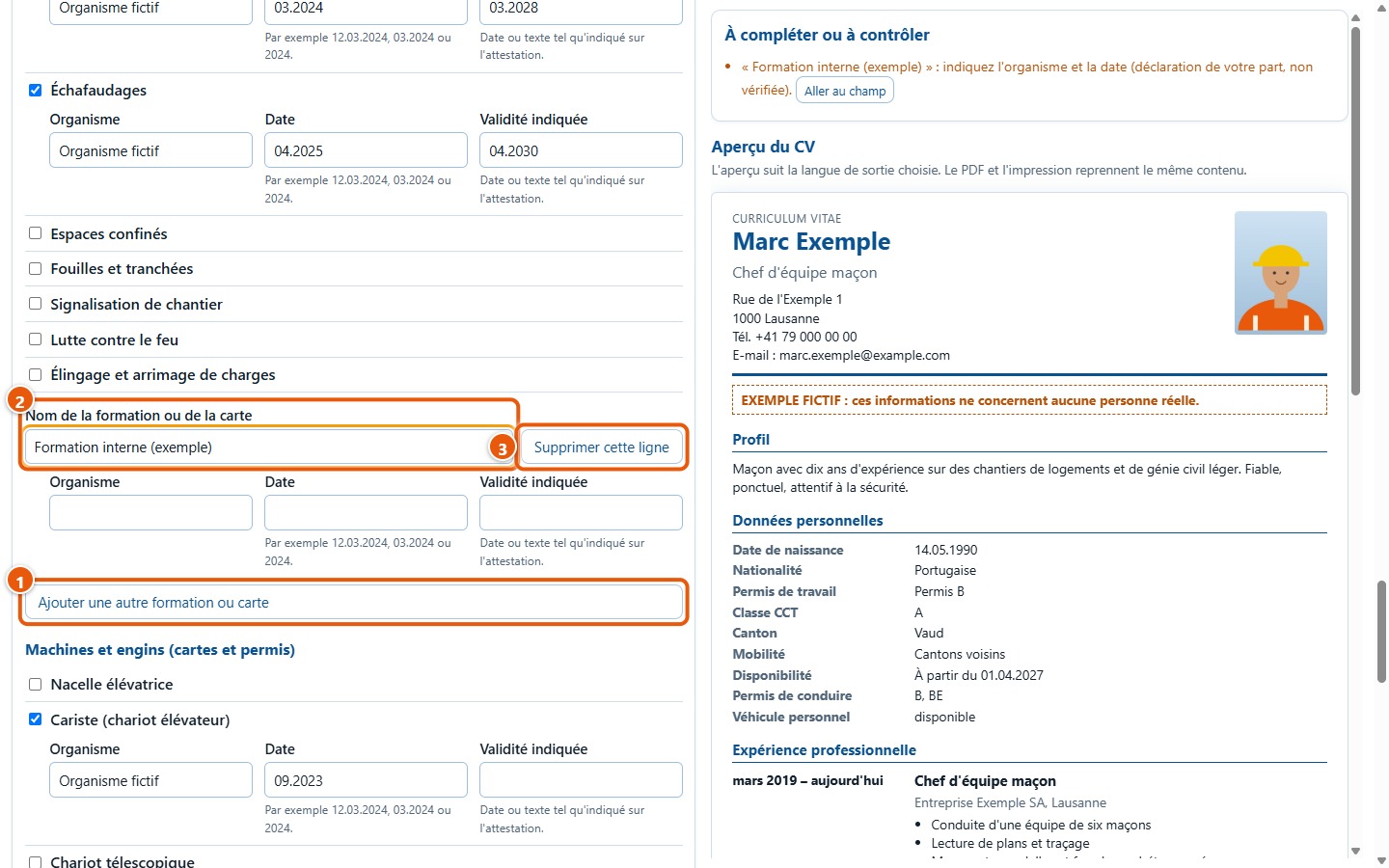
Is your licence not in the list? Click on Ajouter une autre formation ou carte, enter its name, then fill in the organisation, date and validity. Supprimer cette ligne deletes the line.
4. Check your CV
15Review the items to complete
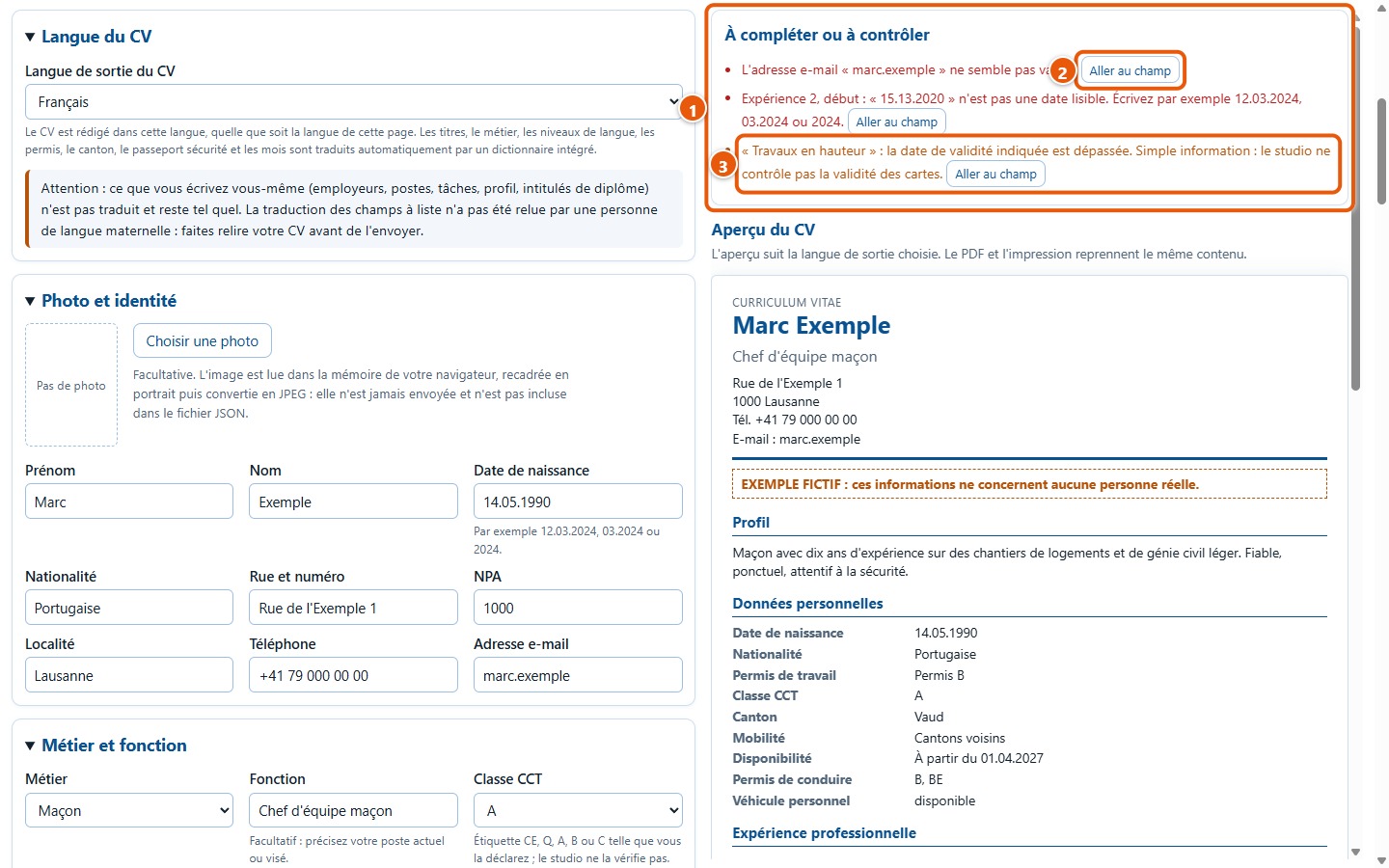
The « À compléter ou à contrôler » list flags, for example, a missing first or last name, an email address that appears incorrect, an unreadable date, an experience ending before it starts, or an incomplete line. These are reminders: nothing stops you from exporting.
16Go straight to the field to correct
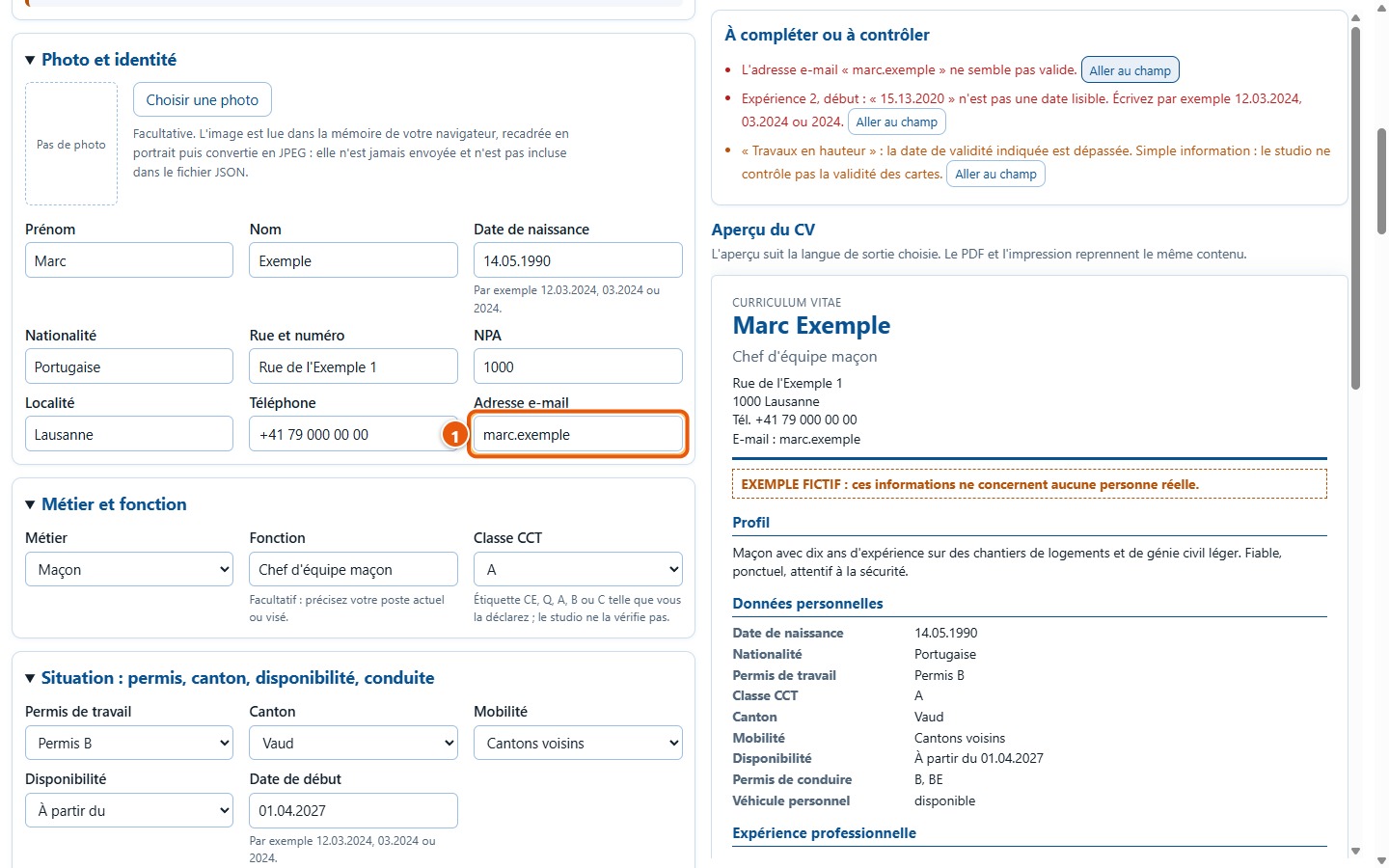
Click on Aller au champ: the relevant section opens and the cursor moves to the field to correct.
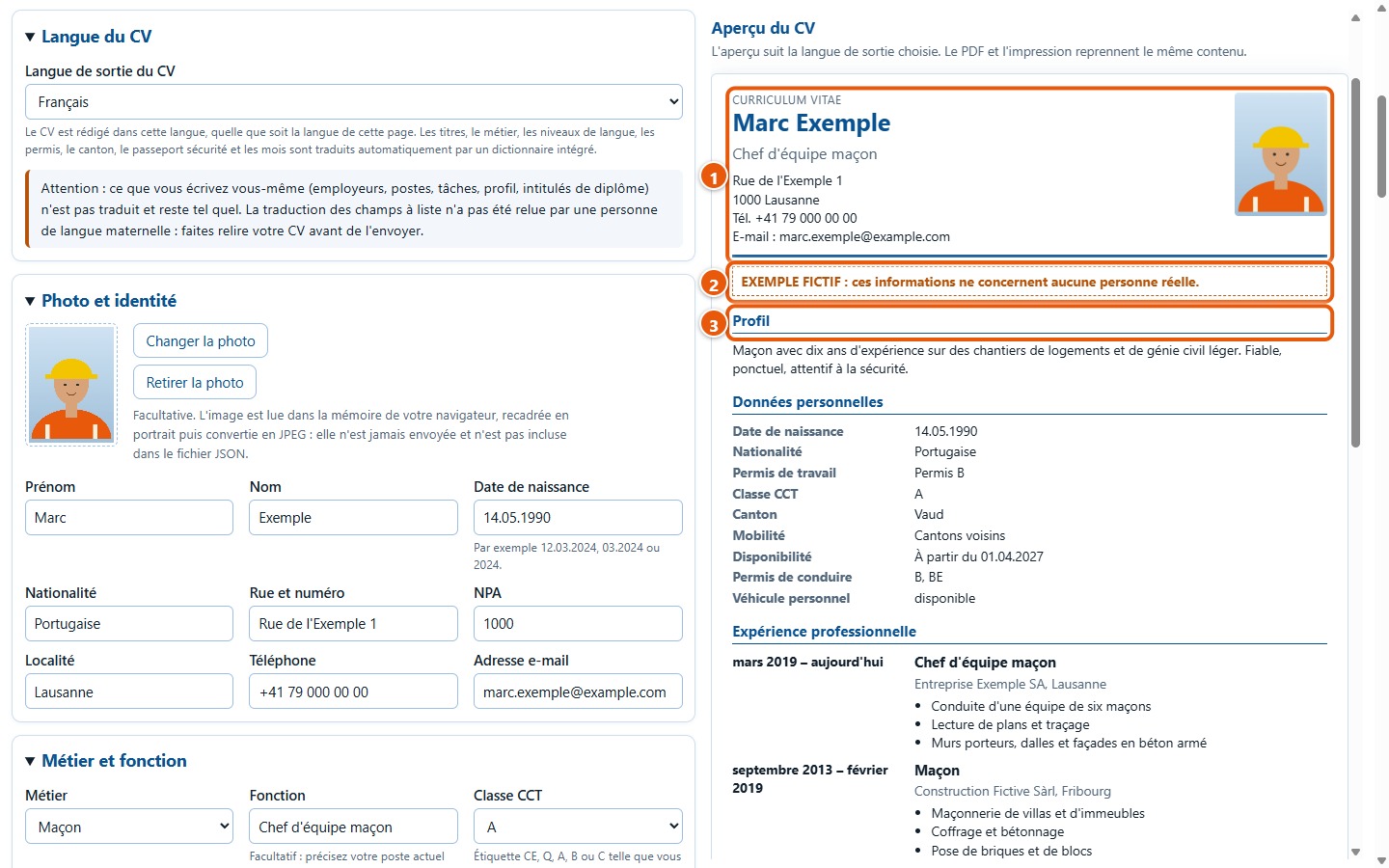
17Review the CV preview
The preview shows the CV as it will be exported: header with photo, profile, personal details, experience, education, safety passport and languages. An empty section does not appear.
5. Get your CV
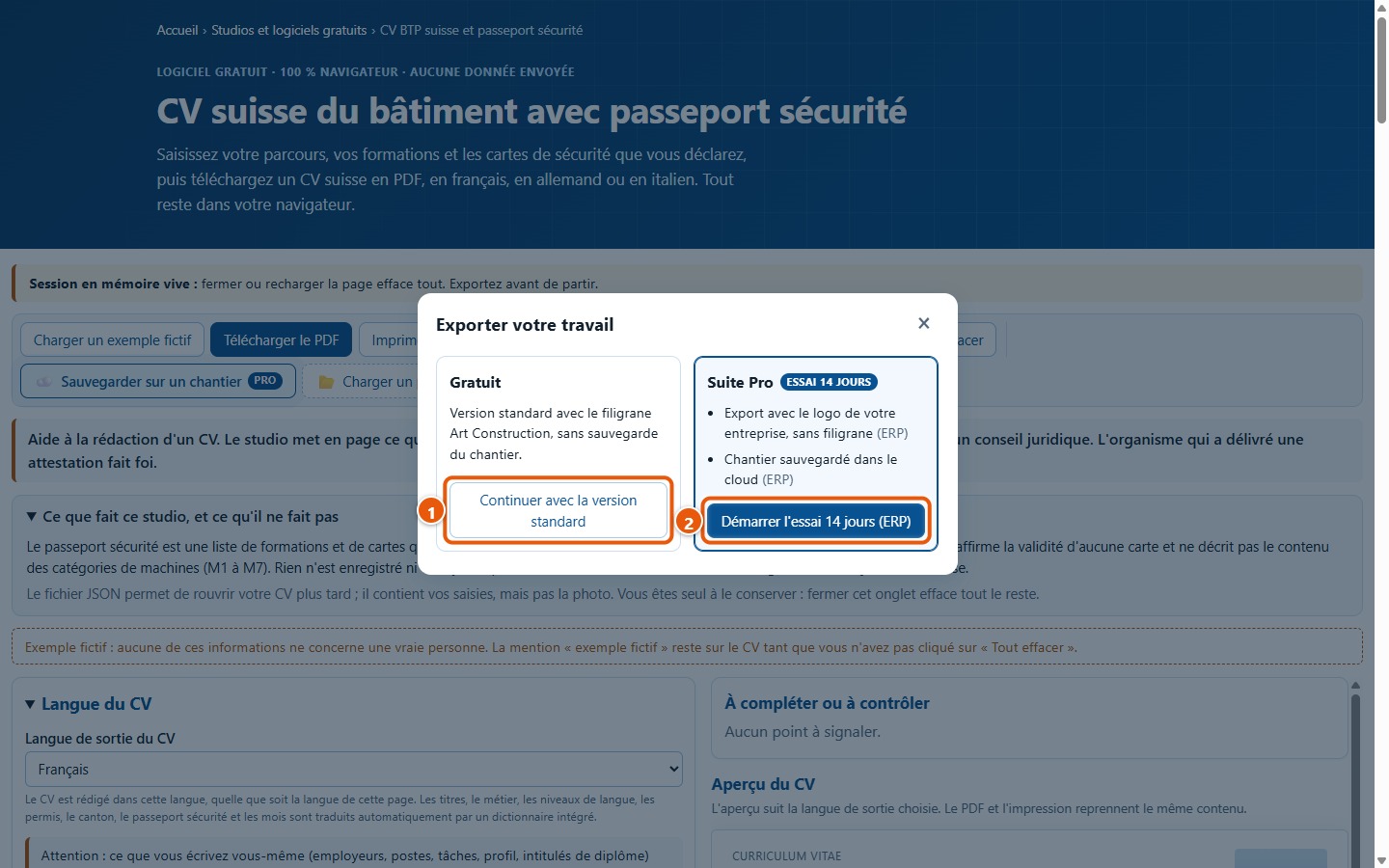
18Download the PDF
Click on Télécharger le PDF. On the first export of your visit, a pop-up opens: « Continuer avec la version standard » downloads the PDF with the Art Construction watermark; the other button opens the ERP presentation in a new tab. The pop-up does not appear again unless you reload the page.
19Open the PDF
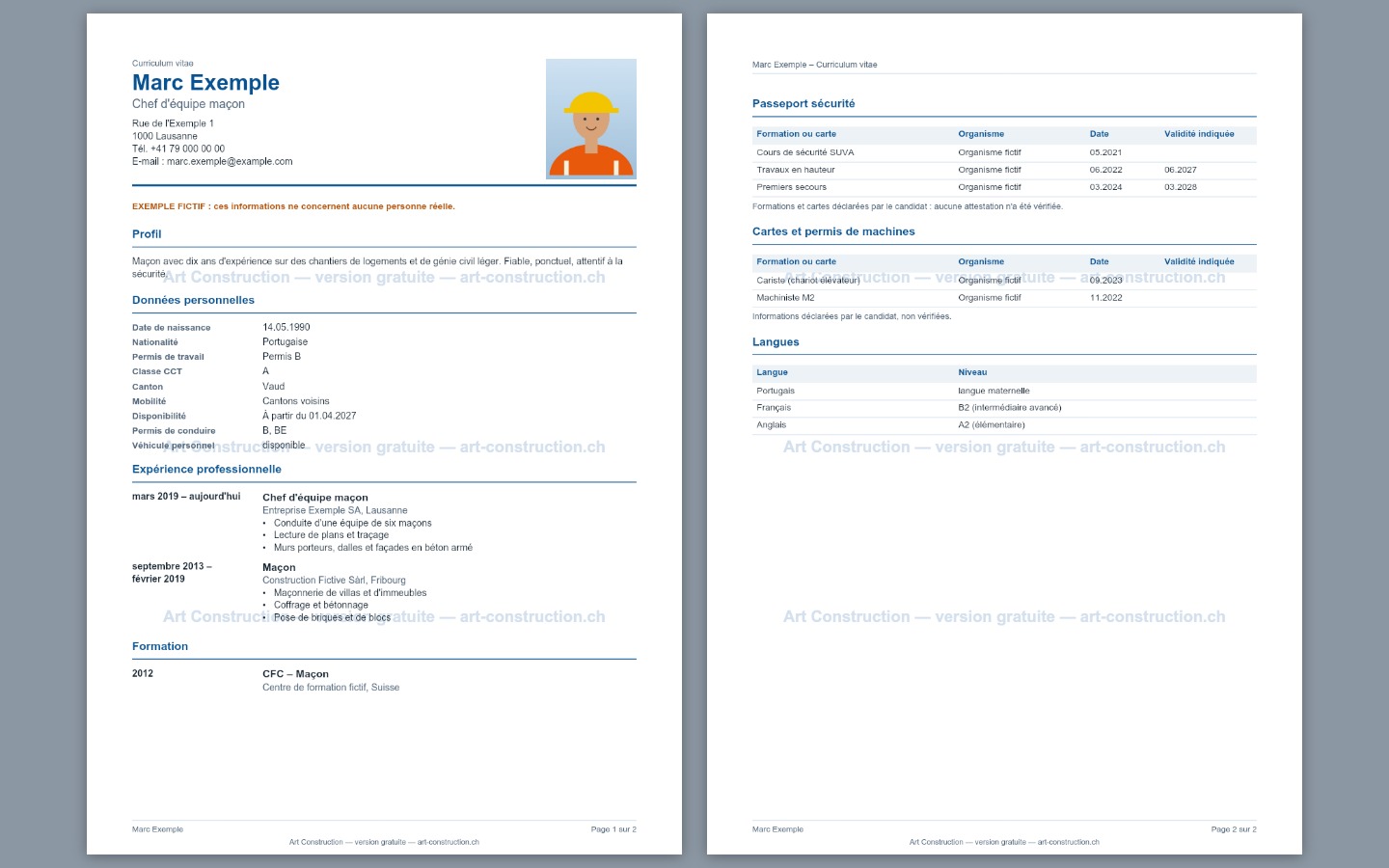
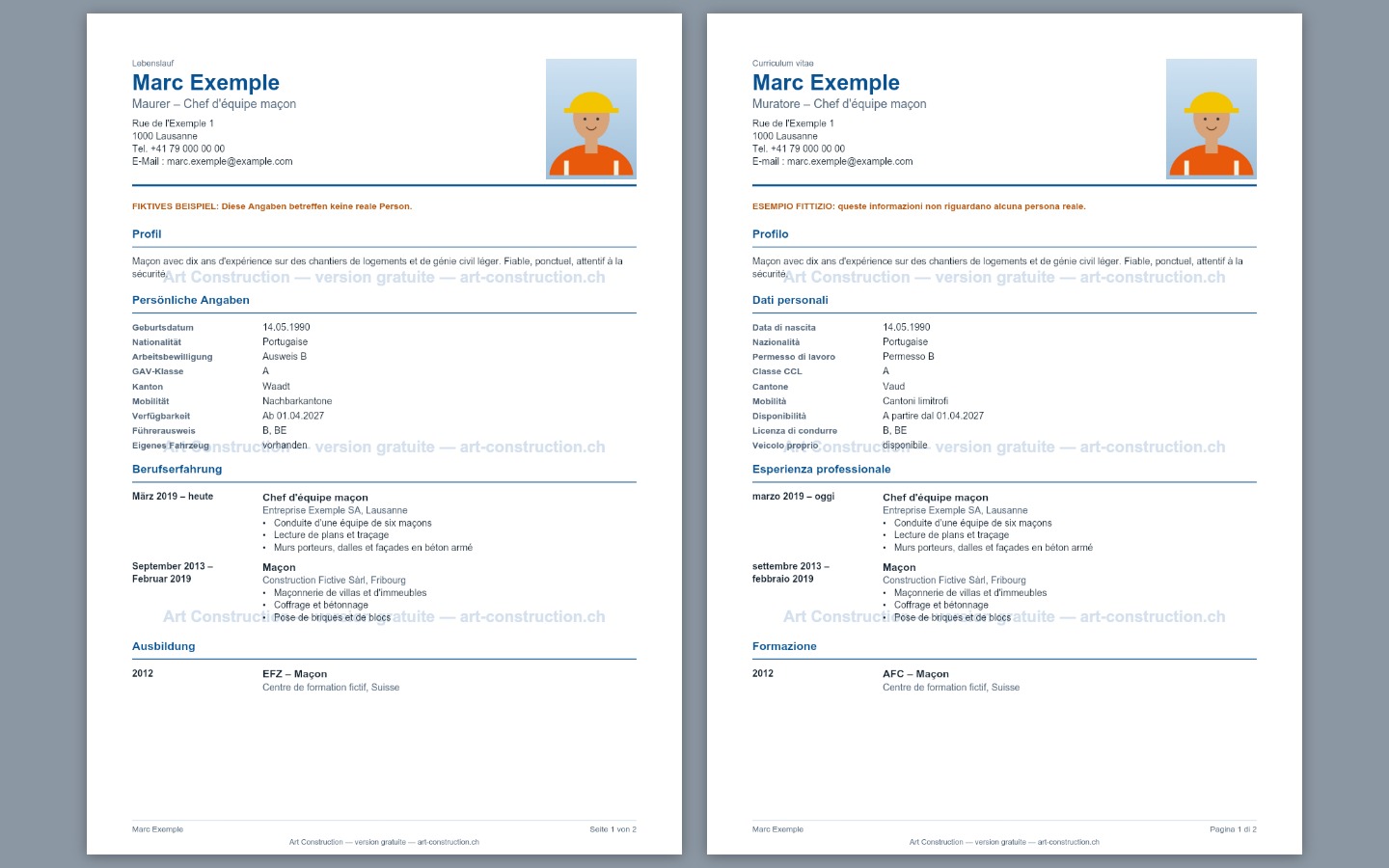
The PDF is in A4 format: header with the photo on the right, sections, safety passport tables, name at the top of subsequent pages and « Page 1 sur 2 » at the bottom. A mention of the free version is written as a light watermark and in the footer.
20Print the CV
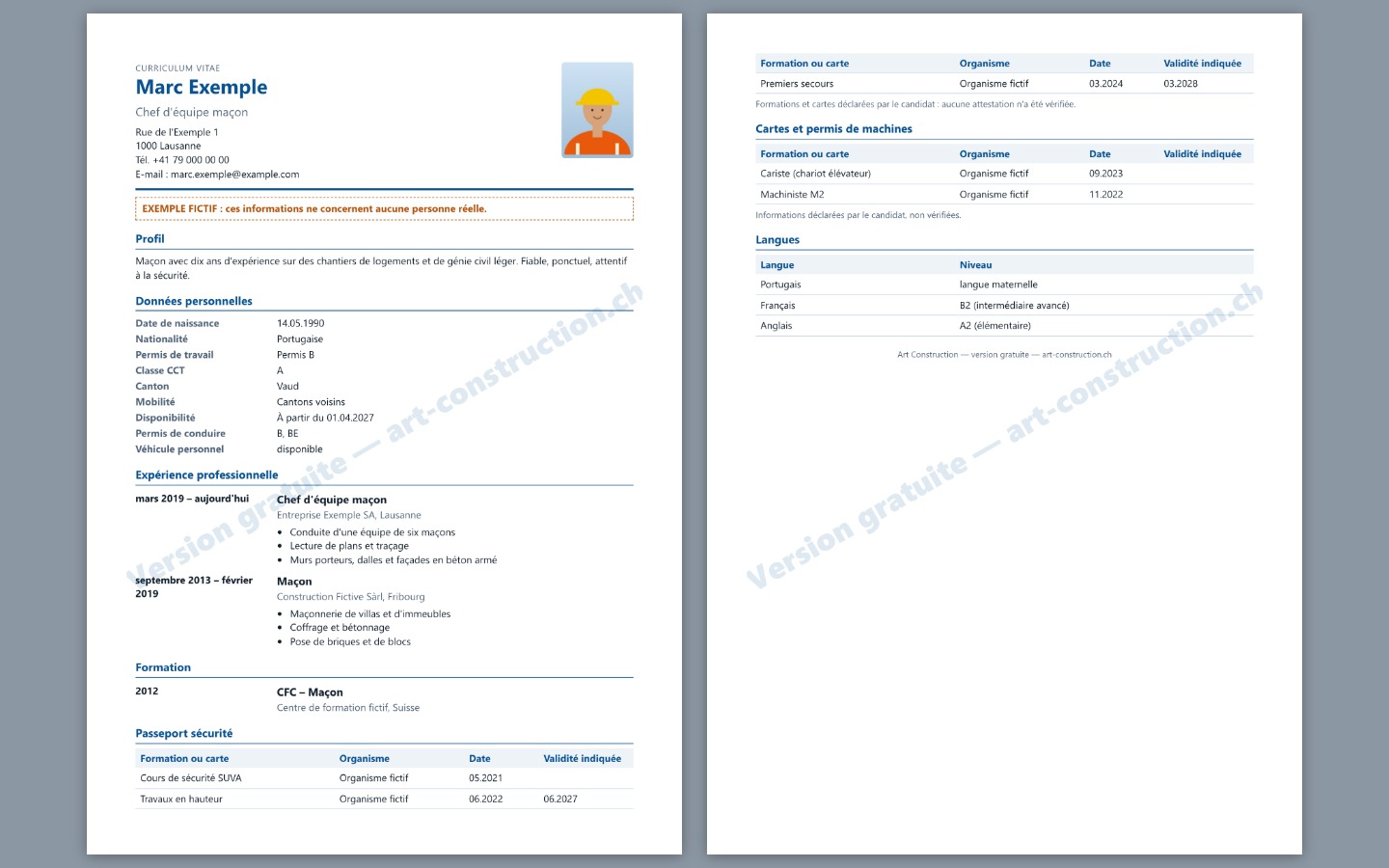
Click on Imprimer: only the CV sheet is printed, with the diagonal watermark of the free version. The form and the website header are not printed. Select A4 paper in your browser's print dialog.
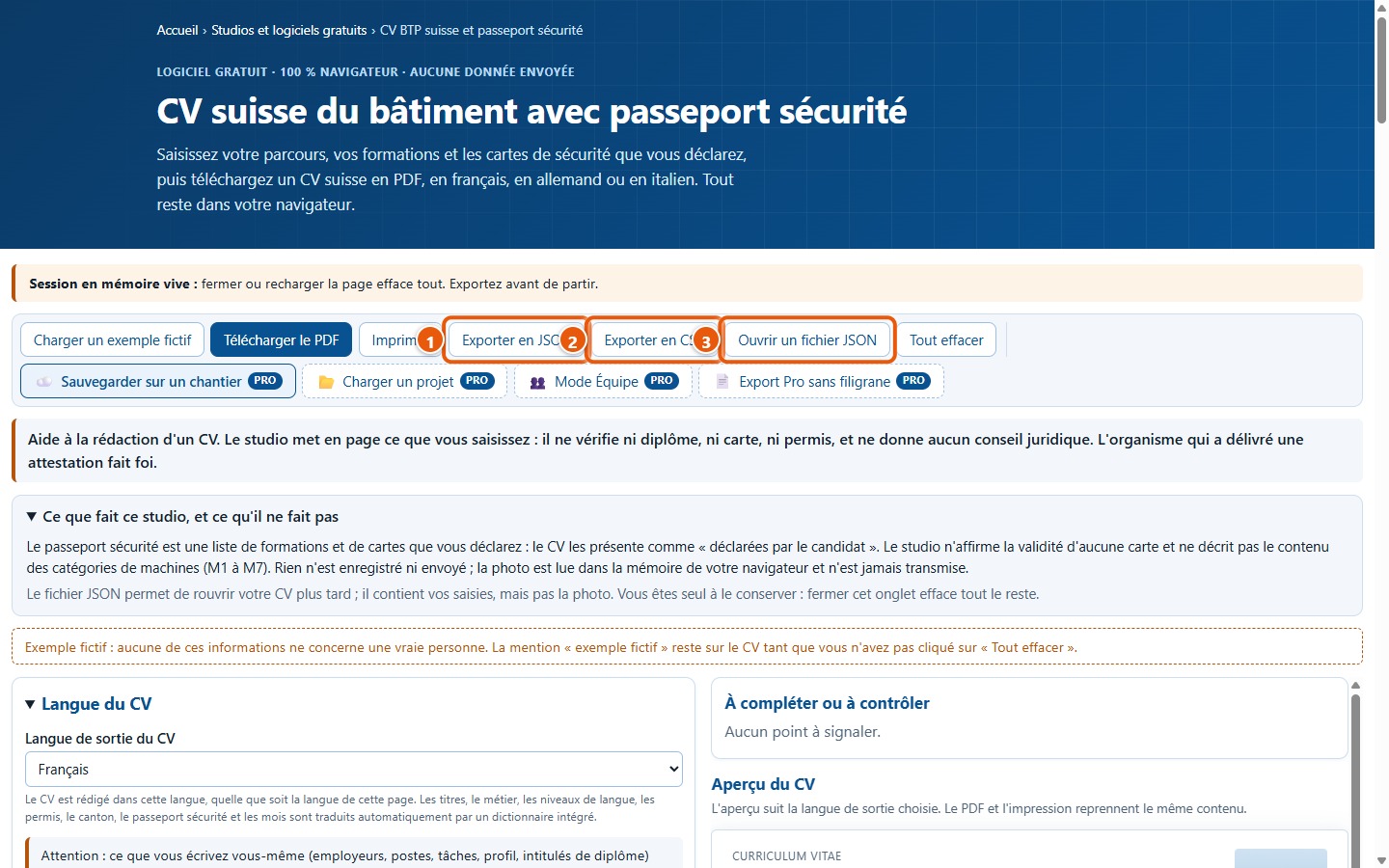
21Keep your work in JSON or CSV
Exporter en JSON downloads a file that allows you to reopen your CV later: it contains your entries and the selected language, but not the photo. Exporter en CSV downloads a table (CSV file) to open in a spreadsheet. Keep these files yourself: nothing is stored elsewhere.
22Reopen a saved CV
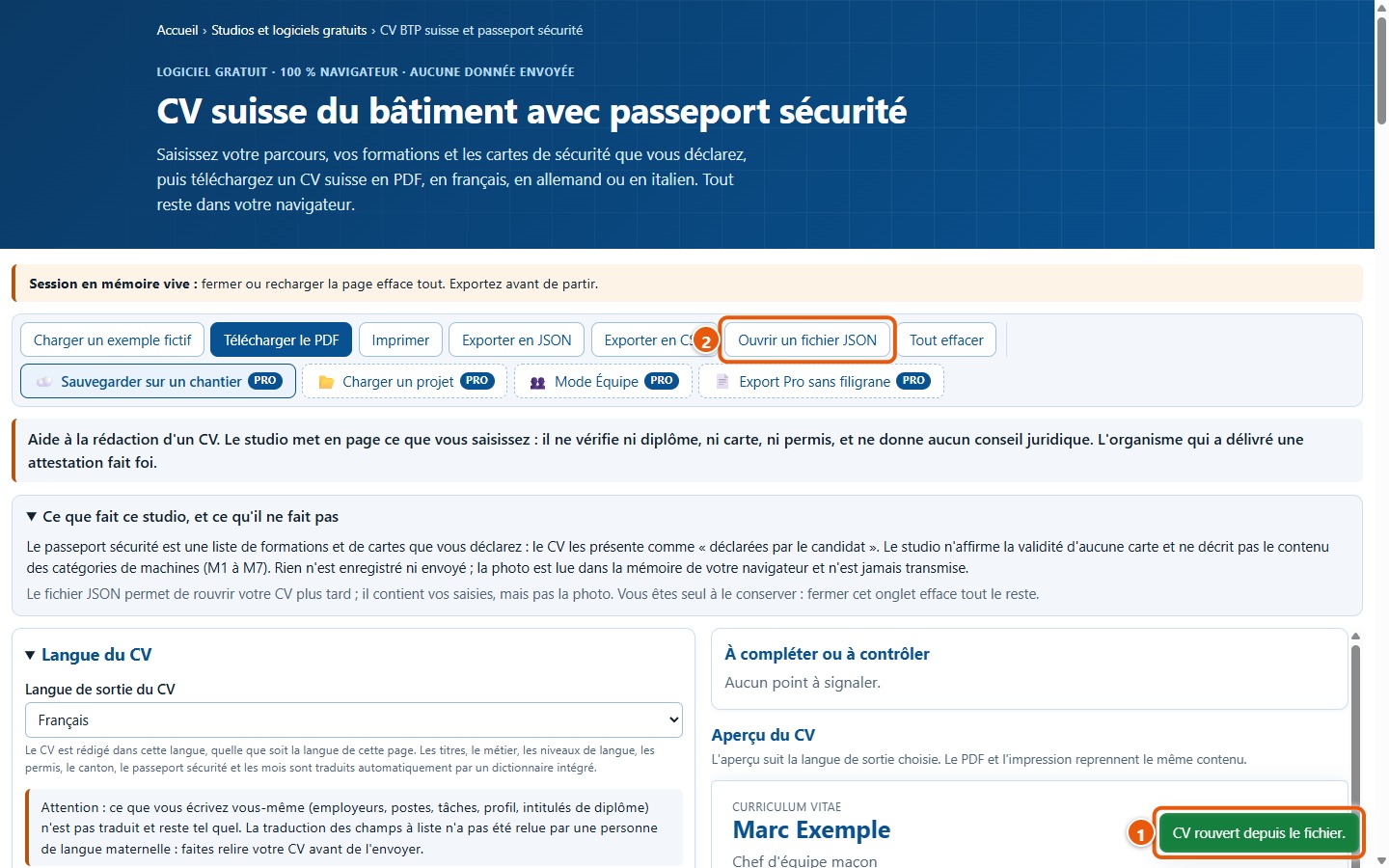
Click on Ouvrir un fichier JSON and select your JSON file: the message « CV rouvert depuis le fichier. » appears, and the form is filled in as before. If the file is not the correct one, an explanatory message is displayed and your current CV remains unchanged. The photo must be selected again.
6. The CV in German or Italian
23View the CV in German
In « Langue du CV », choose Deutsch: the preview switches to German immediately. « Lebenslauf », « Persönliche Angaben », trade, driving licence, canton and months are translated. What you typed yourself, such as employer, tasks or profile, remains as it is.
24Download the PDF in German or Italian
The PDF adapts to the chosen language: headings, footer (« Seite 1 von 2 », « Pagina 1 di 2 ») and the mention of the fictitious sample change as well. First name, surname and address are never translated.
7. Going further
25Links to Jobs and to the ERP
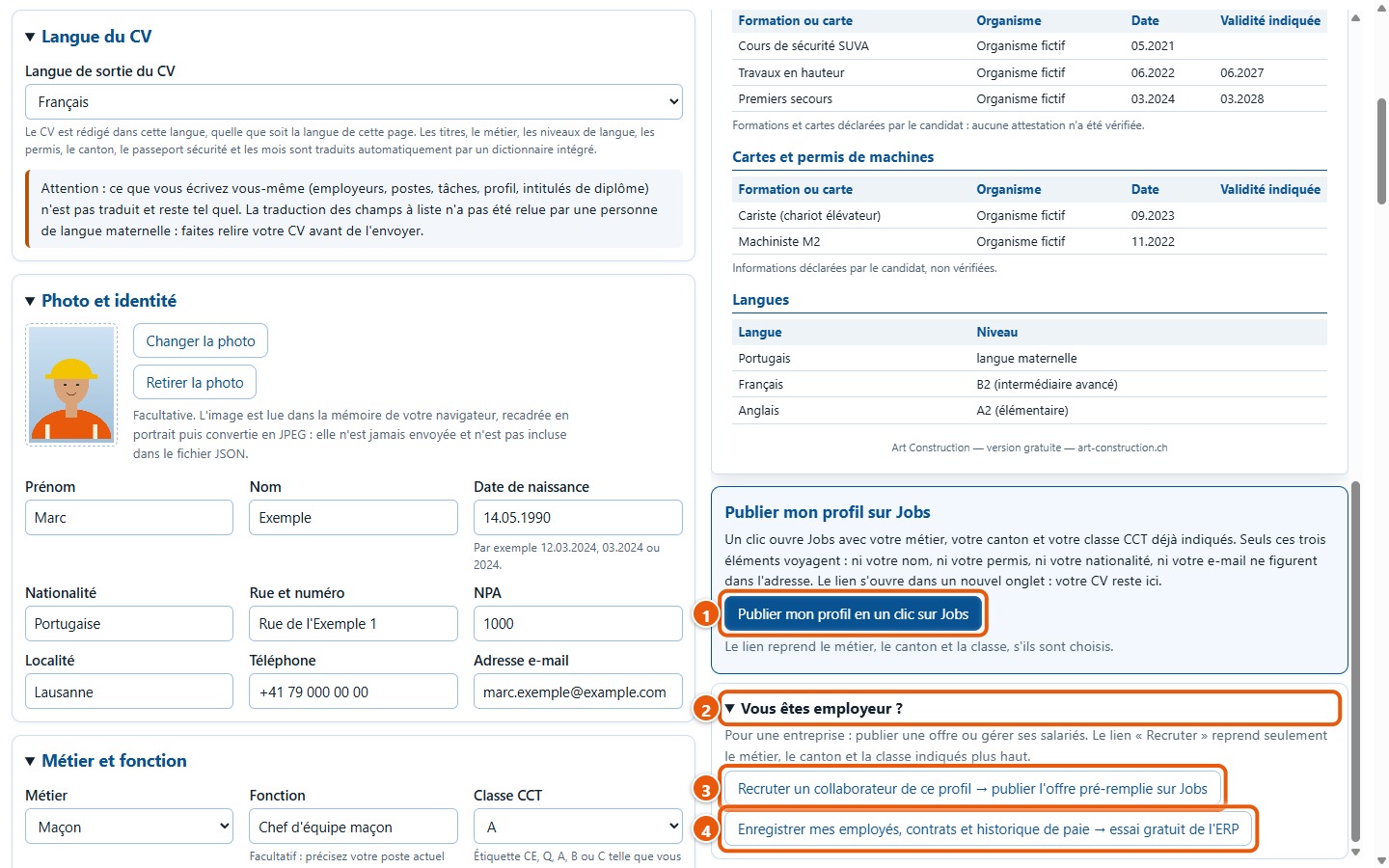
Below the preview, « Publier mon profil en un clic sur Jobs » is a simple link: it opens in a new tab and your CV stays here. Only three items travel in the URL, after the # symbol, and only if you selected them: trade, canton and CLA category. Neither your name, your driving licence, your nationality, nor your email appears there; the URL only carries a few tracking parameters, identical for everyone. The « Vous êtes employeur ? » block contains two other links, for companies.
26The « Pro » buttons on the toolbar
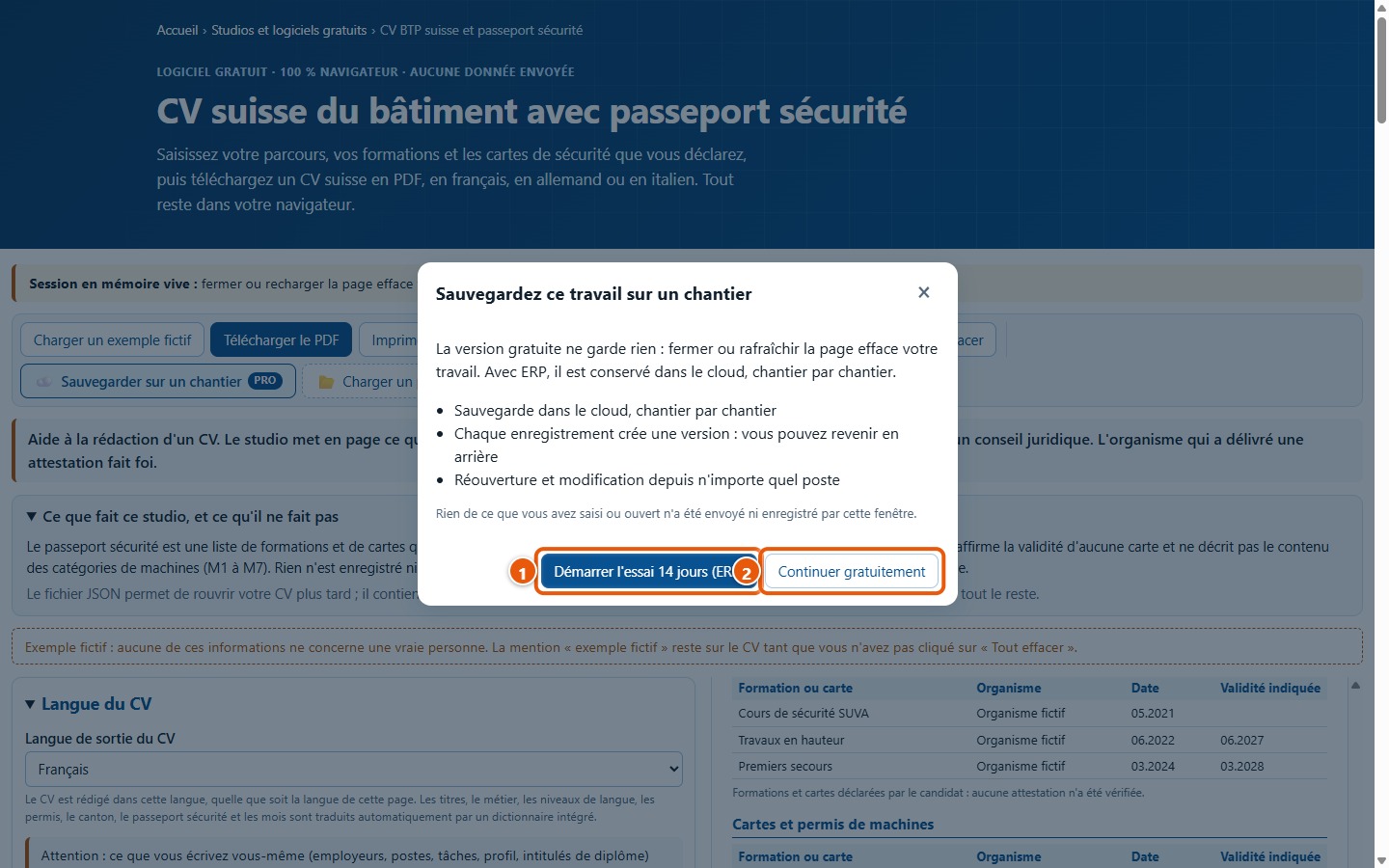
The four buttons marked PRO are not used to draft your CV: each opens a window presenting the ERP trial. The button in the screenshot, « Sauvegarder sur un chantier », comes from the toolbar common to all studios. The link « Démarrer l'essai » opens in a new tab; « Continuer gratuitement » closes the window.
27Clear everything
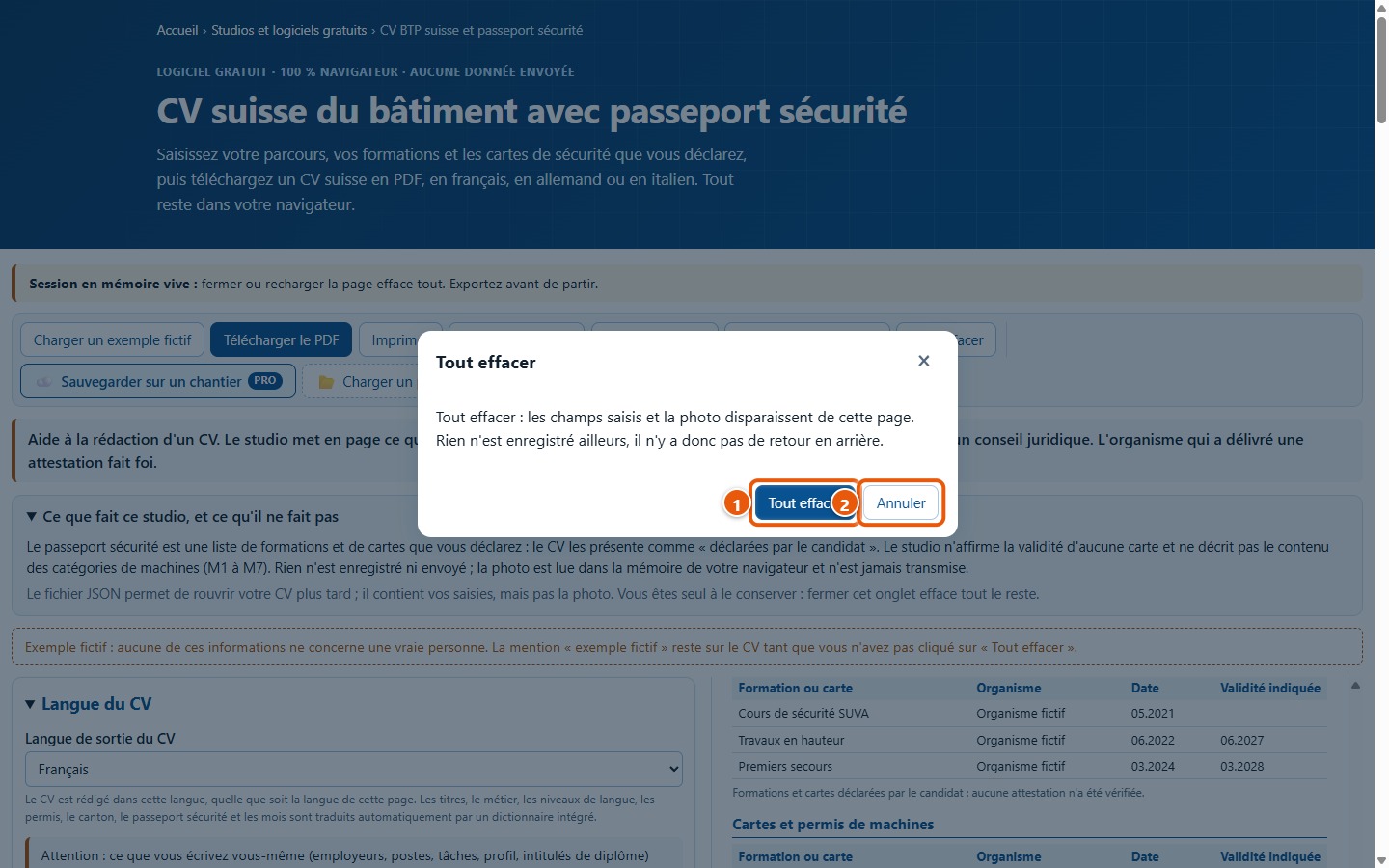
Click on Tout effacer, then confirm: the fields and photo disappear from the page. There is no undo option, as nothing is saved. The « Annuler » button or the Esc key closes the window without clearing anything.
28Working with the keyboard
With Tab, you move from one button or field to the next; an orange outline shows where you are. Enter activates the selected button. In the export window, Enter proceeds with the standard version and Esc closes the window.
8. What this software does not do
- It does not verify any training course, card, certificate or licence: everything on the CV is declared by you, and the CV states this. It provides no legal advice.
- It never confirms that a card is valid: it only indicates that an expiry date you entered has passed. It does not describe the contents of machinery categories M1 to M7.
- It does not translate what you enter yourself (employers, jobs, tasks, profile, diploma titles, nationality). The German and Italian dictionary was not checked by a native speaker.
- It does not save or send anything: no account, no backup. The JSON file, which you keep yourself, is the only way to reopen a CV; it does not include the photo.
- The photo is cropped to the centre, in portrait orientation, with no settings available. To add it, use the button: dragging and dropping a file is not supported.
- The PDF uses standard fonts: some characters (for instance in Turkish, Albanian or Croatian, or non-Latin scripts) are replaced, and a message notifies you.
- In this version, the PDF and the printout carry a note indicating the free version: there is no watermark-free export in this software.
- It does not publish or send your CV: the link to Jobs only opens a page in a new tab, with the trade, canton and wage class.
- It provides a single CV layout, with the photo on the right and work experience listed from most recent to oldest.
A question? Send a request to support